
Air Link lets a Quest 3S play PC VR games over your home Wi-Fi while the computer runs the game. Install Meta Horizon Link on a compatible Windows PC, connect the PC and headset to your home network, then pair through Link.
The Meta Horizon app on your phone isn't the Windows Link app. Check your PC and install the right desktop software first, so you don't spend time pairing with a computer that isn't ready.
Check the computer before installing Link
Check your processor, memory and exact graphics card against the current PC requirements. Running an ordinary desktop game doesn't mean your computer supports PC VR through Link.
The minimum includes an Intel i5-4590 or AMD Ryzen 5 1500X or better and at least 8 GB of memory. Check the separate graphics card table too, since some cards are excluded even when others in the same family work.
On Windows 11, open Settings > System > About for the processor and installed memory. Open Task Manager > Performance and select the GPU entry to read the graphics card's name. GPU means graphics processor.
Compare the full card name, including any laptop suffix or memory version. The current list excludes Intel Arc and the GeForce RTX 2050, for example. A higher model number doesn't automatically mean the card will work.
Check your game's requirements as well as Link's. A PC that meets Link's requirements can try the connection, but a demanding game may still need stronger hardware or lower graphics settings.
Install the Windows app and prepare the headset
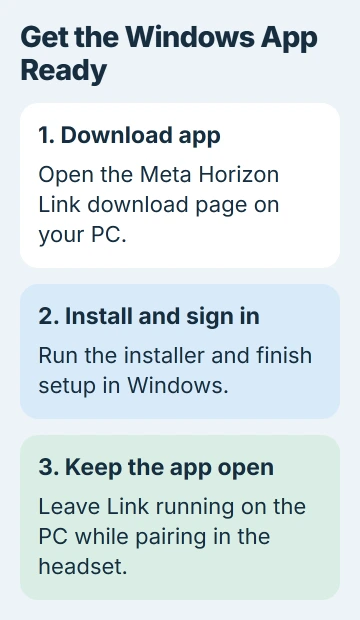
Open the Meta Horizon Link download page on your Windows computer and choose Download app. Run the installer, finish its instructions and sign in. Leave the desktop app open while pairing.
The download page lists 4 GB of space, but the installation troubleshooting page calls for 9 GB. Leave at least 9 GB free for setup, plus room for your PC VR games.
Update your headset's system software before looking for these controls. The current menus use Navigator and Quick controls. Earlier software may show a universal menu and Quick settings instead.
Update Windows through Settings > Windows Update, then restart when requested. Use the Windows driver update instructions if the graphics driver needs attention.
Set up your normal safe play space before launching a game. A wireless connection removes the PC cable, but it doesn't remove the furniture around you.
Put the PC and headset on one local network
Connect the PC to your router with Ethernet if possible, and connect the Quest 3S to that router's 5 GHz Wi-Fi. The computer doesn't also need a wireless connection when Ethernet reaches the same home network.
Meta's Air Link network guidance recommends a wired computer connection so that only the headset relies on Wi-Fi. Keep the headset near the router, preferably in the same room.
The game video travels from your computer to the headset over this local connection. Faster internet won't fix a weak Wi-Fi connection between your headset and router.
A guest network can separate devices from one another. If the computer doesn't appear during pairing, check that the headset joined your normal home network rather than a guest or isolated wireless network.
The Wi-Fi and internet explanation explains the difference. Get the headset to find your PC on the home network before trying another game store or paying for faster internet.
Pair from Link and confirm the matching code
With the Windows app open, put on the headset and press the Meta button on your controller. In the current interface, open Navigator > Quick controls > Link.
Turn on Use Air Link. Select your computer from the available list, then choose Pair. The headset shows a code and the computer app shows a confirmation request.
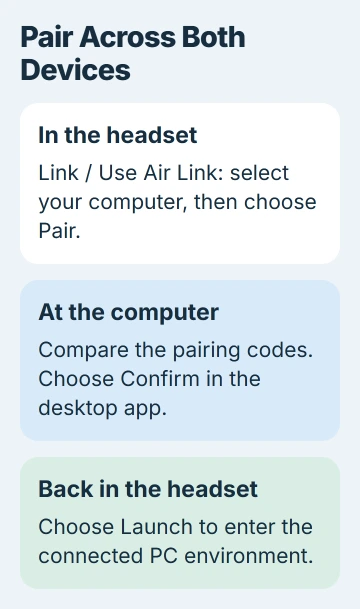
Compare both codes before confirming. Click Confirm in the computer app, put the headset back on and choose Launch. The current pairing instructions put those actions in that order.
If Link itself is off, open Navigator > Quick controls > Settings > Link and enable it. Current headset software enables Link and Air Link automatically, so an old tutorial's experimental-feature switch may be unnecessary.
Pairing can succeed even if Launch fails. If the code is accepted but the PC environment never opens, tell support that pairing worked and Launch is where it stops.
Check the connection before adjusting game graphics
If your computer is missing from the list, keep the desktop app open, check the local network and switch Air Link off and on in the headset's Link controls. Restart the headset and PC if the computer still doesn't appear.
When your computer appears, select it and use Troubleshoot if shown. Some versions put it under Quick settings > Link. Check the connection results there; the Wi-Fi icon alone doesn't tell you how well Air Link will run.
The tool checks the network band, channel width, Ethernet connection, latency and signal strength. Latency is the delay as data travels across the connection. Start with whichever result shows a problem.
For a compatible router, the recommended settings are 5 GHz and 80 MHz channel width. Only change router settings if you manage that network. Repeat the same connection test afterward to see whether it helped.
I'd get a smooth Link connection before raising a game's resolution. Try one network or graphics change per test, then check whether Link runs more smoothly.
Launch PC VR content and get specific help if it fails
Once Link opens, start a PC VR game through your installed desktop software. Check that you have its PC VR edition and the controls it needs. Connecting a headset doesn't turn every ordinary PC game into VR.
For a Steam-focused alternative, the Quest Steam Link guide covers that separate setup. Its pairing steps and requirements aren't replacements for the Air Link controls here.
If Link still fails, give support your PC specifications and headset software version. Say whether the PC was missing, pairing failed, Launch stalled or a game stuttered. Include any problem shown by the troubleshooting tool.
The Short Version
Check PC compatibility, install Meta Horizon Link, use one home network and pair through the headset's Link controls. Confirm the code on the PC before Launch. Test the local connection before raising game settings.
Checked November 5, 2026.

Isaac Smith is the founder and editor of PC Glance, a website that covers computers, laptops, and technology. He is a tech enthusiast and a computer geek who loves to share his insights and help his readers make smart choices when buying tech gadgets or laptops. He is always curious and updated about the latest tech trends.