
An MP C307 showing Wi-Fi not in range may be checking the wrong wireless connection. Start with the printing interface: the touchscreen's Wi-Fi is separate, and a connected panel doesn't mean Windows can print.
Decide whether you're trying to connect the touchscreen or print from a computer. Each uses different settings, and wireless printing may need the machine's optional wireless board.
1. Check which part of the machine needs Wi-Fi
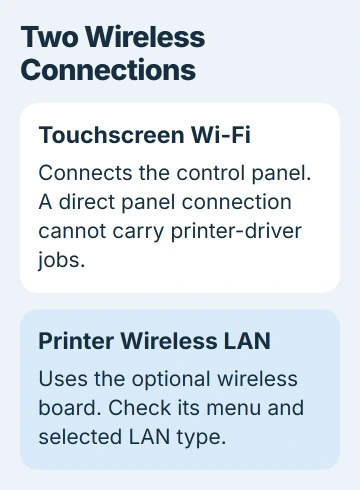
Check where the message appears. A saved network in the touchscreen's Wi-Fi list belongs to the panel. It doesn't mean the printer itself has joined your office network.
Ricoh's wireless-interface instructions say a computer connected directly to the panel over wireless LAN can't send print jobs through a printer driver.
To set up printing, open the machine's System Settings. If you can still print through Ethernet, that connection may be all you need, even with an unavailable network on the touchscreen.
If the panel lost a working connection, check that the access point is on and still uses the same network name. Ask your network manager whether it was renamed or replaced. The panel's saved name won't change along with it.
2. Confirm the wireless board and selected LAN type
From Home, open User Tools > Machine Features > System Settings > Interface Settings. Look for Wireless LAN. The wireless settings reference says this menu appears when the wireless interface board is installed.
If that menu is missing, ask your dealer to check which options are installed. The touchscreen's Wi-Fi control doesn't give the printer a wireless connection. Keep using Ethernet if the printer has no wireless board.
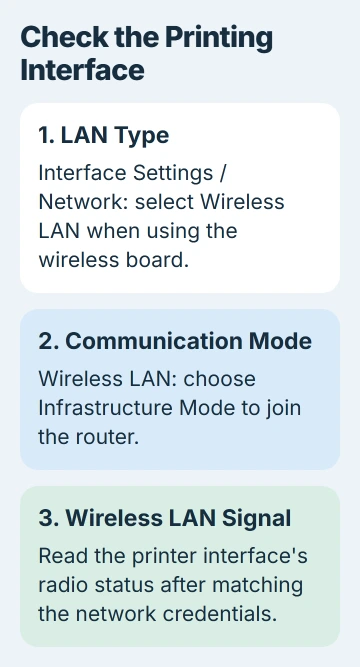
If the board is installed, open Network > LAN Type under Interface Settings and select Wireless LAN for wireless printing. The factory setting is Ethernet, so installing the board doesn't automatically switch the connection.
Changing LAN Type can interrupt office printing. Arrange the change with whoever manages your printer, especially if other computers are printing through Ethernet.
After selecting Wireless LAN, continue to its connection settings. If you only need the printer's working wired connection, keep it set for that connection.
3. Use infrastructure mode and the current network name
Open Interface Settings > Wireless LAN > Communication Mode. For a normal connection through your router or access point, select Infrastructure Mode. This makes the printer join that network instead of using a direct device connection.
Open SSID Setting and enter the network name exactly as supplied by the network manager. SSID is simply the Wi-Fi network's name. Check capitalization and spaces, particularly after an office changes routers.
The setup procedure covers infrastructure, ad-hoc and Wireless Direct modes. A direct mode won't necessarily connect the printer to your office router.
I'd check the mode and network name before moving a heavy copier. A saved name from the previous router can stay unavailable regardless of how close the new router sits.
If it still won't connect after you save the correct name, check how the network handles sign-in. A network can refuse a device even when its signal reaches the printer.
4. Match the security method to the network
Under Wireless LAN, check Security Method. For a compatible password-based WPA2 network, select WPA2, choose WPA2-PSK as the authentication method and enter that network's password.
PSK means a shared Wi-Fi password. The separate WPA2 authentication choice is for a managed network that may need certificates and extra sign-in settings. Ask IT which type your network uses before choosing it.
Use the Wi-Fi password, which lets devices join the network. The router's administration password is different: it lets you change router settings.
If the access point now requires a security mode the installed board doesn't support, ask IT for an approved compatible network or a wired connection. Don't remove wireless security to get the printer online.
After a password change, devices with the old details lose their connection, as the router password guide explains. Update the password saved on your printer before changing Windows.
5. Read the printer's own signal result
In infrastructure mode, open User Tools > Machine Features > System Settings > Interface Settings > Wireless LAN > Wireless LAN Signal. This shows the printer's wireless signal status.
Check it after correcting the network name and security. If reception is poor, have the network manager test a closer access point or a clearer location. A phone's strong signal doesn't measure the printer's own connection.
For a larger coverage gap, the extender placement guide explains why putting extra wireless equipment inside the dead spot can leave it with too little signal to relay.
If the signal improves but you still can't print, check the printer's network address next. Entering the password again won't help a Windows print queue that's using the wrong address.
6. Check the network address before the Windows queue
Open Interface Settings > Network > Machine IPv4 Address and check the printer's address. Auto-Obtain (DHCP) lets the network assign it. If your office uses a fixed address, get the correct values from its administrator.
Compare that address with the one saved for the printer on your computer. Moving from Ethernet to wireless can change the printer's address, leaving the Windows queue trying to reach its old one.
Use the Windows printer installation steps once the printer has a working network connection. On Windows 11, start at Settings > Bluetooth & devices > Printers & scanners.
If the interface remains unavailable, give Ricoh or your dealer the exact message, wireless-board details, LAN Type, connection mode and signal result.
If the printer is connected but won't print, include its current address and your computer's queue settings. With both, support can separate a wireless connection problem from a queue still using an old address.
The Short Version
Separate touchscreen Wi-Fi from network printing. Check the optional wireless board, select the right LAN type, match infrastructure mode and credentials, then read the printer's signal and network address before changing its Windows queue.
Checked November 5, 2026.

Isaac Smith is the founder and editor of PC Glance, a website that covers computers, laptops, and technology. He is a tech enthusiast and a computer geek who loves to share his insights and help his readers make smart choices when buying tech gadgets or laptops. He is always curious and updated about the latest tech trends.