
The paste shortcut is Ctrl+V on a Windows computer and Command+V on a Mac. Copy the text or item first, then click where you want it to go before using the shortcut.
Copying temporarily stores the selected content on the clipboard. Pasting puts it into a document, message or folder you can edit. If you prefer using a mouse, you can use Copy and Paste from a menu.
Select the words or item you want to copy
For text, hold the mouse button and drag across the words until they're highlighted. Release the button once the selection includes the text you want. Clicking somewhere else in the same document can remove that selection.
To select everything in the text field or document you're using, press Ctrl+A on Windows or Command+A on Mac. Check what's highlighted before copying, especially if the page has more text than you need.
For a file, click it once in File Explorer on Windows or Finder on Mac to select it. It can stay closed while you copy it into another folder.
For a picture, use Copy image or Copy if the app offers it. Copying the picture's web address gives you a link. Copying the picture itself lets you paste the image into an app that accepts it.
Copy, click the destination, then paste
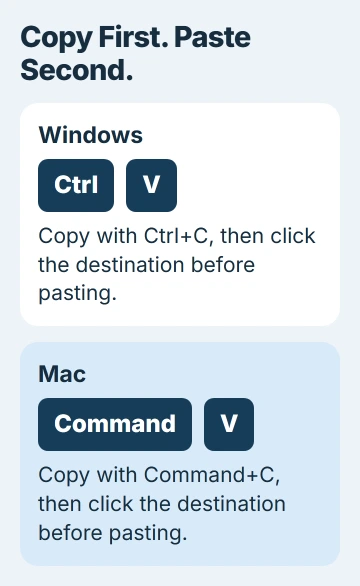
On Windows, press Ctrl+C while your selection is highlighted. Open the destination and click where the content belongs, then press Ctrl+V. Hold Ctrl, tap the letter once and release both keys.
For example, copy a selected line from a document, then click inside an unfinished email. Find the blinking text cursor and paste. The copied line should appear at that spot.
Microsoft lists both combinations in its keyboard shortcut reference. The plus sign describes keys pressed together; you don't type a plus sign.
On a Mac, use Command+C to copy and Command+V to paste. The Command key is usually beside the space bar. Control has other uses on a Mac; it isn't the usual key for the paste shortcut.
The Mac copy-and-paste instructions also cover the menu options. If you're using an unusual external keyboard and the shortcut fails, check which keys it uses for shortcuts.
Copying and pasting normally leaves the original in place. If pasted text replaces something you wanted to keep, check whether that text was highlighted. Pasting can replace a selection at the destination.
Use the mouse or Edit menu instead
Right-click your selected text and choose Copy. Right-click inside the editable destination and choose Paste. Some apps show a small clipboard symbol, so pause over it to read its label if you're unsure.
In Windows 11 File Explorer, the shortcut menu can use icons for Copy and Paste. Use the label shown for the icon rather than choosing a similar-looking Cut command.
On a Mac, Control-click opens the shortcut menu if your mouse or trackpad isn't set up for a secondary click. Select Copy or Paste there. Many apps also offer both commands through Edit in the menu bar.
A laptop trackpad may use its own right-click gesture. If the menu won't open, try the right-click checks. You can still use the keyboard shortcut to copy and paste.
Check where you're pasting. A document you can only view, an app toolbar and a folder's filename field aren't the same as a message box you can type into.
Keep the words while changing their formatting
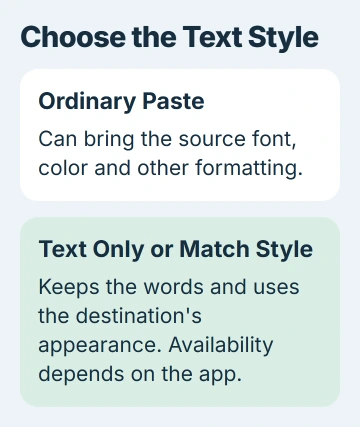
Pasted text can bring its font, color and other formatting with it. To make the words match their new surroundings, try Ctrl+Shift+V on Windows if the app supports pasting plain text.
The shortcut varies by app. If it doesn't work as expected, look for Paste options, Paste special or a text-only command in the program you're pasting into.
On Mac, use Edit > Paste and Match Style or Option+Shift+Command+V in apps that support it. The pasted text will match the style of the surrounding content.
Pasting a web address as plain text gives you the address itself. Copying the words displayed on a link may not copy its address. Use Copy link address on the original link when you need that address.
I'd practice with a short, harmless line before pasting a whole formatted document. That shows how the app handles your text without leaving you a large cleanup job.
Paste a copied file into another folder
For a Windows file, start by selecting its icon in File Explorer. Use Ctrl+C, browse to your destination and paste with Ctrl+V. Wait for copying to finish and check the new file.
On Mac, use Command+C and Command+V in Finder. The original stays in its folder. Check the new copy's file name and size if you need to tell it apart from an older one.
If a file with the same name is already there, read the replacement prompt before accepting. Replacing it can discard the older copy. Choose another name or folder if you need to keep both versions.
Cutting is different from copying. Ctrl+X can move a selected Windows file when followed by Paste. In a text editor, Cut removes the selected text for pasting elsewhere. Copy is the safer starting choice when you're learning.
Finder doesn't offer the same Cut command for files that many text editors do. Use Finder's copy or move controls for files; commands for editing text don't always work the same way on other items.
When Paste is dimmed or nothing appears
Copy the item again, then click somewhere that accepts it. A text field may accept words but refuse a file or picture. What you can paste, and when Paste is available, depends on the app.
Try pasting a short line into a simple document you can edit. If that works, check what the original app lets you edit and paste. You'll need editing access before Paste can change a read-only document.
For a Windows shortcut that has stopped working in several apps, use the copy-and-paste repair guide. This separates a keyboard fault from a clipboard or app failure.
If pasting fails in only one app, tell its support team what you copied, where you tried to paste it and whether Paste was available in the menu. Those details help them work out why it failed.
The Short Version
Select and copy what you need, click where it should go, then press Ctrl+V on Windows or Command+V on Mac. Use the shortcut menu if you prefer. Choose text-only or match-style paste to leave the original formatting behind.
Checked November 5, 2026.

Isaac Smith is the founder and editor of PC Glance, a website that covers computers, laptops, and technology. He is a tech enthusiast and a computer geek who loves to share his insights and help his readers make smart choices when buying tech gadgets or laptops. He is always curious and updated about the latest tech trends.