Canon TR8622 error code 2801 means an original is stuck in the scanning document feeder, rather than the blank-paper tray. If it appeared after tapping Stop during a scan, select OK to eject the remaining page first.
A page that is physically caught needs the feeder-cover procedure instead. Work on the original in the top feeder, and keep the large document cover over the scanner glass closed while that page is trapped.
In this guide
1. Check whether Stop left an original in the feeder
Read the printer's touchscreen before pulling any paper. Stopping a scan can leave a document in the feeder even when it isn't folded or wedged. The message may just mean the printer needs to finish ejecting that sheet.
Select OK when the screen reports a document remaining after the scan was stopped. Let the printer move it out. If the sheet comes free and the message clears, you can leave the printing-paper path alone.
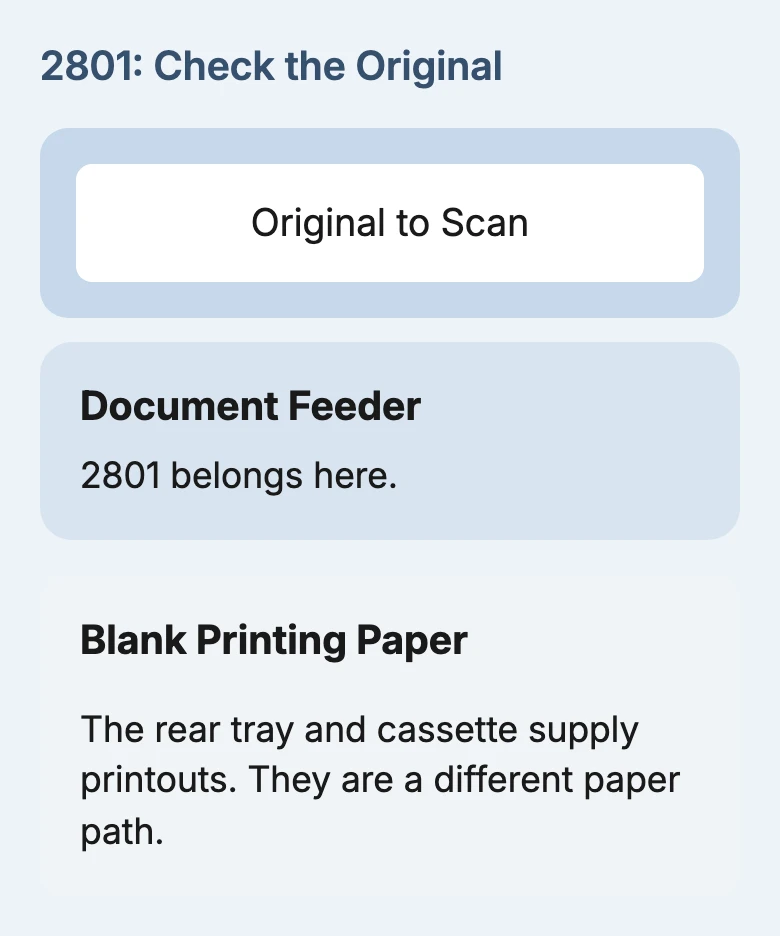
The ADF, short for automatic document feeder, handles the originals being scanned. The rear tray and cassette supply paper for printing the result. A copy job uses both, which makes it easy to start looking in the wrong place.
Canon's TR8600-series explanation of 2801 describes a stopped scan separately from a physical feeder jam. Use the next steps when the document remains caught, rather than repeatedly sending another copy job.
For a general computer warning without this specific number, printer error-state checks explain why the printer's own message directs the repair. For 2801, start with the scanning side.
2. Stop the job and prepare the correct cover
Tap Stop if printing is still underway, then turn the printer off using its power control. Remove the loose originals from the feeder, leaving the trapped page for the removal step. That keeps the rest of the stack out of your way.
Keep the power cord connected: unplugging can delete stored faxes. Before switching off, wait for faxes to finish sending or receiving and handle any stored fax data. These can keep the printer from shutting down.
Find the small document feeder cover to reach the feeder. Leave the large document cover over the scanner glass closed while the original is trapped. Opening that large cover can tear it.
I'd identify those two covers before pulling anything. A document trapped in the top feeder doesn't need a search around the ink cartridges, the rear printing-paper tray, or the computer's printer driver.
If the sheet isn't visible or you aren't sure which cover is the feeder cover, check the front-view diagram in the model manual. That helps you open the right panel without forcing it.
3. Remove the page from the side where it is caught
The entry side is where the unscanned originals sit in the document tray. The exit side is where the feeder delivers them after scanning. Look for the trapped sheet and choose the entry-side or exit-side procedure.
For a jam near the entry slot, slowly open the document feeder cover. Hold the original firmly and ease it out slowly. Keep your attention on the caught sheet rather than tugging on the loose stack you already removed.
For a jam near the output slot, slowly open the feeder cover and close the document tray. Then hold the caught original and slowly pull it out. The tray position changes between these two routes.
Once the document is out, close the feeder cover and turn the printer on. Let the printer complete startup before restarting the job. A cleared message means you can move on to loading the originals again.
If the paper tears, stays trapped, or needs force to move, stop the removal attempt and ask Canon service for help with the feeder. Reaching deeper without a clear removal route can damage the original or the mechanism.
4. Reload the originals for a clean scan
Check the stack before reloading. The TR8600 manual calls for feeder originals of matching size and thickness. Don't load a mixed pile of receipts, photos, and regular pages together.
Remove any original from the scanner glass. Open the document tray, slide the document guide outward, and load the pages with the side to scan facing up. Insert them until they stop; the manual describes a beep when the document is loaded.
Adjust the guide to the document width without pinching the stack. A guide set for a wider sheet leaves a narrow page poorly positioned. Check any creases left by the jam before putting that page through the feeder again.
Start the scanning job from its first page. That keeps the pages in order after the interruption. Check the resulting pages, especially where the earlier job stopped, before treating the new scan as complete.
This feeder won't automatically scan both sides of an original. Follow the model's supported two-sided scanning procedure. Duplex printing and two-sided document scanning are separate capabilities.
5. Reduce the stack or use the scanner glass
Paper type and the surrounding conditions can affect feeding. If a suitable stack keeps jamming, try about half the feeder's loading capacity. This checks feeding with fewer sheets; you don't need to change Windows or Mac settings.
For an original that still won't feed reliably, use the flat scanner glass, also called the platen. Clear the feeder jam before changing routes. Place the original on the glass according to the loading marks and complete the scan there.
The glass is also the appropriate route for items the feeder isn't designed to accept. The original stays still on the glass instead of moving through rollers. That can help you finish an urgent scan while arranging feeder service.
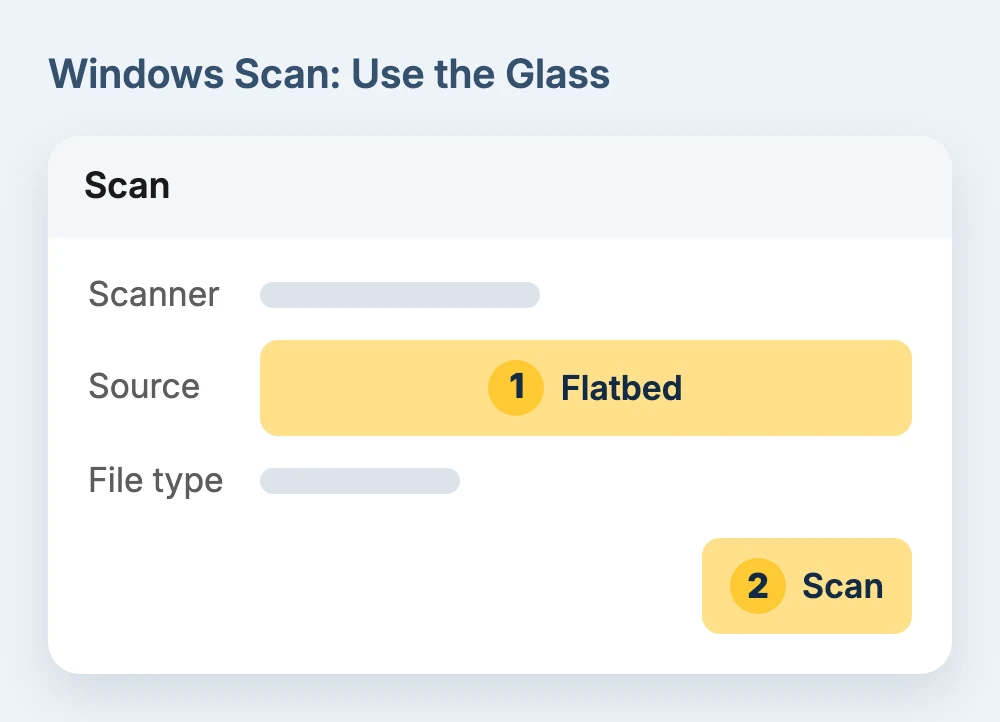
In Windows Scan, choose Flatbed under Source to use the glass rather than Feeder. The Windows scanning controls distinguish these input choices.
If the scanner works again but the computer still can't reach the printer, Canon printer communication checks cover that separate connection problem. Clearing a document jam won't reconnect a printer to Wi-Fi.
For 2801 with the feeder empty, request a feeder inspection from Canon service. Include the complete model name, including its suffix, the code, and whether the original was caught near the entry or exit in your repair request.
The Short Version
After stopping a scan, select OK to eject the original. For a real jam, turn off without unplugging and use the feeder cover. Reload suitable originals and rescan from page one; try the glass if feeding remains unreliable.
Checked November 27, 2026.
 If you have any business, I can build it online