An iPad missing from iTunes may show up in Apple Devices on Windows or Finder on macOS Catalina and newer instead. If it appears nowhere, unlock it, reconnect using a data-capable cable, and approve Trust.
An iPad can charge through a cable that has no data connection. An iPad that charges but never appears needs the cable and trust checks just as much as one that doesn't react when connected.
In this guide
1. Look in the app that manages your iPad
On Windows, open Apple Devices and connect the iPad. Its name should appear in the app's sidebar after the connection is accepted. If it appears there, the computer recognizes it; its absence from iTunes isn't a cable failure.
On Windows, installing either Apple Music or Apple TV changes which app handles device syncing. Use Apple Devices to sync the iPad in that setup. Opening iTunes repeatedly won't move the iPad back into the old interface.
On an older Windows setup that uses iTunes to manage the iPad, click the small device button near the window's top. This opens the iPad summary. Don't look for a playlist named after the iPad.
For a Mac with macOS 10.15 Catalina or newer, open Finder and look in the sidebar. If the sidebar is hidden, choose View > Show Sidebar. On macOS Mojave 10.14 or earlier, device management remains in iTunes.

Apple's own device recognition steps say to use Finder or Apple Devices. Check the right app before assuming an empty iTunes window means your iPad is broken.
2. Unlock the iPad and accept the connection
Wake the iPad and enter its passcode so it reaches the Home Screen. Keep it connected while checking for Trust This Computer? on the iPad. Tap Trust when this is the computer you intend to use, then enter the passcode if asked.
The computer may also ask for approval. In Finder or Apple Devices, select the device and choose Trust if prompted. In iTunes, the computer-side control can be Continue. Approval on one screen doesn't replace the iPad's own confirmation.
On a Mac, accept Allow accessory to connect? if that alert appears. It asks whether the accessory can connect to the Mac, while the iPad's Trust alert asks about access to the iPad's data. They are separate prompts.
Keep both screens in view during the first connection. A prompt waiting behind another window or on the locked iPad can make the computer seem unresponsive. Check the sidebar again once the approvals have finished.
If the trust alert appears repeatedly or never appears, the Trust This Computer checks explain that pairing issue. For the iPad, use the iPad settings names in the reset step later in this guide.
3. Change the cable before changing the software
Unplug the cable, then inspect the iPad connector for debris or damage. Reconnect firmly. Without a charging response, check that connection before repairing iTunes; the device may not be connected at all.
Try another cable that supports both charging and data. Match it to the iPad's Lightning or USB-C port and the computer's available port. A charging-only cable can power the iPad but can't transfer the data needed for it to appear.
I'd try a known data cable early, especially when the iPad charges normally. Checking the cable takes little time and can save you unnecessary account or software changes.
Try a different USB port, then a second computer with the appropriate management app. If it appears there, check the original PC's software and USB connection. If neither computer sees it, the iPad and cable still need checking.
A device that appears briefly and disappears when the connector moves needs its cable and port checked. Don't start a long backup or update through a connection that keeps dropping. Get a steady connection first.
4. Refresh the trust choice without erasing the iPad
If Don't Trust was selected, or the alert won't appear, open Settings > General > Transfer or Reset iPad > Reset > Reset Location & Privacy. Enter the passcode and confirm the reset when asked.
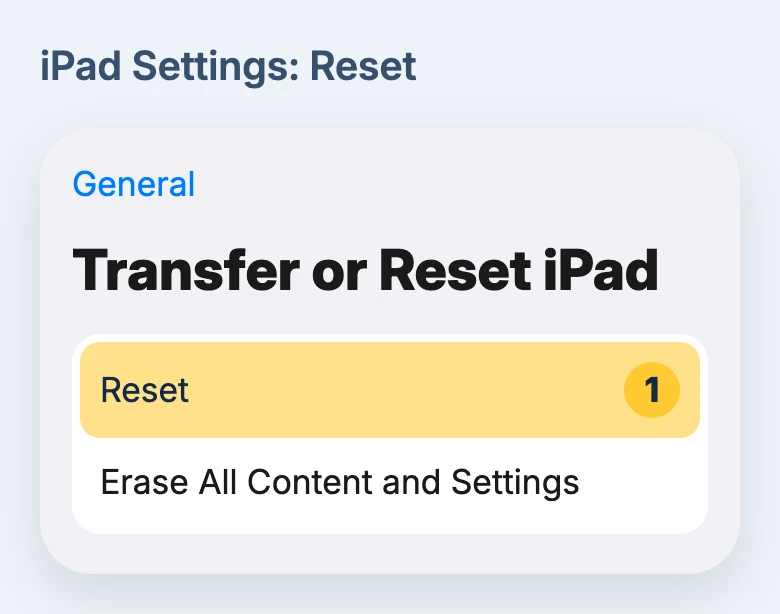
This resets location and privacy choices, including remembered computer trust. Choose Reset Location & Privacy, checking the full label before confirming. The separate Erase All Content and Settings choice wipes the iPad.
Reconnect the iPad, unlock it, and watch for the trust alert again. Tap Trust on the iPad and complete the computer-side approval. Apps may also ask for location or privacy permission again after this reset.
On an older system without Transfer or Reset iPad, look in Settings > General > Reset for Reset Location & Privacy. Keep to that named reset even when the layout differs.
Once the iPad appears, check that its management page stays connected. The nearby Reset Network Settings option changes saved network information; start with the privacy reset for USB trust instead.
5. Update the computer side and restart both devices
Update the app you're using to manage the iPad. Use Microsoft Store if that's where you installed it. Install Windows or macOS updates too. Restart the computer, then connect the unlocked iPad again.
Restart the iPad normally too, using its button layout:
- No Home button: press the top button and one volume button together. Keep them down until the power-off slider appears.
- Home button present: press the top button on its own and hold it until that slider appears.
Drag the slider. Give the iPad 30 seconds to shut off fully. Hold the top button, then let go once you see Apple's logo. Reconnect it and check the management app for the iPad's name.
For Microsoft Store iTunes, enable iTunes Mobile Device Helper in Windows startup items if the trust prompt still fails. This check applies to iTunes; leave unrelated startup programs alone.
Check a possible VPN or security-app conflict using its maker's instructions. Ask the administrator on a managed PC before changing its protection. Keep the managed security in place while the administrator checks the connection.
If the iPad is disabled and can't reach the Home Screen, disabled-iPad recovery is the appropriate route. Trust can't bypass a forgotten passcode. Restoring that locked iPad erases its local contents.
If a data cable and second computer both fail, contact Apple support for an iPad USB connection check. Report charging behavior, recognition on each computer, and whether Trust appears. That history helps the repair team.
The Short Version
Look in Apple Devices or Finder first. Unlock the iPad, approve Trust, and connect with a data cable. Use Reset Location & Privacy for a missing trust prompt, then update and restart before requesting service.
Checked November 27, 2026.
 If you have any business, I can build it online