LastPass can stop responding in Chrome while it's still installed. Toggle the extension off and on, then reload the login page. If the vault opens but just one site won't fill, check that site's permissions and saved login.
A missing toolbar icon, a rejected master password and an extension that won't respond each need a different fix. Match the next step to what actually happens when you select LastPass.
In this guide
1. Restart an extension that has stopped responding
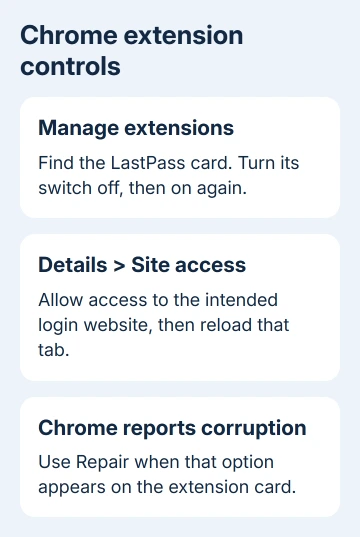
Open Chrome menu > Extensions > Manage extensions, or type chrome://extensions in the address bar. Find LastPass, turn its switch off, wait briefly and turn it on again.
Reload the login tab after enabling LastPass again. Select LastPass and check whether its menu opens. If it asks you to log in, use your normal account sign-in and complete any verification request.
One owner in the LastPass community thread restored a dead extension by toggling it this way. They reported needing to repeat it, so update and report the problem if it keeps coming back.
If toggling doesn't help, save your work and quit Chrome completely. On Windows, use Chrome menu > Exit. On a Mac, use Chrome > Quit Google Chrome. Reopen it and test the extension before changing other settings.
A hidden toolbar icon is simpler. Open Chrome's Extensions button and pin LastPass if it's listed there. If the extension isn't installed in this profile, follow the LastPass installation guide instead.
2. Separate extension failure from account sign-in
Select the extension and read the message it shows. A master-password or verification error means the extension has reached a sign-in step; toggling the extension won't fix that sign-in problem.
Check that the email address belongs to the intended LastPass account. Look in your email's junk or spam folder for a verification request, and complete any extra verification your account asks for.
Before logging out, clearing local data or reinstalling, make sure you know your master password and can complete verification. Keep another device nearby with LastPass still signed in if you need it to verify your account.
For a forgotten password, use Forgot password and the account recovery route offered by LastPass. The available recovery methods vary with your account and device. Don't erase the vault as a troubleshooting shortcut for a browser extension.
If the extension opens and shows your vault, move to site access and autofill. If it shows a loading error or refuses to open anywhere, continue through updates and the later reinstall step.
3. Allow LastPass on the affected website
In Manage extensions, open LastPass > Details. Review Site access. Chrome can limit an extension to selected sites or require an action before it can read the current page.
Google's extension permission controls explain how to allow access on specific sites or all sites. Give LastPass access to the intended login site, then reload that page and test again.
Keep this check in the same Chrome profile where LastPass is signed in. A different profile has its own extension installation and settings, which can explain why the same website works in one window and fails in another.
For an Incognito window, inspect Allow in incognito in the extension's Details page. Enable that option to use LastPass in private windows. Test in a regular window first, then check Incognito separately.
If Chrome reports that an administrator controls the setting, ask your organization's IT team whether LastPass is permitted on that website. Your IT team will need to decide whether to change that restriction.
4. Repair autofill when the vault still works
Open the saved login in LastPass and compare its website address with the page you're visiting. A service that moved its login form or changed its address can leave a saved entry pointing at an older location.
Confirm autofill is enabled in the extension's settings. On the website, try selecting the correct saved login manually. If selecting the login fills it in, LastPass can access the page, but automatic filling still needs attention.
For one failing site, verify the credentials on its genuine login page, then update or re-save the LastPass entry. Keep the old entry until the corrected one works so an unsuccessful attempt doesn't discard useful details.
If Chrome's own password prompt is the part that's missing, the Chrome password-saving guide covers that separate password manager. Its controls don't turn LastPass autofill on.
Test a second familiar login page without making a purchase or changing account settings. If LastPass works there, give support the failing site's address and describe whether manual filling works on it.
5. Update Chrome and check extension conflicts
Open Chrome menu > Help > About Google Chrome, complete its update check, then use Relaunch when offered. Then revisit Manage extensions and inspect LastPass for a repair or error message.
For a card marked as corrupted, choose Repair and follow Chrome's confirmation. Chrome handles corruption differently from an extension that's simply disabled, so use the action it offers.
Disable one script-blocking or privacy extension for the affected site, reload and test LastPass. Restore it afterward. If filling returns during that test, adjust the blocker's site rules instead of leaving all protections off.
I'd compare one blocker at a time. Turning off several extensions together leaves you with no clear setting to change when passwords start filling again.
For a login blocked by cookie restrictions, review the LastPass exception instead of allowing third-party cookies everywhere. Use the account steps linked from its troubleshooting page and limit the exception to the service involved.
6. Reinstall only after checking account access
If the extension still won't open across sites, remove it from Manage extensions. Quit and reopen Chrome, then follow the Chrome download link on the official LastPass download page and complete the store's installation prompts.
Sign in inside the reinstalled extension and complete verification. Reload a familiar login page and check both the extension menu and filling. Once installation finishes, try opening the menu and filling a saved login.
In the same community thread, staff announced a patch, but an owner still had trouble on a later version. Don't assume an older patch fixes today's problem; report your installed version if LastPass still won't work.
Contact the LastPass Support Center with your Chrome version, operating system, extension version and how the vault responds. Include the site's address if only one form fails. Never send your master password in that report.
The Short Version
Toggle the extension, reload and check sign-in. For one failing site, review Site access and its saved login. Update Chrome and compare blockers individually. Reinstall from LastPass's page once account access is ready.
Checked November 12, 2026.