
Adding LastPass to Chrome takes two separate steps: install its browser extension, then sign in to the LastPass account inside that extension. Pinning the icon makes it easier to reach, but does not sign you in.
Use Chrome on a computer for this process. The desktop Chrome extension is not installed inside Chrome on an iPhone or Android phone.
Install the extension through LastPass's download page
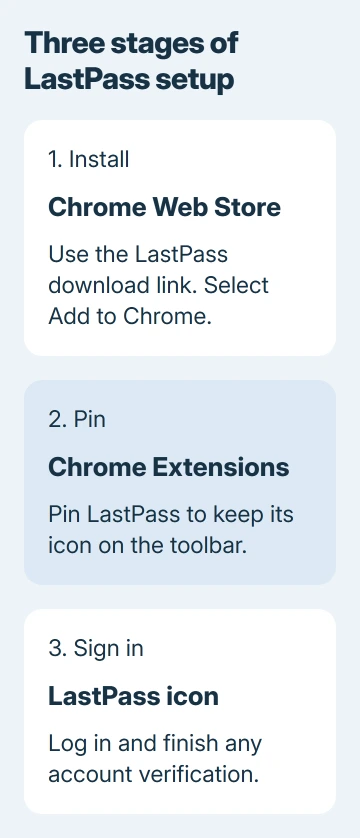
Open the LastPass downloads page in Chrome. Choose the download for Google Chrome, or use Quick Install when the page identifies the current browser correctly.
Follow its link to the Chrome Web Store. Check that the listing is LastPass, select Add to Chrome, review the requested permissions, then select Add extension to approve the installation.
Status: LastPass installation and login instructions, plus Google's extension controls, checked November 3, 2026. No password vault was opened or browser extension installed.
Google says the Chrome Web Store procedure requires a normal browser window. Extensions cannot be added from Incognito or Guest mode, so return to the regular Chrome profile first.
Starting from the vendor's download link is our recommendation for finding the intended listing. Do not choose a similarly named password extension from an advertisement or an unrelated download site.
Pin LastPass when the icon is missing from the toolbar
Select Chrome's Extensions button beside the address bar, then select Pin next to LastPass. The icon should remain on the toolbar after the Extensions menu closes.
Keeping the icon visible is a toolbar option documented by Google. LastPass may still be installed when its icon is hidden; inspect the extension list before downloading it again.
If LastPass is absent from that menu, open More > Extensions > Manage extensions and look for its card. Enable its switch if it is installed but off. An absent card means it is not installed in that Chrome profile.
Sign in and complete the account verification
Select the LastPass toolbar icon. Enter the account email address and master password, choose Log In, then complete any multifactor authentication requested by the account.
The LastPass installation guide identifies an active toolbar icon as the successful sign-in result. Open the extension and confirm it shows the expected account.
For company accounts using federated login, LastPass can omit the master-password field and open the company's sign-in page instead. Follow that route; the absent field does not mean installation failed.
If the sign-in fails, resolve the account or verification message through LastPass support. Reinstalling a functioning extension does not provide a forgotten master password or an unavailable verification method.
Chrome blocks installation or reports a problem
Administrators can restrict extension installation on managed computers, Google states. Ask whether LastPass is allowed before attempting to change browser policies.
For a corrupted extension, Google's installation troubleshooting gives a Repair option in Manage extensions. Follow the displayed repair prompt when Chrome specifically reports corruption.
A message about an unsupported extension has a different cause. Use the Chrome extension support checks for that wording, rather than assuming every disabled extension is corrupt.
When the extension works but Chrome itself is not saving a login, the Chrome password-saving settings concern Google's password manager. Identify which manager should handle the login before changing its settings.
If installation still fails, give LastPass support the Chrome version, installation message and whether the extension appears in Manage extensions. Do not include the master password or any verification code.
The Short Version
Use LastPass's Chrome download link, approve the Web Store extension, pin it and sign in. Check the extension list for a missing icon, and match repair or administrator help to Chrome's actual message.

Isaac Smith is the founder and editor of PC Glance, a website that covers computers, laptops, and technology. He is a tech enthusiast and a computer geek who loves to share his insights and help his readers make smart choices when buying tech gadgets or laptops. He is always curious and updated about the latest tech trends.