

File Explorer's left pane shows OneDrive twice on your PC, often one plain OneDrive and one carrying a company name or Personal. Clicking the plain one may just open a second window onto the same folder.
I would work out why the second entry appeared before you delete anything. Often a second Microsoft account got signed in somewhere, and that changes which fix is right.
Its biggest Microsoft Q&A question, from 2022, has 400+ readers clicking Same question. A Super User question from 2016 has 241,483 views.
Where the extra entry comes from
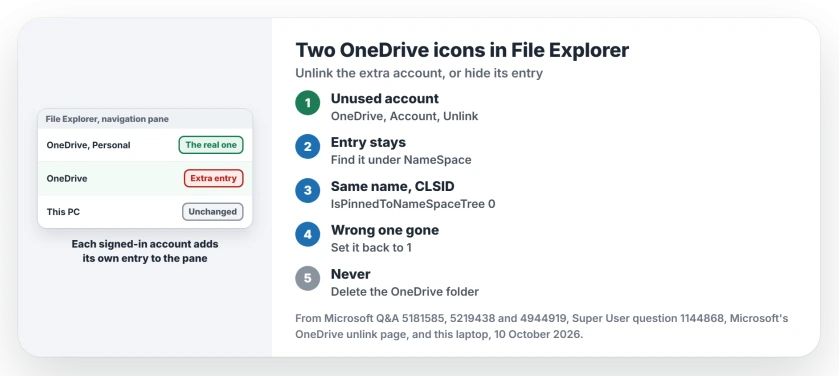
Each OneDrive account that signs in gets its own entry in your navigation pane, and one owner traced theirs to Outlook.
They signed in there with a personal account and chose "Use for Microsoft apps only". A day later, the second OneDrive appeared.
A Super User commenter saw "OneDrive and then OneDrive (my work)". When another owner's sync crashed, the new sign-in left a copy of the company entry, with (1) on the end, that opened nothing.
Ours: OneDrive 26.178 is installed on this laptop but signed out, and the NameSpace key that holds these entries is empty. Your entries arrive with a signed-in account.
Status: a Microsoft Community moderator's registry steps, Microsoft's unlink page and owners who tried both, checked 10 October 2026. Hiding the duplicate's entry is the fix most owners confirmed.
1. Unlink the account you do not use
Does the extra entry belong to an account you never meant to sync? Unlink it in OneDrive. Microsoft's OneDrive page gives the route: OneDrive settings, the Account tab, then Unlink this PC.
Microsoft says unlinking costs you no files or data, and everything stays on OneDrive.com. Unlink only the account behind the extra entry.
The OneDrive settings page shows where that Account tab sits. The Outlook owner fixed theirs the other way round: they added the personal account to OneDrive, then unlinked it, and the second entry left with it.
2. Hide the leftover entry in the registry
When the extra entry stays, a Microsoft Community moderator's steps hide it, and 800+ people marked them helpful. You flip one value, System.IsPinnedToNameSpaceTree, from 1 to 0, for the duplicate only.
Press Windows key and R, type regedit, and open the key shown next, then click each subkey and read its name on the right. Stop at the OneDrive entry you want gone.
HKEY_CURRENT_USER\SOFTWARE\Microsoft\Windows\CurrentVersion\Explorer\Desktop\NameSpaceNote that subkey's long name in braces. Then open HKEY_CLASSES_ROOT\CLSID and find the same name. Double-click System.IsPinnedToNameSpaceTree and set it to 0.
One owner answered the moderator with "Worked like a charm", and the value was confirmed by owners on Super User too. One had no NameSpace key at all, so they searched the registry data for OneDrive and changed the same value.
Another owner confirmed that route on Windows 10 20H2. They found the entry under HKEY_CURRENT_USER\SOFTWARE\Classes\CLSID. Close and reopen File Explorer, and your duplicate is gone.
I would pick the entry carefully, because the value hides whichever OneDrive you choose. Set it back to 1 if the wrong one vanishes.
3. Leave the OneDrive folder alone
One owner removed the extra folder from their user folder, but the navigation entry stayed and "gives errors when clicked". They put the folder back.
Reinstalling OneDrive did not clear it for the 2022 asker either, because the entry lives in the registry, where only steps 1 and 2 reach it for you.
Files stopped syncing around the same time? OneDrive not syncing starts with the file name, which explains most of those.
If files sync but their status icons and Status column vanish, a reset is the fix owners confirmed in 2026.
Hiding OneDrive from the pane altogether
Microsoft's same page covers that too. Unlink OneDrive first. Then in File Explorer, right-click OneDrive, open Properties and tick Hidden under Attributes, a step Microsoft says "hides OneDrive from File Explorer".
Your files stay safe online either way. Unlinking and hiding remove nothing from OneDrive.com.
The Short Version
- A second OneDrive entry often comes from a second signed-in account.
- Unlink the account you do not use from OneDrive's Account tab.
- If the entry stays, set System.IsPinnedToNameSpaceTree to 0 for the duplicate's CLSID.
- Deleting the OneDrive folder leaves a broken entry behind.
- To drop OneDrive from the pane entirely, unlink it and tick Hidden.
Where to Next
Down to one OneDrive again? Which account had added the extra one? Leave it in a comment and I will add that pattern here for the next reader.

Isaac Smith is the founder and editor of PC Glance, a website that covers computers, laptops, and technology. He is a tech enthusiast and a computer geek who loves to share his insights and help his readers make smart choices when buying tech gadgets or laptops. He is always curious and updated about the latest tech trends.