
Your files still sync, but File Explorer's Status column is empty, and the cloud and check mark icons are gone. Often the sharing options vanish from your right-click menu too.
I would reset OneDrive first, because it keeps your files and fixed this for owner after owner in 2026.
A Microsoft Q&A thread about it opened in May 2026 and is marked 70+ for the same question, and it started right after OneDrive updated itself to build 26.070.0414.0001.
Two places the icons come from
OneDrive shows its state in two ways. Microsoft's Raymond Chen explains that Windows 10 moved the sync status "from an icon overlay to a separate Status column". That column comes from OneDrive's own link into File Explorer.
The small badges on the file pictures still come from icon overlays. Those have a hard limit, so first check which one you lost.
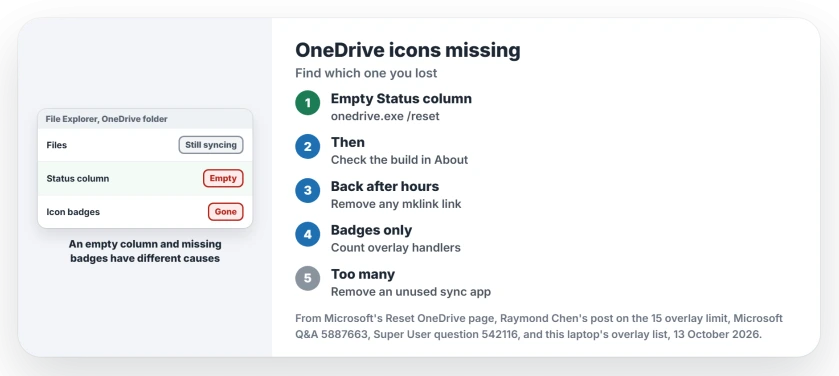
Status: OneDrive 26.178 on Windows 11 25H2, looked at 13 October 2026. Empty Status column: reset OneDrive. Badges gone only from icons: other apps hold the overlay slots.
Is the Status column empty, with Share and Always keep on this device missing? That is OneDrive's link to File Explorer. The next two steps are for you.
Column fine but no badges on desktop icons? Skip to the overlay section.
1. Reset OneDrive
Open the Run box with Windows+R. Paste this line and press OK:
%localappdata%\Microsoft\OneDrive\onedrive.exe /resetIf Windows says it cannot find it, use the other path from Microsoft's page instead:
C:\Program Files\Microsoft OneDrive\onedrive.exe /resetOneDrive closes. If its cloud icon has not come back after a short wait, type OneDrive in Start and open the app; Microsoft's last step does the same.
Microsoft says on its reset page that a reset clears your sync connections and then runs a full sync. Your files stay put.
A Q&A moderator from Microsoft's external support staff added "It does not delete files stored in OneDrive, and it normally does not remove files that are already synced to your PC".
If you sync only some folders, pick them again afterwards.
Confirmed by owners. Under the posted reset, the next reply read "This worked for me. Thanks J". Another wrote in July "It worked for me,thanks".
A third came back in June to say "I performed a OneDrive reset and I can see the sync icons". They were on build 26.095.0519.0003.
2. Check your OneDrive build
Open OneDrive's settings and the About tab. Your build number is there. Owners tied the fault to it: one wrote "Same problem.. started when OneDrive upgraded to 26.070.0414.0001", and others saw it on 26.074.
Microsoft's moderator told owners to "keep both OneDrive and Windows up to date". Ours: this laptop runs OneDrive 26.178.0913.0007, months newer than the builds in that thread. I would reset again after an update rather than reinstall.
When the reset only lasts hours
One owner rebuilt OneDrive from scratch. They unlinked the PC, uninstalled it, cleared its local data folders and its registry key, then reinstalled. It held on their two PCs for over a week.
Another owner tried the same. They wrote "Seemed to fix the issue for a couple hours, but it's back again now!"
That first owner then spotted a pattern. They had made a directory link with mklink, from a folder outside OneDrive into their OneDrive folder. Folders opened through such a link showed no Status column at all.
They removed it and called the result a possible coincidence, but if you made one, I would remove it before anything bigger.
For OneDrive faults that stop syncing itself, our page on OneDrive not syncing starts from the file names.
Badges missing only on file icons? Count the overlay slots
Windows has room for a fixed number of overlay badges. Raymond Chen writes "There is a limit of fifteen shell icon overlays".
An old Microsoft page quoted on Super User says "There are currently 15 slots allotted for icon overlays, 4 of which are reserved by the system".
File Explorer fills the rest in name order. Names starting with spaces sort first. One owner found Dropbox and OneDrive put spaces in front of their names, "which do not show up in RegEdit and will win in an ASCII sort".
Ours: this laptop has 20 overlay handlers registered. Adobe Creative Cloud's three start with three spaces and TortoiseSVN's nine with two, so those twelve come before OneDrive's seven, which have one.
By Microsoft's count of 11 free slots, OneDrive's badges miss out here. Your PC may be the same.
An owner's fix. On Super User, one counted "20 items" in the list. They removed a program and wrote "I uninstalled another program and now it works". I would uninstall a sync tool you no longer use rather than edit the list.
Renaming keys to push OneDrive up works for a while. Apps rename them back on update; one owner saw OneDrive renaming its entries "once per week or so". If you still want to look, back up this key first:
HKEY_LOCAL_MACHINE\SOFTWARE\Microsoft\Windows\CurrentVersion\Explorer\ShellIconOverlayIdentifiersAfter any change, log off Windows and sign in again. Another owner found "a logout/login was sufficient to restore the overlays".
Two OneDrive entries in the navigation pane are a separate oddity, covered in our page on two OneDrive icons.
The Short Version
- Empty Status column and missing Share: run onedrive.exe /reset; your files stay.
- Check the build under About; the fault began with 26.070 in May 2026.
- Back after hours: remove any mklink folder link into OneDrive, then consider a clean reinstall.
- Badges missing only on icons: more than 11 overlay handlers are fighting for the slots.
- Uninstall a sync tool you do not use, then log off and on again.
Where to Next
Did the reset bring your icons back, and on which OneDrive build? Comment so I can track whether 26.178 still shows it.

Isaac Smith is the founder and editor of PC Glance, a website that covers computers, laptops, and technology. He is a tech enthusiast and a computer geek who loves to share his insights and help his readers make smart choices when buying tech gadgets or laptops. He is always curious and updated about the latest tech trends.