SharePoint files appear in File Explorer through the OneDrive sync app. Open the site's document library and choose Sync, or use Add shortcut to OneDrive to put the shared content inside your work OneDrive folder.
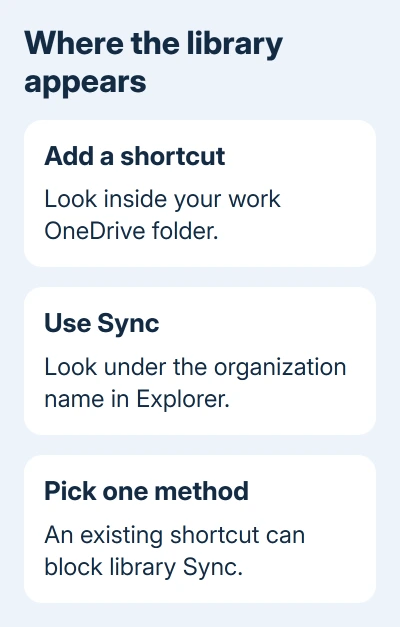
Shortcuts are the recommended option when available because they follow your OneDrive across devices. Choose one method for each library. An existing shortcut can prevent a separate Sync connection.
In this guide
Choose a shortcut or a library sync
A shortcut puts the shared folder inside your work OneDrive. Library Sync sets up that library on the current computer. Both use OneDrive to keep local changes and the shared library in step, rather than making a one-time download.
Where you'll find the files depends on which method you choose. A shortcut appears under OneDrive - organization name. A library connected through Sync appears under your organization's name in File Explorer's navigation pane.
Microsoft's SharePoint and Teams sync instructions explain both routes. These steps apply to SharePoint in Microsoft 365 on a Windows PC.
I'd use the shortcut for a shared folder you'll need on several computers. Choose library Sync when that's the setup your workplace uses. Neither method gives you access to a library that your account can't open online.
Before starting, launch OneDrive from Start. Sign into the work or school account with access to that SharePoint site. Your personal Microsoft account can't replace an organization's login.
Add the shared content to your work OneDrive
Open the SharePoint site in your browser and select Documents, or open the document library containing the files. Go to the folder you need. Check the site and folder name before adding it, especially when several teams use similar names.
Choose Add shortcut to OneDrive or Add shortcut to My files, depending on the displayed label. The shortcut points to the shared content. It doesn't make a separate private copy of the team's documents.
Open File Explorer with Windows key + E. Expand your work OneDrive entry and find the shortcut folder. Give OneDrive time to finish setting it up, then open a file you recognize to confirm you're in the right library.
If the shortcut exists online but isn't visible on the PC, check which account OneDrive is using. The cloud icon in the notification area opens its status panel; use Help & Settings > Settings and review Account.
A personal OneDrive and a work OneDrive can both be present. The two OneDrive entries in File Explorer need different treatment from a duplicated shared folder.
Connect the library with Sync instead
For a separate library connection, open the SharePoint library and select Sync on its command bar. Allow the browser to open Microsoft OneDrive when prompted. Complete the work-account sign-in if OneDrive asks for it.
That prompt lets the browser pass the library to OneDrive on your PC. Returning to the website without accepting that prompt won't finish the setup. Check behind the browser for a OneDrive window if the page seems to stop there.
Open File Explorer and look under the organization's name. The library folder should be listed there. Check its site and library name rather than looking only inside your personal OneDrive folder or the Downloads folder.
Repeat the Sync setup on another computer if you need this method there. The original computer's library connection doesn't set it up everywhere in the way a OneDrive shortcut does.
If Sync is missing, or a dialog asks which library to sync and the steps don't match, have your Microsoft 365 admin review site sync settings and permissions. Older SharePoint Server setups can differ.
Make the files you need available offline
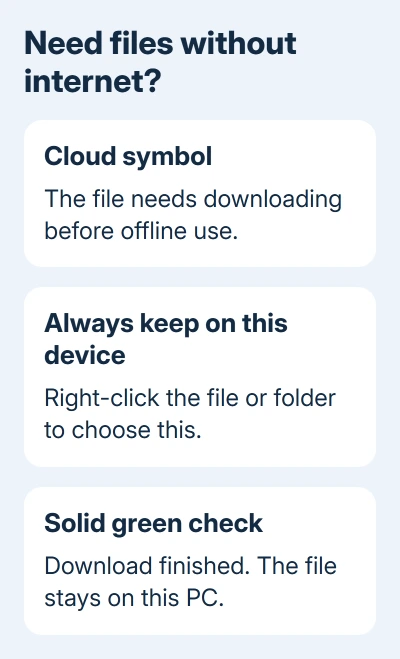
With Files On-Demand, File Explorer can list a file before you've downloaded it. A cloud symbol means the file needs an internet connection to open. This keeps a large library from filling your PC as soon as you connect it.
Right-click the file or folder and select Always keep on this device. Wait for its download to finish before disconnecting. A white check inside a filled green circle marks an always-available item.
Choose only the folders needed for the trip or task if disk space is limited. Selecting an entire shared library can download much more than expected. Opening a few important documents before leaving is a practical final check.
Offline edits upload when your PC reconnects and OneDrive resumes syncing. Check its status before shutting down or switching computers, so a colleague doesn't get an older version while your changes are still waiting on your PC.
For an individual file with an error, check the OneDrive filename and path restrictions. Those errors are different from a library that was never connected to the PC.
Resolve an existing shortcut conflict
An error saying the folder is already syncing as a shortcut means a OneDrive shortcut exists. Check whether that shortcut already gives you the files you need before setting up another connection.
To switch methods, open OneDrive on the web with the same work account and select My files. Find the shortcut by its small link symbol. Open its menu and choose Remove or Remove shortcut, as displayed.
Remove the shortcut itself, rather than deleting documents inside the shared folder. Then return to the SharePoint library and set up Sync. Microsoft's shortcut conflict guidance explains this restriction.
If removal fails, pause syncing from the OneDrive status panel and retry removing the shortcut. Resume syncing afterward. On a managed PC, ask IT to handle a connection that keeps returning or cannot be changed.
Stop syncing without removing the team's documents
For a library Sync connection, open the OneDrive cloud icon, then Help & Settings > Settings > Account. Locate the library and choose Stop sync. The files already on your PC stay there, but later changes won't sync.
For a shortcut, remove the shortcut through work OneDrive instead. Deleting files inside a connected shared folder can delete them from the shared library too. That distinction matters when you're only trying to tidy File Explorer.
When a padlock appears on synced files, ask the site owner about edit permissions, required checkout or required metadata. Those settings can let you sync files without editing them. Reinstalling OneDrive won't give you editing rights.
If setup fails, send IT the site/library URL, your work account and the exact OneDrive error. Tell them whether you can open the library in your browser. Ask them to check sync policies, permissions and any existing shortcut connection.
The Short Version
Use work OneDrive with a SharePoint shortcut or library Sync. Find it under work OneDrive or the organization name. Download important files for offline use, and remove the connection to leave shared documents intact.
Checked November 13, 2026.