An SD card can be connected but missing from File Explorer when its volume lacks a letter. Check Disk Management for a readable volume, the card's storage area. If the card isn't there either, compare the reader and connection first.
A RAW or Unallocated card needs different handling from readable storage without a letter. Protect its files before accepting any format or initialization prompt. Use that description to choose the right fix.
In this guide
1. Compare the card, adapter and USB connection
Remove the card, check that it fits the slot correctly, and reinsert it fully. If it's a microSD card inside a full-size adapter, check both connections. The adapter and USB reader are separate parts that can each fail.
Connect a USB reader directly to the computer while checking it, rather than through a hub. Try another port. If a laptop has a built-in slot, an external reader gives you a separate way to check the same card.
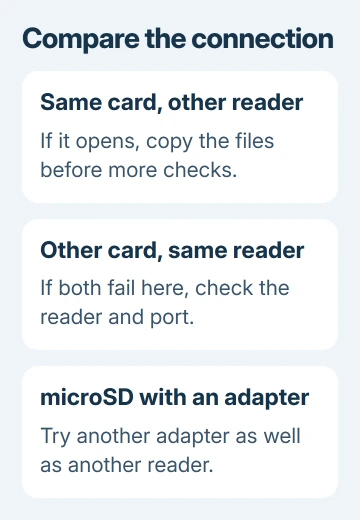
Use another known-working card in the suspect reader if one is available. Then try the missing card in a different reader or computer. Compare those results to tell a failing card from a bad connection.
While checking whether Windows detects the card, cancel any format prompt if it holds files you need. A request to format means Windows can't use the current file system normally; it doesn't mean the photos have been backed up.
If a second reader opens the card, copy its files to the computer before doing more troubleshooting. Test a few copied photos or documents. Get those copies safely saved before trying to fix the original reader.
2. Find the card in Disk Management
On Windows 11 or 10, open Disk Management through the Start button's right-click menu. Accept any request for administrator permission. Look through the disks and volumes, including the graphical list in the lower part of the window.
Identify the card by its capacity and by what appears when you reconnect it. A computer can have several disks, including recovery partitions on its internal drive. A familiar-looking size alone isn't enough to select a volume safely.
If the window hasn't updated, choose Action > Rescan Disks. Microsoft says to rescan and check the connection in its missing-disk troubleshooting steps.
Look at the card's volume, not just whether a USB reader exists. A recognized reader can still have no readable card inside it. An empty reader isn't a storage volume that you can repair by assigning a letter.
Check whether the card has a readable partition without a letter, a normal volume with a letter, or an unreadable or missing file system. If no card appears, continue with the reader checks in section 4.
3. Add a letter to a readable card volume
Use this fix for a healthy card partition that Windows recognizes as FAT32, exFAT or another supported file system, but that has no letter in parentheses. That letter gives File Explorer a way to display the card as a drive.
Right-click the card's volume. In its menu, select Change Drive Letter and Paths. Select Add, choose Assign the following drive letter, pick an unused letter, and select OK. Confirm a prompt if Windows shows one.

Open File Explorer > This PC and look for that letter. Open the card and check a file. If the card now appears and reads normally, the missing drive letter was the problem; the card wasn't empty.
If it already has a letter, don't keep assigning new ones as a general repair. Check whether it opens through This PC, and record any exact error. The File Explorer navigation guide covers finding the drive list.
An unavailable or gray Change Drive Letter and Paths control means the selected volume isn't ready for that action, or access is restricted. It isn't permission to format the card. Recheck the volume description before proceeding.
4. Check the reader when no card volume appears
Right-click Start again, this time selecting Device Manager. Check the card reader or USB storage entry for a warning. A driver problem affects how Windows connects to that device, rather than how File Explorer shows folders.
Look for a reader driver in Windows Update. For a built-in slot, find the reader package under your laptop's exact model on its manufacturer's support site. Use the external reader maker's software when its device needs a separate package.
Use another computer for the next comparison if the driver and connection checks haven't helped. If the card opens elsewhere, focus on this PC or reader. If several working readers can't detect it, ask the card maker to check the card.
If Disk Management reports No Media, Windows has detected a device without usable storage behind it. Try reseating the card and changing the adapter or reader. Creating a volume isn't a useful next step when no card capacity is available.
I'd change the inexpensive reader before trying repair commands on a card with important files. That comparison can tell you whether the connection is at fault without writing anything to the card you're trying to save.
5. Stop when the card is RAW or Unallocated
RAW means Windows isn't recognizing a usable file system on that volume. Unallocated means the space isn't presented as a normal partition. Neither label is the same problem as a missing drive letter.
For a previously used card with needed files, leave Format, New Simple Volume and Initialize Disk alone. Those changes can make files harder to recover. Ask a data-recovery service about reading the card before changing it.
If the card opens in its original camera or device, use that device's supported transfer method to copy the files. A card that works there still might not be supported by your PC's reader, or might use a file system Windows can't read.
Formatting becomes an option only when the files are safe or the card is new and empty. Follow the SD-card formatting procedure for that task; it isn't a way to recover files from an unreadable card.
Replace a card that keeps disappearing or returns to an unreadable state after formatting, once its files are safe. Tell its maker which readers failed and whether Windows showed capacity, RAW or No Media.
The Short Version
Compare the card and reader, then check Disk Management. Add a letter only to a readable volume without one. A missing card needs connection checks; RAW or Unallocated storage with important files needs recovery advice before any format.
Checked November 16, 2026.