

MSVCP110.dll missing means an app can't load a library from the Visual C++ 2012 runtime. Install or repair the official 2012 Update 4 package that matches whether the app is 32-bit or 64-bit, then reopen it.
The newest Visual C++ package won't replace this older library. Read the filename carefully: MSVCP100.dll belongs to the 2010 release instead. Those digits decide which installer you need.
In this guide
1. Match the installer to the exact missing file
Before closing the error, note the missing filename and which program showed it. A photo editor can start normally but show the message when it calls a plug-in. In that case, the plug-in also matters.
Microsoft documents MSVCP110.dll in its 2012 redistribution list. Start with that runtime for this error before trying a general Windows repair.
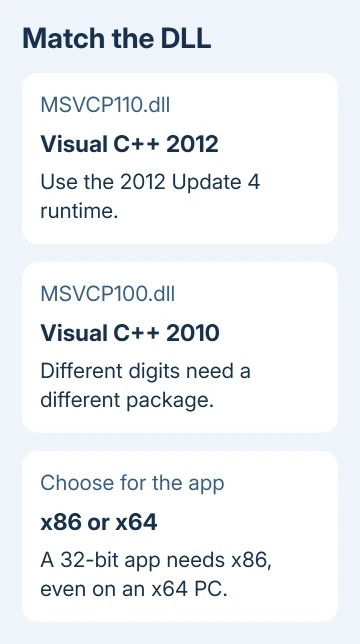
The related names aren't interchangeable:
- MSVCP110.dll or MSVCR110.dll: Visual C++ 2012.
- MSVCP100.dll or MSVCR100.dll: Visual C++ 2010.
- MSVCP120.dll or MSVCR120.dll: Visual C++ 2013.
Don't download a loose DLL from a DLL download site. The runtime installer supplies the related files together and registers its installation with Windows. Dropping one file beside an app can leave the rest of its dependencies missing.
If the message names a different file, use that filename to choose the package. Keep the installer version separate from your Windows version: Windows 11 can still run an older application that needs the 2012 libraries.
2. Choose x86 or x64 for the application
A 64-bit (x64) Windows installation can run both 64-bit and 32-bit applications. The runtime must match the application loading it, so a 32-bit plug-in can need the x86 package even on a 64-bit PC.
Check the app's About screen, its installer name, or the developer's system requirements for its architecture. A plug-in must also match its host application. Don't assume a recent computer means every installed app is 64-bit.
To check the computer itself, open Settings > System > About and read System type. That tells you which Windows architecture is installed, but individual programs can use a different architecture.
For an x64 PC running a mixture of older 32-bit and 64-bit software, installing both official x86 and x64 2012 packages is reasonable. They serve different applications and can coexist.
On a 32-bit Windows installation, use x86. For an Arm-based Windows PC, check the application's support information before choosing an older installer. There isn't an Arm64 version of the 2012 package listed alongside x86 and x64.
I'd start by reading the application's requirements. Choosing x64 just because the PC is x64 is an easy way to finish an installation and still get the same error.
3. Install the official 2012 Update 4 package
Open the Visual C++ Redistributable download list and find Visual Studio 2012 (VC++ 11.0) Update 4. Use that section's x86 or x64 link, rather than the current v14 package at the start of the page.
The dedicated 2012 Update 4 download page also offers the package. Its familiar installer names are vcredist_x86.exe and vcredist_x64.exe. Check the architecture, not just the shared vcredist name.
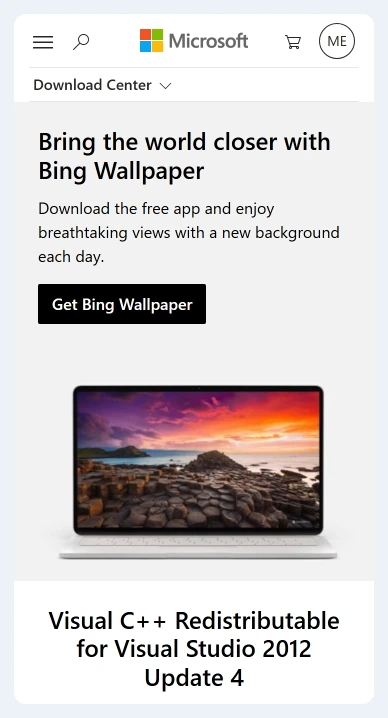
Close the affected program and any other app using the same plug-in. Run the downloaded installer, accept its license terms, and complete the installation.
Check that the permission prompt names the downloaded Microsoft installer before approving it.
If the installer offers Repair, use it to replace the installed runtime's files. If it offers Install, continue with the installation. Follow any restart request, then launch the affected program again.
Repeat the exact action that failed, such as sending a photo from the editor to its plug-in. Reaching the app's home screen isn't enough when the missing library is only loaded during that action.
If the original MSVCP110.dll message is gone, the runtime repair addressed that dependency. A different missing filename needs its own version check; it doesn't mean the first package was the wrong choice.
4. Repair the plug-in when only one workflow fails
If the same DLL message remains, compare the main app, the failing plug-in, and another program needing that runtime. Use that comparison to decide between repairing one product and repairing the package those programs share.
One owner fixed the missing-library error by installing the redistributable package. Another owner could temporarily open the software after reinstalling an older plug-in, but its automatic update brought the failure back.
Reinstalling that old plug-in won't keep it working if the same automatic update immediately replaces it. Get a supported installer or a corrected plug-in build from its developer instead.
Use Settings > Apps > Installed apps in Windows 11 to find the affected program. Open its menu and use Modify if the developer provides a repair option. In Windows 10, look under Settings > Apps > Apps & features.
Some desktop installers provide repair only when you run their original setup file again. Keep your license details and presets available before reinstalling a commercial app.
Keep your photo library and projects when repairing a missing runtime.
For a program that was already removed but remains listed, the stale application entry steps address that separate problem. A working app with this DLL error needs its runtime repaired instead.
5. Give the developer the failed filename and package details
If the official package installs successfully but the same workflow still fails, contact the app or plug-in developer's support team.
Send the exact DLL name, app and plug-in versions, Windows System type, and which 2012 packages you installed or repaired.
If the redistributable installer itself fails, save its complete error message. Tell support whether setup failed or completed but left the app showing the same error. Those results need different repairs.
The 2012 runtime is out of support. Installing the library can keep an old program running, but it doesn't restore support for that program. Ask its developer which maintained release replaces the old dependency.
Avoid removing every Visual C++ entry from Installed apps. Different programs need different generations, and removing a working package can break another application.
The Windows app removal guide explains the normal removal controls when support asks you to reinstall one specific product. Remove the named app, rather than its unrelated shared runtimes.
The Short Version
Match MSVCP110.dll to Visual C++ 2012 Update 4, choose the package for the app's architecture, and install or repair it. Test the failing plug-in action again.
If it still fails, give its developer the exact filename and installed package details.
Checked November 16, 2026.
 If you have any business, I can build it online






