
Remove McAfee from Windows through the installed-app list, then restart and check which antivirus is active. Deleting its desktop shortcut only hides the launcher; it does not uninstall the protection software.
Start by confirming that McAfee is actually installed. A website can send a browser warning carrying that name even when the security app is absent from the PC.
Uninstall the McAfee app through Windows
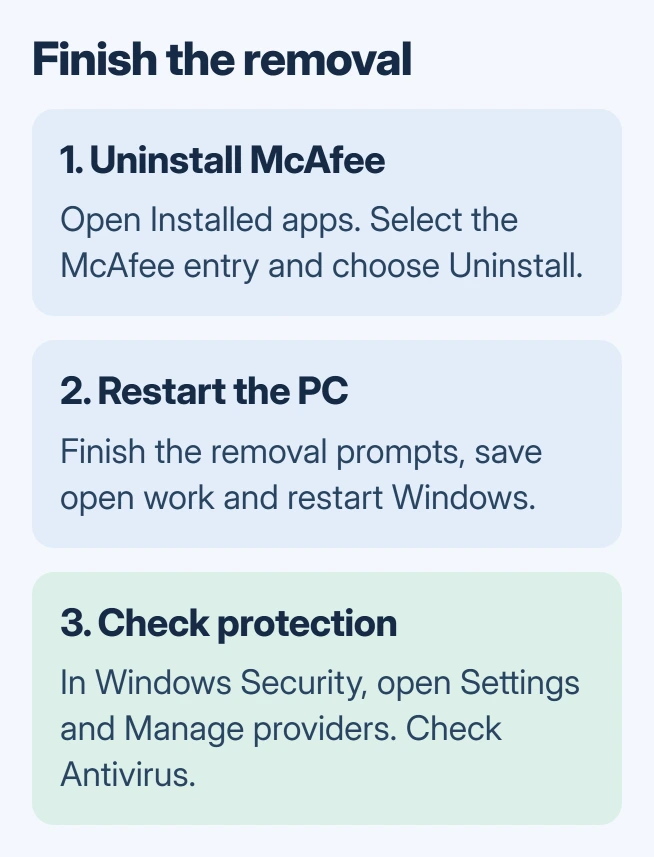
Save open work. On Windows 11, open Settings > Apps > Installed apps, search for McAfee, then open the three-dot menu beside the relevant app and select Uninstall.
Microsoft documents the Settings procedure in its Windows app-removal instructions. Follow the McAfee uninstaller's prompts through completion, then restart the PC.
Status: Windows removal and antivirus-provider checks reviewed November 2, 2026. No security software was removed or disabled on this computer.
On Windows 10, use Settings > Apps > Apps & features, select the McAfee entry and choose Uninstall. If the Settings route is unavailable, open Control Panel > Programs > Programs and Features and uninstall the listed product there.
Read each removal prompt before accepting it, especially if several McAfee components are offered. If WebAdvisor by McAfee remains separately listed and is also unwanted, remove that entry through the same Windows procedure.
For an organization-managed security product that requests an administrator or removal password, contact the organization's help desk. A consumer cleanup procedure is not a substitute for its management process.
Confirm that antivirus protection is active afterward
Open Windows Security > Settings > Manage providers. Expand Antivirus and check the provider and its state. Microsoft says this page identifies the security apps protecting the computer in its provider-settings reference.
Microsoft states that Defender should become active again when another antivirus is uninstalled. If a different antivirus remains installed, that product may be the active provider instead.
If protection is off, open Virus & threat protection and resolve its alert. For Defender, check Manage settings > Real-time protection. A missing McAfee icon does not confirm that replacement protection works.
The Microsoft Defender coverage guide explains its role after another product is removed. Once it is active, the Windows virus-scan steps cover checking the PC for threats.
Handle an uninstall error without deleting program folders
Record the exact error and McAfee product name. Restart once if the installer says another operation is pending, then retry the normal removal. Keep any installer log offered for support.
McAfee provides a Consumer Product Removal tool, usually called MCPR, for cleanup. Get current instructions through McAfee Support, using the tool's full name, before running it on a personal PC.
Use McAfee's download and follow its current prompts. If cleanup fails, preserve the result for McAfee Customer Service. Avoid deleting its folders, services or registry entries to force the app out.
An old uninstaller entry can also remain after removal. The installed-app list cleanup guide addresses that symptom. Check the active provider before deciding whether the antivirus itself remains.
If the McAfee warning is inside the browser
Check the warning's sender before removing more software. A website notification is separate from an installed antivirus app. Open the installed-app list yourself instead of following a popup's payment or download button.
For a Chrome notification from an unwanted site, open Settings > Privacy and security > Site settings > Notifications. Find that site's permission and block it using Google's notification controls.
If removal still fails or Windows cannot activate protection, send the error, product name and provider status to McAfee Support or the PC's administrator. Keep subscription and renewal questions separate from the local uninstall.
The Short Version
Uninstall the actual McAfee entry, restart, and verify the active antivirus in Windows Security. Use official McAfee cleanup support for a failed removal. A website notification with McAfee branding needs its browser permission checked too.

Isaac Smith is the founder and editor of PC Glance, a website that covers computers, laptops, and technology. He is a tech enthusiast and a computer geek who loves to share his insights and help his readers make smart choices when buying tech gadgets or laptops. He is always curious and updated about the latest tech trends.