Stray mouse input or an app grabbing the active window can close menus immediately. Disconnect the external mouse first, then check background apps. If Start alone fails, use the separate Start crash checks.
A Start menu that vanishes, a Word menu that won't stay open and a ribbon that hides after a selection can look similar. Test one menu in another app before deciding which part of Windows needs repair.
In this guide
1. Disconnect the mouse and test with the keyboard
Save your work. Unplug the external mouse or its wireless receiver, leaving the keyboard connected. On a laptop, use the touchpad instead. For a Bluetooth mouse, turn off the mouse itself so the keyboard can stay connected.
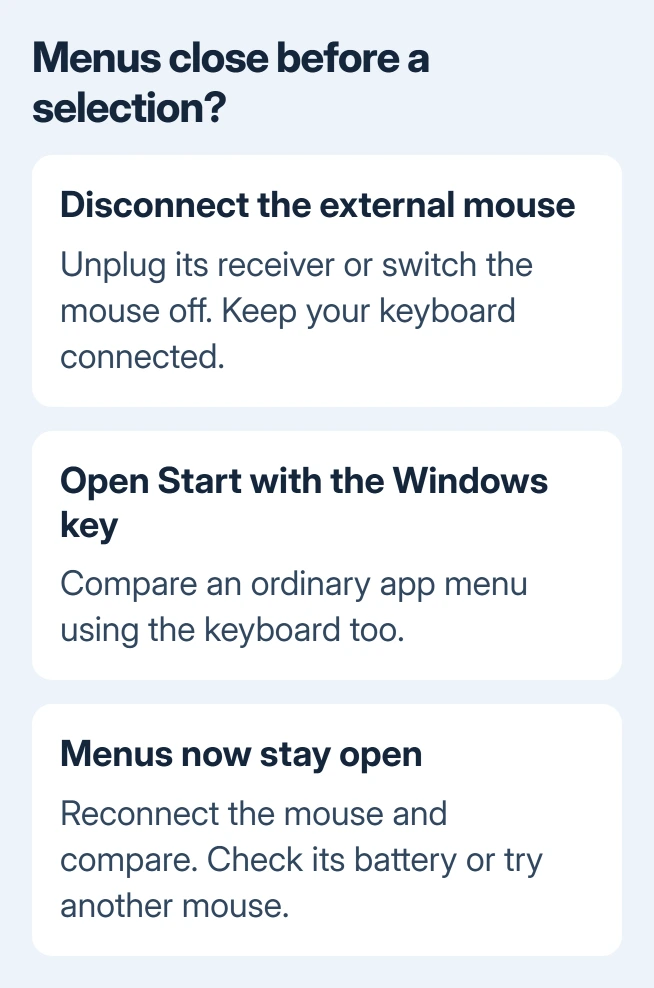
Press the Windows key once and see whether Start remains open. Next, open an app menu using its keyboard controls, such as Alt+F in an app that provides a File menu. Avoid touching the disconnected mouse during the check.
If the menus stay open, reconnect or turn on the mouse and repeat the same actions. A problem that returns with that device points toward its input or wireless connection, rather than a missing Start-menu package.
Owners restored their menus by disconnecting or reconnecting wireless mice. Another replaced its battery and reported that menus worked again. Try a fresh battery or recharge before replacing the device.
For a USB receiver, disconnect it briefly, reconnect it and retest. If the fault returns, try another mouse. A button that sends extra clicks needs the unwanted mouse input checks.
If menus still collapse with the external mouse off, continue to background apps. Leave that mouse disconnected during the next comparison so it doesn't confuse the result.
2. Quit apps that may be taking the active window
Check notification icons by the clock, including the hidden ones. Use each nonessential app's own Quit or Exit command, one app at a time. After each exit, open the same two menus and watch whether they stay visible.
A menu closes when another window takes over as the active window. Background software can cause that even without leaving a large window on the screen. Repeated window flickering alongside disappearing menus makes this comparison useful.
Start with software that was installed, updated or given another account just before the problem began. Quit the app rather than deleting its files. That lets you reopen it with its normal settings after the check.
One owner traced the problem to a second copy of Dropbox running under another Windows login. With that extra copy running, Office menus closed; stopping it restored them. A later owner with the same setup confirmed the fix.
That result applies to Dropbox running under two Windows accounts, so don't remove it just because it's installed. If you use two accounts, stop the extra copy and test. Note which copy belongs to your own account.
If you're unsure how Dropbox normally appears in Windows, the Dropbox File Explorer setup explains how it belongs in Windows. For a managed sync client, ask IT to correct the supported account arrangement.
When quitting one app helps, reopen it once. If the menus close again, its support team has a specific trigger to work with. If quitting apps doesn't change the behavior, try the broader startup comparison next.
3. Try a standard Windows theme
Press Windows + R, type ms-settings:themes and press Enter. This opens theme settings without needing Start to remain open. Record the current theme before trying its replacement.
Choose a built-in Windows theme and test the menus again. The theme page is under Settings > Personalization > Themes in Windows 10 and in Windows 11, with a different layout on each.
An older owner stopped flickering, closing menus and unwanted scrolling by replacing an unsaved theme. Another confirmed success with a default theme. It worked for them, but won't explain every menu failure on current Windows versions.
Keep a working standard theme while updating desktop customization software. If it makes no difference, return to your preferred theme and continue. Keep your personal backgrounds; deleting them won't help this comparison.
4. Compare a clean Windows startup
When quitting visible apps doesn't identify the cause, a clean boot can test services and startup programs together. Use its instructions for your Windows edition: 10 or 11.
Record enabled services and startup items before changing them. Press Windows + R, enter msconfig and open Services. Select Hide all Microsoft services first, then Disable all and Apply.
Open the Startup tab and choose Open Task Manager. Disable the enabled startup entries while keeping a record of each one. Close Task Manager, choose OK in System Configuration and restart.
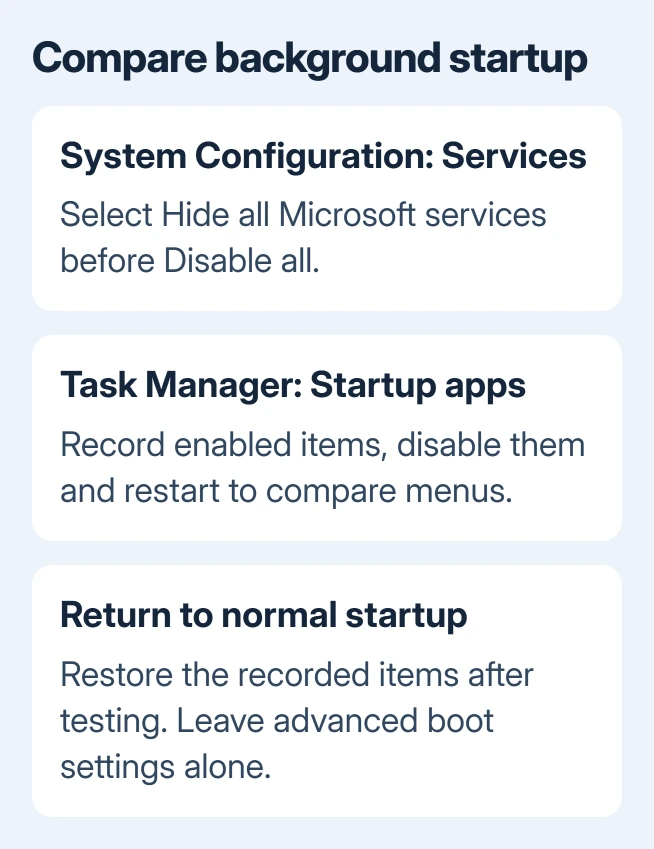
Test Start and an ordinary app menu after signing in. If both stay open, restore a group of disabled entries and restart. If the menus start closing again, test smaller sets from that group until you find the program responsible.
Avoid changes to advanced boot options or the Boot tab. Some normal functions can be unavailable during this startup comparison. Ask your administrator to perform it for a work-managed computer.
After testing, reenable the services and startup programs noted earlier, then restart. Once you've found the cause, leave unrelated apps enabled for normal use. Ask the affected program's support team about its repair or update.
When only Start closes, or nothing changes
If normal application menus stay open but Start alone disappears, use the StartMenuExperienceHost crash checks. Those cover crash events and package registration, which are different from menus being dismissed across apps.
If a Word ribbon hides after choosing a command, check its ribbon display setting. A collapsed ribbon is a display preference. It doesn't explain Start and unrelated drop-down menus closing before you can select anything.
For menus that still fail with another mouse and a clean startup, give Microsoft Support the comparison results alongside the Windows build. Press Windows + R, enter winver and copy the version details for the report.
Include whether windows flicker, which applications are affected and whether keyboard-opened menus close too. I'd send those details before attempting a Windows reinstall: they explain the failure far better than saying Start is broken.
The Short Version
Test the mouse connection first, followed by background apps and the Windows theme. Compare a clean startup if necessary and restore your normal startup afterward. Use Start crash checks when other application menus work.
Checked November 23, 2026.
 If you have any business, I can build it online