

A mouse that clicks by itself can have a stuck button or a macro set to repeat clicks. A laptop's touchpad can also send clicks. Disconnect the mouse first: if clicking continues, check the other connected devices and apps.
If folders open when you click once, that's a different problem. Windows can be set to open them that way. Use the section matching what happens on your screen before changing drivers.
In this guide
1. Disconnect the mouse that's clicking
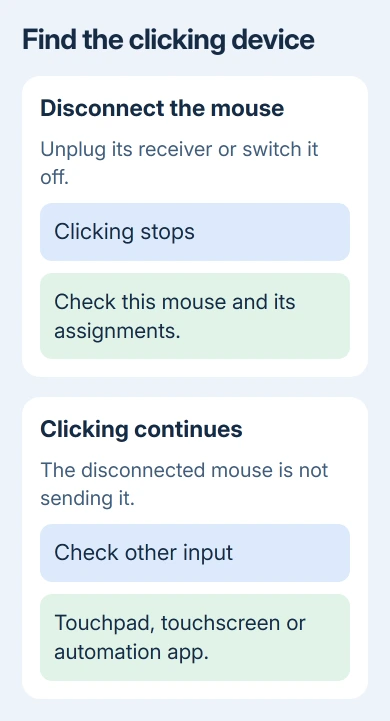
Unplug a wired mouse or its wireless receiver. For Bluetooth, switch the mouse off. Leave the pointer over an empty part of the desktop and watch whether menus or selections keep appearing without touching anything.
If the unwanted clicks stop, put the mouse or receiver in a computer USB port, bypassing any hub. Compare a second port. With a wireless model, check its power and reconnect its receiver before changing Windows settings.
Test a spare mouse if one is available. A spare that behaves normally on the same PC makes the original mouse or its saved settings the next thing to check. Keep the troublesome mouse disconnected for the touchpad check in section 2.
If clicking continues with it disconnected, go to the touchpad and app checks. Another receiver, drawing tablet or controller attached to a desktop can also send clicks. Remove each unused pointing device separately.
This is different from a single press producing two clicks. For that symptom, use the mouse double-clicking checks, which cover button bounce and double-click timing.
2. Turn off unwanted taps on a laptop
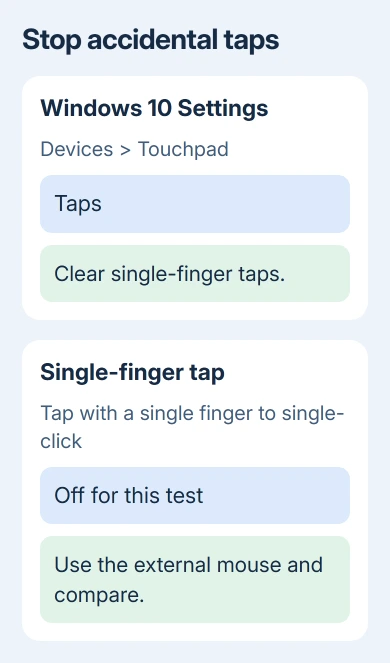
In Windows 10, open Start > Settings > Devices > Touchpad. Under Taps, clear Tap with a single finger to single-click on a Precision Touchpad. Use the external mouse for a while.
A tap can count as a click even when you never press the touchpad's physical button. If the clicks stop after disabling taps, keep that setting off or adjust touchpad sensitivity so typing doesn't trigger unwanted input.
If the laptop has its own Synaptics or ELAN controls instead, use its manufacturer touchpad panel. The Precision Touchpad labels won't appear on every model. Check your laptop's support page for the controls and driver it uses.
With an external mouse connected, you can also switch the touchpad off temporarily. That tests the whole touchpad, including its physical click mechanism. Turn it back on if the clicks continue, then move to the next source.
On a touchscreen laptop, unwanted screen touches can select items without a mouse too. Clean and dry the screen, disconnect an external touch display if fitted, and note whether the selections keep landing in one screen area.
If the touchpad itself stops responding after you change its controls, use the touchpad not working guide to restore it. Avoid removing several input devices from Device Manager at once.
3. Restore normal button assignments and stop macros
Reconnect the troublesome mouse, then open its configuration app. Supported Logitech models use G HUB or Logi Options+. Set its primary button to a normal click instead of a repeat, macro or double-click action.
Check the mouse profile for the app where the clicking happens. Some mice change assignments when a game or program opens. The desktop profile can look normal while the game profile has an action set to repeat.
Logitech's button troubleshooting recommends checking button assignments and comparing another computer. It also describes swapping left and right assignments to separate a physical button problem from a software action.
Make the swap in Windows 10 at Settings > Devices > Mouse > Select your primary button. Trouble on the same physical switch points toward hardware. An action that follows the reassigned button points toward software.
Close any auto-clicker or automation utility you've installed, including its notification-area icon. If it starts with Windows, disable its startup entry. Test normal desktop use again before removing unrelated programs.
4. Check single-click opening and ClickLock separately
If files open only when you deliberately click once, open File Explorer > View > Options. On the General tab, select Double-click to open an item (single-click to select), then Apply.
Now one click should select a folder without opening it. This changes Explorer's opening behavior; it doesn't stop an app or broken switch from generating clicks while your hands are off the mouse.
For dragging that stays latched after you release the button, press Windows + R, type main.cpl, and press Enter. On Buttons, clear Turn on ClickLock and apply the change.
ClickLock lets a short hold latch a drag without keeping the button pressed. It's useful when wanted, but can feel like a stuck mouse. Microsoft's mouse settings page describes that behavior.
Don't treat the double-click speed slider as a repair for clicks without a press. It changes how Windows groups two clicks. It doesn't remove the input that generated them.
5. Compare another computer before buying a mouse
Try the troublesome mouse on a different computer, without installing its configuration app first. Use normal clicking and dragging, then leave it untouched for the time it normally takes the unwanted clicks to return.
A fault that follows the physical button across computers points toward the mouse. Check for a button trapped by dirt and clean around it using the maker's instructions. Its button troubleshooting includes cleaning with compressed air.
If cleaning and a direct connection don't help, ask the mouse maker about warranty replacement. I'd compare the two computers before considering a Windows reinstall; it tells you much more about the mouse with far less disruption.
If the mouse works normally elsewhere, return to the original PC. Check the startup apps next; another mouse can receive the same software-generated input.
6. Check for a background app conflict
Press Ctrl + Shift + Esc to open Task Manager. In Windows 10, expand More details if necessary and open Startup. Note enabled entries, then disable nonessential mouse utilities and automation tools. Restart and compare.
If a restart without those apps stops the clicking, restore one entry, restart and test before restoring the next. If enabling an app brings the clicks back, reset that app's profile, update it or remove it.
Use the complete clean-boot procedure for a wider test. Sign in as an administrator. Press Windows + R, enter msconfig, then select OK.
On Services, first check Hide all Microsoft services. Choose Disable all, then Apply. From Startup, open Task Manager. Write down which startup entries are enabled. Disable those entries for the test.
Close Task Manager and select OK in System Configuration. Restart, then test for unwanted clicks before opening your usual apps. Some features are unavailable during a clean boot.
After the comparison, reopen msconfig. Select Normal Startup on General. On Services, uncheck Hide all Microsoft services and choose Enable all, then Apply.
Open Startup > Open Task Manager again and restore the entries you disabled for this test. Close Task Manager, select OK in System Configuration, then restart.
When the clicks still won't stop
Tell the maker which test stopped the clicks: disconnecting the mouse, switching off the touchpad or using a second PC. Ask them to check the device's hardware if the same device causes trouble on another computer.
For a workplace-managed PC, have IT check its automation and remote-control software before removal. Windows 10's ordinary free support ended October 14, 2025. Operating-system help now depends on your support arrangement.
The Short Version
Disconnect the mouse and check touchpad taps and repeat-button assignments. Treat single-click opening and ClickLock separately. Compare another computer, then check startup apps when only the original PC has unwanted clicks.
Checked November 13, 2026.
 If you have any business, I can build it online






