The PDF Preview Handler error comes from Explorer's preview software, even if Edge opens your PDFs. Enable preview handlers and sign out first. A warning that a file could harm the PC is a separate security block.
Changing your default PDF reader doesn't necessarily change the preview component. Keep one ordinary PDF for comparison as you work, and check whether its actual page appears after each repair.
In this guide
1. Enable the preview handler and refresh the session
Open File Explorer with Windows + E and select a PDF. Use Alt+P if the Preview pane isn't visible. Look for document contents at the side, rather than the Details pane's file information.
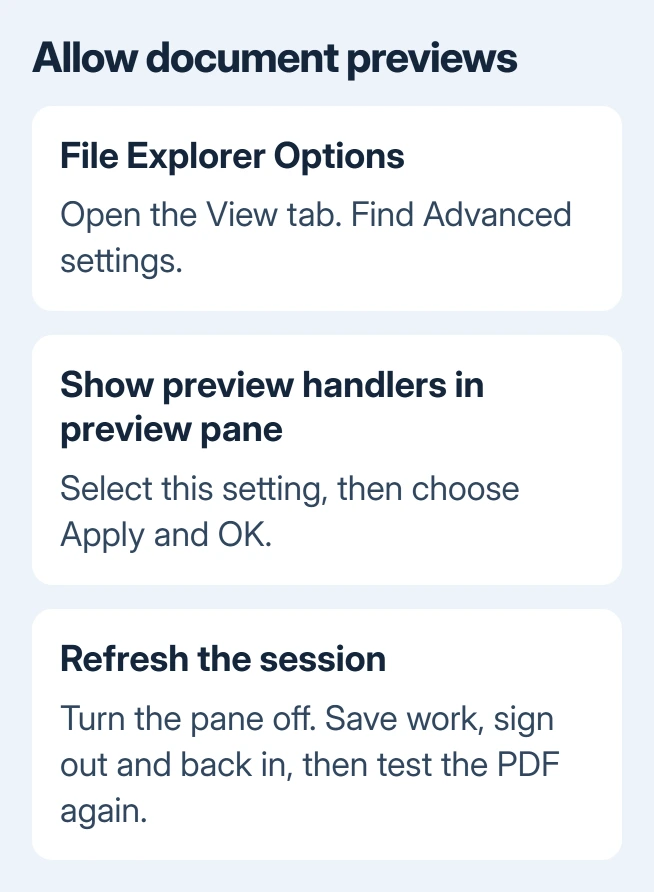
On Windows 11, open the three-dot menu and choose Options. On Windows 10, choose File > Change folder and search options. Open the View tab in Folder Options.
Under Advanced settings, select Show preview handlers in preview pane, then choose Apply and OK. Microsoft includes this setting in its preview-handler instructions.
Turn the Preview pane off with Alt+P. Save your work, press Ctrl+Alt+Delete and choose Sign out. Sign back in, open the folder again, turn the pane on and select your test PDF.
One owner got previews working for a user this way. Signing out alone didn't help the asker; here, it refreshes the Windows session after you enable the handler. If the document appears, try a second PDF before changing anything else.
If the same handler error returns on both files, check which PDF applications are installed. Repeatedly toggling the pane won't repair a broken preview component.
2. Separate a handler error from a security warning
Read the pane's message carefully. This file can't be previewed because of an error in the PDF Preview Handler identifies a preview component failure. A warning that the file could harm your computer is a separate Windows security block.
Security updates released from October 14, 2025 changed previews for internet downloads and some network files. A PDF created by your own app can behave differently from an internet download.
Try an ordinary local document you already trust. If it previews while a downloaded copy shows the security warning, the preview software can work. Follow the downloaded-file preview guidance.
For a downloaded file whose source and contents you trust, right-click it, open Properties and look for Unblock on the General tab. Select it if present, then Apply. Signing out and back in may be needed for the change to take effect.
Don't unblock unfamiliar attachments or remove Windows' internet-file protection across the PC. If the actual message names the PDF Preview Handler, continue to the PDF app check instead of treating every file as blocked.
3. Check the installed PDF software
Open Settings > Apps > Installed apps on current Windows 11. On Windows 10, use Settings > Apps > Apps & features. Look for Adobe Acrobat, Acrobat Reader, Reader MUI and other PDF programs.
The program launched by double-clicking a PDF and the program supplying its preview can be different. Edge being the default reader doesn't rule out an Adobe preview handler left by another installation.
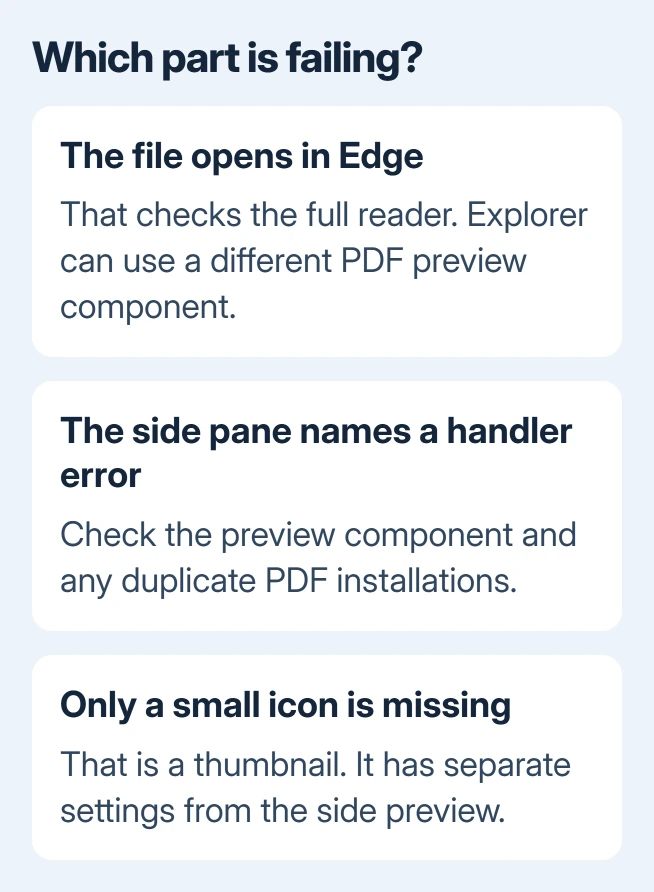
In the original case, Windows was set to use Adobe Reader's preview handler. That explains why an Edge update and an Adobe setting could appear in the same discussion. It doesn't mean every Edge installation uses Adobe for previews.
An owner later reported fixing a coworker's previews by removing Adobe Acrobat Reader MUI when both that and Acrobat were installed. If your list has the same combination, check which installation you need for your work or license.
Before removing a paid or managed app, keep its sign-in details and approved installer available. On a work PC, have IT remove the unwanted duplicate. Test the preview after the cleanup rather than installing another reader immediately.
If only one PDF app is installed, send its support team the precise handler message plus the app version. For previews that work but show an awkward page size, the PDF preview resizing checks address that different behavior.
4. Keep thumbnails and document previews separate
A small page picture in the file list is a thumbnail. The larger document shown at the side of Explorer is the Preview pane. Working thumbnails don't mean the side pane can display a document.
I'd check the pane itself after each change. A changed PDF icon doesn't confirm that the side preview works. Select the file and wait for its actual page to appear at the side.
In an existing PowerToys installation, open PowerToys Settings > File Explorer add-ons. Preview Pane and Thumbnail previews have separate controls. Check PDF in the preview section for the side pane.
PowerToys can provide PDF preview support, but adding it creates another handler to manage. For an existing installation, follow the PowerToys preview checks before adding or replacing PDF software.
For urgent reading, use your normal PDF application during preview repairs. Opening the full document lets you keep working without changing the file just to make Explorer preview it.
5. Handle the old Protected Mode workaround carefully
The accepted 2023 reply turned off Enable Protected Mode at startup in Adobe Reader's Security (Enhanced) preferences. The asker later confirmed it worked. That follow-up matters more than the accepted-answer label.
It didn't work for some later owners, including one who also tried reinstalling with Adobe's help. Turning off a protection setting isn't a dependable general repair for every version of Acrobat or Windows.
Leave Protected Mode on during normal use. If Adobe support requests a temporary comparison, ask how it changes the reader's protection, then reenable it after the comparison. Ask for a lasting repair that keeps that protection enabled.
Send support the Windows build, PDF application version, exact message, and results for both local and downloaded files. Include whether other file types preview. Request a check of PDF handler registration and duplicate Adobe components.
The Short Version
Enable preview handlers, sign out and test again. Separate the downloaded-file security warning from a PDF handler error, then check the installed PDF components. Keep PDF security protections on while support repairs a persistent failure.
Checked November 23, 2026.
 If you have any business, I can build it online