PowerToys File Explorer add-ons need both their file-type switch and Windows' preview settings turned on. Enable the matching previewer, then check Show preview handlers in preview pane in File Explorer Options.
Thumbnail pictures have their own switch and may need a restart. Decide whether you're missing the large side preview or the small picture on each file icon; their controls are separate.
In this guide
1. Turn on the previewer for the file you're selecting
Open PowerToys Settings > File Explorer add-ons. Find the Preview Pane section and enable the file type you need. For a Markdown document, use the Markdown previewer; for a PDF, enable PDF preview support.
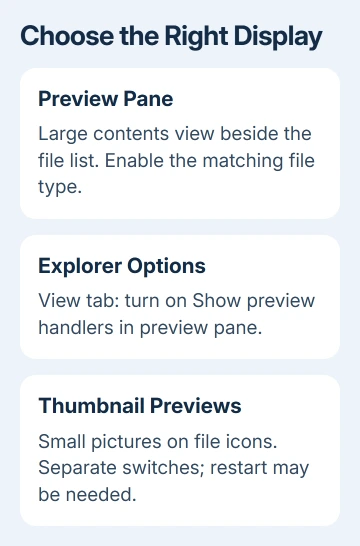
The supported preview types include SVG, Markdown, PDF, G-code, Binary G-code and QOI. The source-code previewer covers more than 150 file extensions. Enabling the PDF previewer doesn't add previews for every document format.
Select one local file of the enabled type in File Explorer. A working preview should show its contents beside the file list. If the side area is absent, continue to the Explorer settings rather than changing the file's default app.
Microsoft's File Explorer add-ons instructions list supported types and separate preview controls from thumbnails. Use that list when the file you need isn't covered by the switches you can see.
Enable only the types you need, since each previewer replaces any existing previewer for that file type. The PDF handler has had compatibility reports involving Outlook.
Keep that in mind if another app's preview changes after enabling it.
2. Open the pane and allow preview handlers
Press Windows+E to open File Explorer. On Windows 11, use View > Show > Preview pane. On Windows 10, use the View tab and select Preview pane. Alt+P also toggles the pane.
A Details pane showing properties isn't the same thing. You want the area that displays the selected file's contents. Select a single supported file so you can recognize its contents clearly.
Next, open File Explorer Options. In Windows 11, use the three-dot menu and Options. In Windows 10, use View > Options. Open the View tab and find Advanced settings.
Select Show preview handlers in preview pane, then click Apply and OK. This setting can block the PowerToys preview even when its own file-type switch is already on.
Choose the file again. If its contents now appear, the add-on was enabled but Explorer wasn't allowed to display its output. If the pane remains blank, compare a second file of the same type before changing more settings.
When another document previews correctly, check the failing file's content or format. If every file of that type fails, check its previewer and settings next.
3. Use Thumbnail previews for missing file pictures
Return to PowerToys Settings > File Explorer add-ons and find Thumbnail previews. Enable the matching type there if the small file pictures are missing. The Preview Pane section controls a different display.
Thumbnail support includes SVG, PDF, G-code, Binary G-code, STL and QOI. Markdown and source-code support in the large preview area doesn't mean those types have a matching thumbnail provider.
Restart Windows after enabling the thumbnail provider if the file pictures don't change. A reboot may be required for this setting to take effect. Save your work first, then use Start > Power > Restart.
Open the folder again and use an icon view large enough to see the thumbnail. Check the picture on the file itself, separately from whether a preview appears in the side pane.
For a wider missing-thumbnail problem involving photos and other files, the File Explorer thumbnail guide covers folder views and OneDrive. Those checks are more useful than enabling unrelated PowerToys handlers.
4. Compare a local copy with a cloud-managed folder
Cloud storage can supply thumbnails instead of letting Windows generate them locally. PowerToys thumbnail providers might therefore have no effect on paths managed by a service such as OneDrive.
Compare the same supported file in a normal local folder outside the cloud-managed location. Copy the file so you can leave the original in its usual folder. Check the thumbnail after any required restart.
If the local copy gets a picture while the cloud copy doesn't, the difference is the folder's thumbnail handling. Reinstalling the add-on repeatedly won't change which service supplies that cloud location's pictures.
This comparison checks thumbnails. A missing cloud thumbnail doesn't mean your file is damaged or explain every blank side preview. The two displays have different settings and support different file types.
5. Check content that can look like an empty preview
For source files, expand Source code files (Monaco) in PowerToys Settings. Check Maximum file size to preview against the file's size. If your file exceeds the limit, open it in another viewer or adjust the limit to suit your work.
Use Wrap text when long lines run off the visible area. Font size controls readability. Try to format the source for preview can improve JSON and XML display without changing the original file.
Markdown images have their own restriction. Show local images is off by default. When enabled, it allows images from the document's folder tree; remote online images remain blocked.
Missing linked pictures don't necessarily mean text preview has failed.
For an SVG containing white shapes on transparency, a white preview can look empty. Inspect the SVG previewer's Checkered shade option in versions that provide it. Check the artwork too before assuming the previewer hasn't loaded it.
I'd compare a small, simple file before altering several controls. If that preview works, you know the pane and the previewer for that file type can work together.
6. Report a remaining failure with a small example
If the pane still fails, report it through the PowerToys GitHub issue tracker. Include the PowerToys version, Windows version, file extension and whether the problem affects the pane, thumbnails or both.
Explain what happened after checking the handler setting, restarting and comparing a local file. Share a harmless sample file if the failure depends on its contents. For a frozen folder window, use the File Explorer response checks first.
The Short Version
For side previews, enable both the PowerToys handler and Explorer's handler permission. For file pictures, use the thumbnail switches and restart if needed. Compare a local copy when only cloud files lack thumbnails.
Checked November 13, 2026.