

Your PC is plainly on. The fan spins, the keyboard lights are lit, and the screen shows nothing at all. It is an unnerving fault. Every other computer problem at least lets you read an error message.
So I am going to walk you through this in the order that narrows it down, rather than hand you a list you cannot see.
One thing first, because it changes everything that follows.
Which black screen have you got?
There are two, and they are different faults.
Before the sign-in screen, where you never see the login box at all. That is usually the display connection, the graphics card or the boot process.
After you sign in, where the login box appears, you type your password, and you land on black. Sometimes with a mouse cursor, sometimes without. That is almost always the desktop failing to draw. The machine underneath is running perfectly.
Documented by Microsoft, which splits its own blank screen guidance the same way, treating a blank screen at login as a separate category from a blank screen with a cursor or one that follows an update.
Work out which one is yours. Then follow from here.
Step one, wake the graphics driver
Do this whichever kind you have, because it costs three seconds and it works surprisingly often.
Documented by Microsoft: "Press Windows + Ctrl + Shift + B to reset the graphics driver. You should hear a beep or see a screen flicker if successful."
That beep matters more than the fix does. It tells you Windows is alive and listening behind a dark screen. A dead machine is already ruled out.
If the picture comes back, your graphics driver had stalled. Note whether it started after an update, because that is what you chase next.
If updates have been failing on this machine generally, a stuck Windows update deals with that separately.
Step two, cycle the display outputs
Still dark? The picture may be going somewhere you cannot see.
Documented by Microsoft: "Press Windows + P, then tap P again and press Enter to cycle through display modes (for example, PC screen only, duplicate, extend)."
Do it a few times. Each press moves to the next mode.
This catches something very common. A monitor you unplugged yesterday, a TV you used once, or a dock you have since removed can leave Windows still sending the picture somewhere you cannot look at.
On a laptop, this is also why closing the lid and reopening it sometimes brings it back.
Step three, restart the desktop itself
If you signed in and got black, this is the step that usually does it.
Press Ctrl + Alt + Delete. If the blue security screen appears, the machine is fine. Only the desktop is missing.
Choose Task Manager, then Run new task. Type explorer.exe and press Enter.
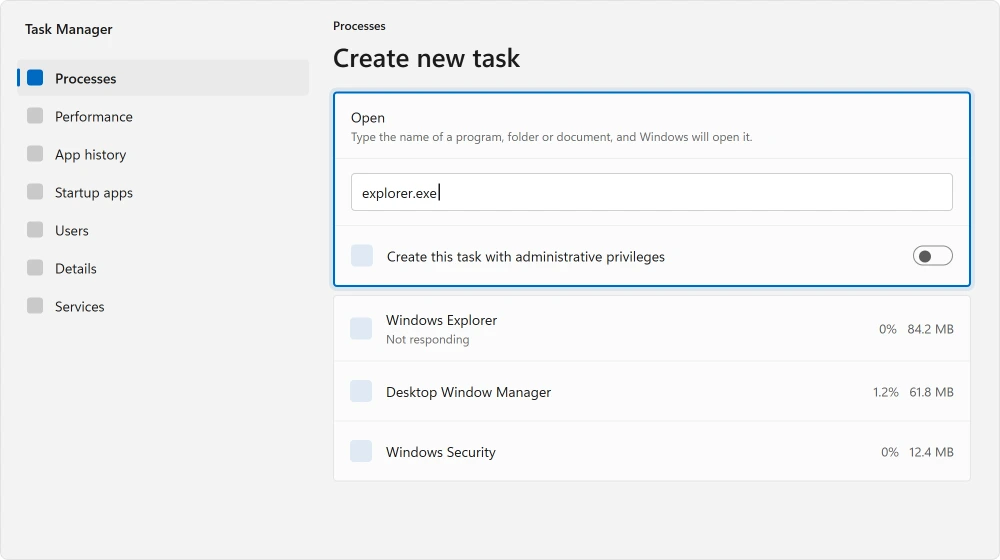
Reported working by owners on the Windows 11 board, with one refinement. If explorer.exe already appears in the running list and the screen is still black, right-click it, choose End task, then start it again with Run new task.
Restarting it beats launching a second copy.
If the security screen never appears at all, skip to the recovery section.
Step four, the cause almost nobody mentions
If yours started right after a Windows update, and you have ever installed something that changes the Start menu or taskbar, read this before anything else.
Reported working by an owner on the Windows 11 forum, 15 March 2024, after the KB5035853 update: "Turns out that an add-on called 'Explorer Patcher' was causing this problem."
Explorer Patcher is a popular tool for restoring the old Windows 10 taskbar and Start menu. It hooks into Windows Explorer, which is the program that draws your desktop. Then a cumulative update changes Explorer.
The hook no longer fits, Explorer dies at sign-in, and you get a black screen with a cursor.
Anything in that family does it. Start menu replacements, taskbar tweakers and shell customisers all attach to the same place.
If the machine also felt heavy before this started, a machine that has got slower is a separate check to run afterwards.
To remove it, you need a desktop first, which the next step gives you.
Step five, the second account trick
This one is odd and it works.
Reported working by the same owner: signing into a different account on the machine, then switching back to the original one, restored the desktop.
They also saw a message saying Windows Explorer had crashed, which is what confirmed the cause.
If your PC has another user account, use it. From the black screen press Ctrl + Alt + Delete, choose Sign out, and pick the other account at the login screen.
Once you have any working desktop, open Settings, Apps, Installed apps, and remove Explorer Patcher or whatever shell tool you have.
Step six, when you cannot get in at all
No login screen, no security screen, nothing.
Documented by Microsoft: "Press and hold the power button for 20 seconds." Do that, start the machine, and repeat it two or three times. Windows sees the failed starts and offers you the recovery environment.
From there choose Troubleshoot, then Advanced options, then Startup Settings, then Restart, and pick safe mode.
Safe mode loads a minimal driver set, so if the desktop appears there, your problem is a driver or a startup program rather than Windows itself.
From safe mode you can take the last update off at Settings, Windows Update, Update history, Uninstall updates.
If it will not come off there, force the recovery menu again and use Advanced options, Uninstall Updates.
If recovery instead says Automatic Repair could not fix the PC, the SrtTrail.txt log names the cause before you try anything else.
Reported working by two owners on the same board, in narrower cases. One recovered a machine by resetting the BIOS to its strict defaults.
Another traced a black screen to mapped network drives that were no longer reachable, and it cleared once the mapping was removed.
Step seven, checking that Windows still knows what its desktop is
This is the last software check. It is seldom the culprit, and it is completely conclusive when it is.
Documented by Microsoft: in safe mode, press Windows + R, type regedit, and go to:
HKEY_LOCAL_MACHINE\SOFTWARE\Microsoft\Windows NT\CurrentVersion\WinlogonLook at the Shell value. It must read explorer.exe. If it says anything else, that is why no desktop appears, and correcting it fixes the machine outright.
Microsoft attaches its standard warning, and I will repeat it. Back the registry up first. A mistake in there is worse than the fault you started with.
When it is not Windows at all
If you never reach a login screen and the recovery environment never appears either, stop working on the software.
Check the obvious things properly, not quickly. Documented by Microsoft: make sure the machine is charged or plugged in, and that an external monitor is connected, powered and switched on.
Then swap the cable. Then change the input on the monitor. Then borrow a different monitor if you can.
A blinking cursor on an otherwise black screen means something else again: the machine is hunting for something to boot from and not finding it. That is a drive or a BIOS boot order problem, not a display one.
Status: verified 20 August 2026 on 24H2 and on 22H2. Microsoft documents the graphics reset, the display cycle and the recovery route, and treats a blank sign-in screen as its own case.
Why does my PC turn on but the screen stays black?
Work out whether it happens before or after the sign-in screen. Before means the display connection, the graphics output or the boot process. After means the desktop is failing to draw while the machine runs fine, and restarting Windows Explorer usually brings it back.
What is Windows key Ctrl Shift B?
It is Microsoft's documented shortcut to reset the graphics driver without restarting. You should hear a beep or see the screen flicker if it works, and that beep also tells you Windows is running normally behind a dark screen.
Why did I get a black screen after a Windows update?
The commonest cause is a third-party tool that modifies the Start menu or taskbar. Those hook into Windows Explorer, and a cumulative update changes Explorer underneath them, so the desktop fails to load. Removing the tool resolves it.
How do I get into safe mode with a black screen?
Hold the power button for twenty seconds to force a shutdown, start the machine, and repeat two or three times. Windows offers the recovery environment after repeated failed starts. From there take Troubleshoot, Advanced options, Startup Settings, Restart.
The Short Version
- Before sign-in and after sign-in are two different faults. Decide which first.
- Windows + Ctrl + Shift + B resets the graphics driver, and the beep proves Windows is alive.
- Windows + P cycles outputs, which catches a picture sent to a monitor that is gone.
- After sign-in, restarting explorer.exe in Task Manager is usually the fix.
- Start menu and taskbar add-ons break after updates and cause exactly this.
- Three forced shutdowns in a row gets you into the recovery environment.
Where to Next
If you do get a picture and it is simply slow rather than black, that is a different page. The boot timing log everyone cites may not even be on your PC.
The step people skip is the beep on that first shortcut. If you get one, the machine is running perfectly and you are dealing with a display or desktop problem, which is a much smaller job than it feels like at the time.
If the screen you get is blue with a sad face rather than black, the stop code on it names the cause and it is worth reading before anything else.
If what you get instead is a blue screen asking for a recovery key, that is encryption rather than a fault and yours is findable.
If yours came back and then went black again a few days later, say so in the comments along with whether you have any Start menu or taskbar add-on installed. That pattern is nearly always the same cause, and I would like to confirm it.

Isaac Smith is the founder and editor of PC Glance, a website that covers computers, laptops, and technology. He is a tech enthusiast and a computer geek who loves to share his insights and help his readers make smart choices when buying tech gadgets or laptops. He is always curious and updated about the latest tech trends.