A Windows 11 black screen after an NVIDIA driver update often needs a driver rollback or reinstall. Press Windows + Ctrl + Shift + B first to reset the graphics driver and try to recover the picture.
The point where the picture disappears matters. No startup logo calls for a display-connection check. A blank screen after the Windows logo or a cursor-only desktop needs the Windows checks that follow.
In this guide
1. Recover the picture and identify when it disappears
Press Windows + Ctrl + Shift + B once. A beep or screen flicker tells you the graphics reset responded. Wait for the picture, then save your work if the desktop returns. If it stays blank, check the display selection next.
Press Windows + P, press P again, then Enter to change display mode. Wait before repeating. Disconnect extra displays or a laptop dock and try the main screen by itself so a hidden desktop on another output doesn't confuse the result.
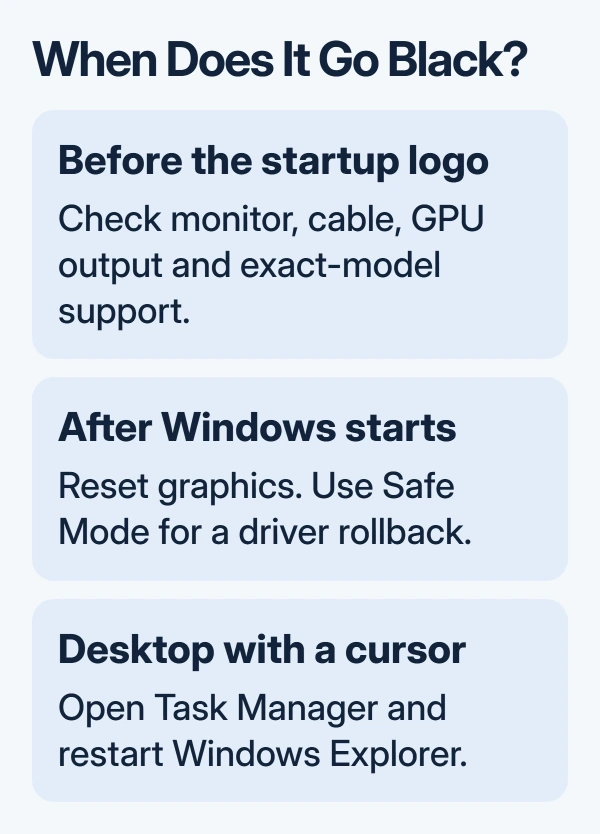
Check the monitor's HDMI or DisplayPort input and both cable ends. On a desktop, connect to the intended NVIDIA card output. A motherboard socket isn't a working alternative unless the PC supports integrated graphics.
If the Windows picture returns, continue with the driver section when the blackout followed a driver change. If the machine never shows its maker's logo on a known-working screen, skip Windows recovery and use the pre-startup section.
2. Restore Explorer when a cursor is still visible
Press Ctrl + Alt + Delete. If the security screen appears, open Task Manager. Find Windows Explorer, select it, and choose Restart. This restarts the part of Windows that displays the taskbar and File Explorer windows.
If Windows Explorer isn't listed, choose Run new task, enter explorer.exe, and press Enter. The taskbar and desktop appearing after this tells you Windows was running even though its desktop wasn't being displayed normally.
Microsoft recommends these controls in its blank-screen troubleshooting. A working security screen doesn't rule out an NVIDIA driver problem, but it lets you recover the desktop before forcing a shutdown.
If Explorer restores the desktop and the failure returns at the next sign-in, record that pattern for support. If the screen instead goes blank whenever the graphics driver loads, use Safe Mode to repair that driver.
3. Enter Safe Mode when normal Windows stays blank
From a visible sign-in or security screen, hold Shift while choosing Power > Restart. In recovery, select Troubleshoot > Advanced options > Startup Settings > Restart. Press 4 or F4 for Safe Mode.
Without a visible sign-in screen, use the Windows recovery and Safe Mode steps. Interrupting startup is a last resort when the normal controls aren't available.
During startup, hold down the PC's power button until the machine shuts off. Repeat for two or three interrupted starts, then let Windows open recovery. Choose Advanced options and follow the Startup Settings path.
Keep your BitLocker key ready for recovery. An encrypted PC may request it. If your workplace manages the encryption key, ask your administrator for help rather than resetting the PC to bypass the request.
Safe Mode loads only the basics needed to start Windows. A picture there, followed by a blank screen in normal Windows, points toward the driver or other software loaded at normal startup. It doesn't tell you the graphics card is faulty.
4. Restore the previous NVIDIA driver
In Safe Mode, right-click Start > Device Manager. Expand Display adapters, right-click the NVIDIA GeForce entry, and choose Properties > Driver. Record the driver version before changing it.
Choose Roll Back Driver when available, select the reason, and complete the prompts. Restart normally afterward. If the desktop returns with the previous driver, test the same display arrangement or game that caused the blackout.
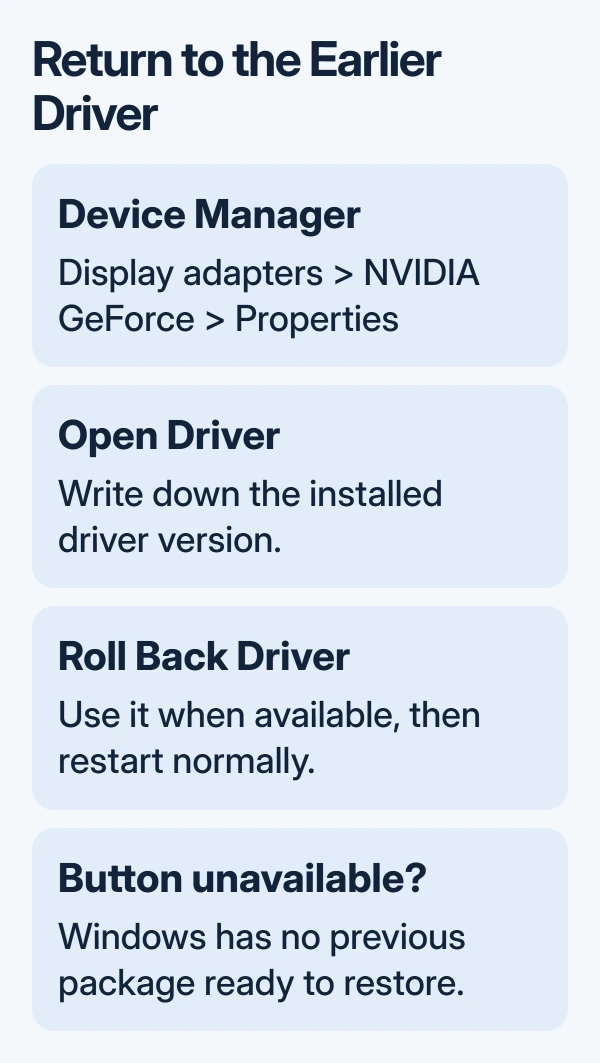
A grayed-out rollback button means Windows doesn't have an available previous package for that device. Don't keep pressing Update driver expecting it to restore the old release. Continue to the matching driver installer in the next section.
On a laptop with Intel or AMD graphics alongside NVIDIA, select the NVIDIA entry for this repair. Don't remove both drivers together. Leaving the other driver installed helps keep the laptop's working graphics available during the repair.
I'd try rollback before a clean installation when the timing clearly matches a new driver. It changes less, and a working earlier version lets you tell support exactly which driver works and which one fails.
5. Reinstall the matching driver when rollback is unavailable
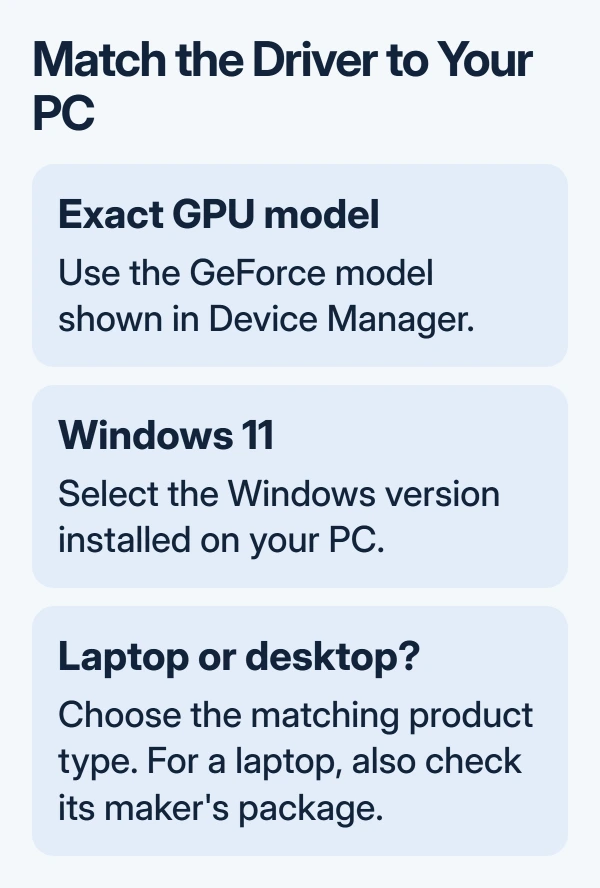
Get the package for your exact GeForce model, Windows version, and desktop or notebook type from the official NVIDIA driver search. For a laptop, also check its maker's graphics package for that model.
Download the installer using another device if needed. If only Safe Mode works, right-click the NVIDIA adapter in Device Manager > Display adapters and choose Uninstall device.
If offered, select Attempt to remove the driver for this device. Confirm, then restart normally. Windows will attempt to reinstall the driver.
If the desktop is visible, run the matching NVIDIA installer there. If normal startup stays blank, give support the Safe Mode result before further installation attempts.
Close games, browsers, video players, and graphics tools. Let any Windows Update finish first. For a manual repair, run the NVIDIA package as administrator, accept the prompts, and choose Custom (Advanced) > Perform a clean installation.
That option resets driver settings and profiles. Follow the installer's prompts and restart after the clean installation finishes. The NVIDIA restart guide explains how to distinguish installation progress from a completed setup.
6. Treat a blank startup screen as a different fault
No picture before Windows loads calls for display, card, or model-specific firmware checks. Try one monitor and another suitable cable or connection. Rollback can't repair a screen that's blank before Windows starts.
NVIDIA's startup black-screen instructions distinguish this from a failure after the Windows logo. Some GPU and DisplayPort combinations have specific firmware tools; use only the one listed for the exact hardware and symptom.
Don't use another GeForce series' firmware tool. Give the PC or card maker the GPU model, monitor, connection type, and whether a startup logo appears. Ask them to check applicable firmware and hardware before more Windows repairs.
When the display still won't stay on
For a blackout that keeps returning after Windows starts, send NVIDIA support the working and failing driver versions, Windows build, and single-monitor result. The Windows black-screen guide covers the remaining Windows checks.
The Short Version
Reset graphics and check the output first. Restore Explorer for a cursor-only desktop. Use Safe Mode and rollback after a bad driver update. With no startup logo, check hardware or firmware for your exact model before reinstalling Windows.
Checked November 13, 2026.