
You click a folder and then you wait. Not a frozen cursor. Just a long, dull pause before anything appears, over and over, all day. That grinds people down more than a crash does, because there is nothing to point at.
So this page starts differently. Before any tip list, I want you to check two numbers. Between them they decide which half of this article actually applies to you.
It takes about thirty seconds.
The two numbers
Press Ctrl + Shift + Esc to open Task Manager, then click Performance down the left.
Click Disk. Look at the top right of that panel. It names the drive and says either SSD or HDD.
Now click Memory. The top right tells you how much RAM the machine has.
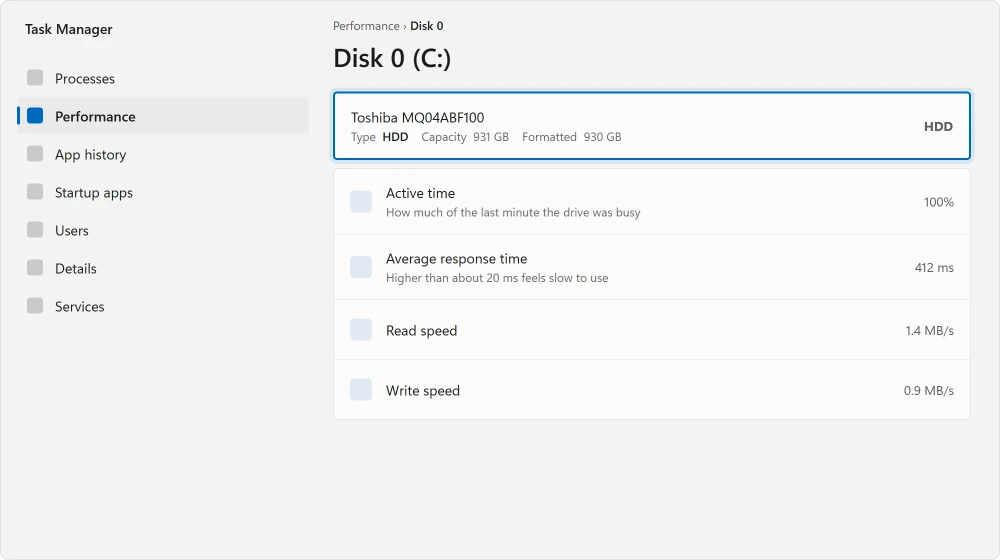
Write both down. They decide everything that follows.
If it says HDD, you have your answer
A mechanical hard drive is the single commonest reason a Windows 11 machine feels slow, and almost nothing in a tips list will change it.
Documented by Microsoft in the Windows 11 system requirements: the published requirement is a "64 GB or larger storage device". That is the whole storage specification.
Microsoft does not require an SSD. That is exactly why so many budget laptops shipped with a spinning drive and Windows 11 on top of it.
You can see the mismatch in the machines people bring to the forums. One owner posting about a system running "incredibly slow" in March 2024 listed a 931 GB Toshiba drive spinning at 5400 RPM, with 8 GB of RAM, running Windows 11 Home.
Owners report that pattern constantly, and the thread never found a software fix, because there was not one to find.
One thing at a time, that drive is fine. The damage comes when Windows wants twenty small things at once. A search index rebuild, an update, a virus scan and your file manager all queue behind each other.
Task Manager then shows the disk pinned at 100 percent while nothing much is happening.
If Windows Modules Installer Worker heads that list, an update is installing and lets go when it is done.
Ours, and marked as ours: if your check said HDD, fitting an SSD will do more than every remaining section of this page put together. The other sections still help. Just get the order right.
If the machine is showing its age in other ways too, the common laptop faults page is the wider list.
If you have 4 GB of RAM, that is the other one
Documented by Microsoft: the minimum is "4 GB". A minimum is not a comfortable amount, and a browser with a dozen tabs will use most of it.
Go back to Performance, then Memory, and look at the figure in use while you work normally. Sitting near the top with nothing open is the tell.
Adding memory is usually cheaper and easier than people expect on a desktop, and often impossible on a thin laptop where it is soldered down. Check before you buy anything.
Everything from here down is software, and applies whatever your two numbers said.
Startup apps you never agreed to
This is the highest-value software fix, and it is quick.
Documented by Microsoft in its performance tips: "Apps that run at startup can slow boot time and increase background usage." The route is Ctrl + Shift + Esc, then Startup apps.
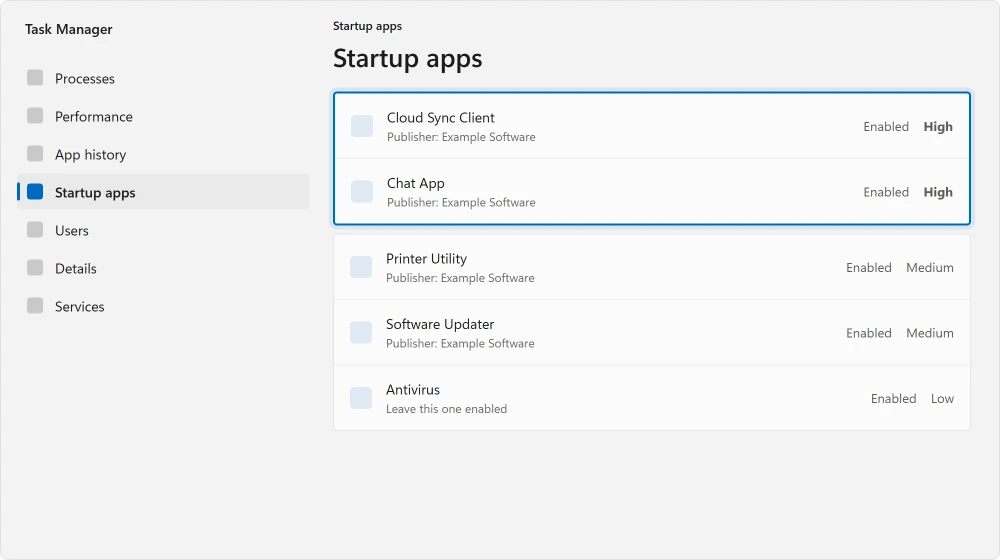
Read the Startup impact column. Switch off anything marked High that you do not need the moment you log in. Updaters for software you open once a month are the usual culprits.
So are chat apps, cloud sync clients, and whatever your printer installed.
Leave your antivirus alone.
Power mode quietly set to save battery
Laptops ship on a balanced setting, and some ship on the efficiency one. Both cap performance on purpose.
Documented by Microsoft: set it at Settings, System, Power & battery, then the Power mode dropdown, choosing Best performance.
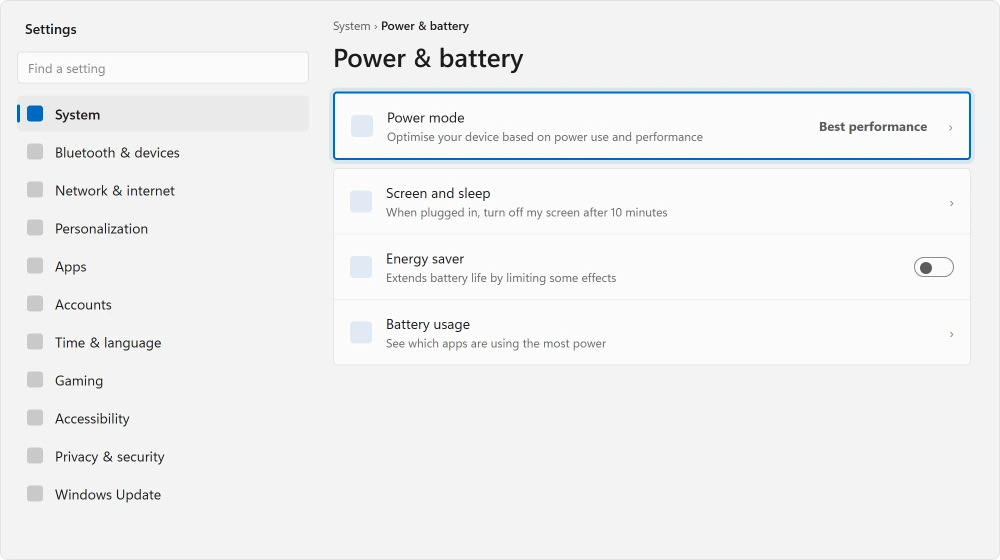
Know the trade before you change it. On battery this costs you runtime. On a machine that already runs warm, it will run warmer. If yours lives on the mains, that trade is easy.
Disk space, and why it bites harder than it should
Documented by Microsoft: "Low disk space can reduce system performance." Its route is Settings, System, Storage, then Storage Sense, then Run Storage sense now.
One detail gets missed. A nearly full drive is slower than a half empty one. On an SSD the effect is sharper than people expect, because the drive needs free blocks to work with.
Getting back to roughly ten percent free is a real gain, not tidying for its own sake.
If you are stuck permanently near the limit, how much SSD you actually need covers sizing properly.
Rule out malware before you go further
Documented by Microsoft as one of its first performance checks: Settings, Privacy & security, Windows Security, Virus & threat protection, then Quick scan.
Do it now, not later. If something is mining or scanning in the background, it will defeat every other fix here. You would spend an evening tuning settings for nothing.
Some people run sfc /scannow at this point. If yours reports files it could not repair, DISM comes before anything bigger.
The narrow one: Search indexing something it cannot reach
Now the cause no tips list carries. It has a very specific symptom. File Explorer, and only File Explorer, hangs for several seconds every time you click a folder.
Reported working by an owner on the Windows 11 forum: they traced it to a duplicate Microsoft account on the machine, which left Windows Search Indexer repeatedly trying to index network drives it could no longer reach.
Removing the extra account and unmapping those drives from Libraries resolved it.
To check yours, open Indexing Options from the Start menu and read the list of included locations. Deselect anything that says "This location is currently unavailable." Then use Advanced, and Rebuild.
Reported as failing, though, and I would rather you knew: another owner on the same forum did exactly that and posted a fix. Two weeks later they came back with "My fix didn't stick. The problem came back several days later." Their File Explorer then got worse rather than better.
So treat the rebuild as a test, not a cure. If the hang goes and stays gone, the index was your problem. If it comes back within days, something keeps breaking that index. Then the unreachable location is what you hunt for.
Visual effects, last and least
Documented by Microsoft: search the Start menu for Adjust the appearance and performance of Windows, open the Visual Effects tab and choose Adjust for best performance.
I have put this last on purpose. It is the tip that opens most pages. On any machine built in the last decade it changes almost nothing you can feel. It turns off animations and shadows.
If your trouble is a queued disk or full memory, those were never what slowed you down.
Do it if you dislike the animations. Do not expect a fix.
Status: checked 20 August 2026, current builds of both 11 and 10. Microsoft's minimum is 4 GB of RAM and a 64 GB storage device, with no SSD required anywhere. That is the root of most of this.
Why is my computer suddenly so slow all of a sudden?
A sudden change points at something new, not at ageing hardware. Run the malware scan first. Then open Task Manager's Processes tab and sort by disk, then by memory. Look for something at the top that was not there last week. A recent update rebuilding the search index does this too, and it settles within a day.
If the top entry is simply called System, Process Explorer can show which driver inside it is working.
Does adding more RAM speed up an old laptop?
Only if memory is what you are short of. Watch the Memory panel in Task Manager while you work normally. Sitting near the top with everything open means more RAM helps. Comfortable memory with a pinned disk means RAM changes nothing. The drive is your problem.
Why is my disk at 100 percent when I am not doing anything?
Usually several background jobs at once on a mechanical drive. The search indexer, an antivirus scan, and Windows Update. On a spinning drive they collide and none of them finishes quickly. On an SSD the same work is over before you notice.
If Task Manager puts Antimalware Service Executable at the top for hours, Defender's own recorder shows what it keeps scanning.
Will resetting Windows make my computer faster?
Sometimes, and it is a big hammer. It clears accumulated startup entries and broken indexes, which is why it appears to work. It does not change your drive type or your memory. If your two numbers were an HDD or 4 GB, it will be slow again quite quickly.
The Short Version
- Check the drive type and the RAM in Task Manager before doing anything else.
- If it says HDD, that is your answer. Settings cannot rescue it.
- Microsoft's minimum is 4 GB of RAM and 64 GB of storage, with no SSD required.
- High-impact startup apps are the best software fix, and take a minute.
- Power mode on a laptop is often capping performance deliberately.
- Search indexing an unreachable drive hangs File Explorer specifically.
Where to Next
A machine that restarts itself rather than dragging is a different fault, and Windows wrote down what happened each time.
If your two numbers came back as an SSD and 16 GB or more, something specific is wrong. The machine is not simply tired, and that is chaseable.
Task Manager sorted by disk, watched for a minute while it is bad, will usually name the culprit.
And if somebody has told you to defragment the drive, check which kind you have first. On the wrong one it does damage rather than good.
On a machine that is new rather than old, the clutter it shipped with has a safe order to remove it in, plus three things that must stay.
Before you blame hardware for any of this, there is one scan built into Windows that almost nobody runs.
On a laptop that also runs flat by lunchtime, the battery is a separate reading and Windows never shows it. One command prints what yours can still hold.
And if somebody told you to clear your cache, ask which one they meant. Windows keeps five and only one of them is about space.
If it is only slow while starting up rather than all day, measure that separately. The startup impact column is a real measurement and Microsoft defines it.
If Task Manager shows memory sitting high, that is probably not your problem at all. Available is not the same as free, and Windows fills the rest on purpose.
And if you have been pricing a memory upgrade, check what your laptop can actually take. There is no such thing as external RAM, but there is a real answer.
Before blaming the hardware, check when it last genuinely rebooted. On a machine switched off nightly the answer is often weeks.
If the machine turns out to be fine and only feels sluggish, that is a different fix. Two screens control Windows animations and they do not match each other.
Where the machine is unstable rather than merely slow, a different tool answers it. Reliability Monitor shows what failed and on which day.
A machine that is loud as well as slow has a second thing to check. What makes a fan run hard, and the power setting that quietens it.
If it is only games that stutter rather than the whole machine, that is a shorter list. Two free settings before spending anything.
Drop those two numbers in the comments, along with whatever was sitting highest in Task Manager. That pair tells me more than any description of how slow it feels, and I will happily work through a real one with you.

Isaac Smith is the founder and editor of PC Glance, a website that covers computers, laptops, and technology. He is a tech enthusiast and a computer geek who loves to share his insights and help his readers make smart choices when buying tech gadgets or laptops. He is always curious and updated about the latest tech trends.