
A computer that becomes very slow after a Windows 11 update may need a restart, an earlier driver, or a Windows repair. Finish any pending restart first, then check which update was installed before you remove anything.
First check whether everything slowed down or one device started misbehaving. A slow desktop, jerky video and an app that takes longer to open don't always need the same fix.
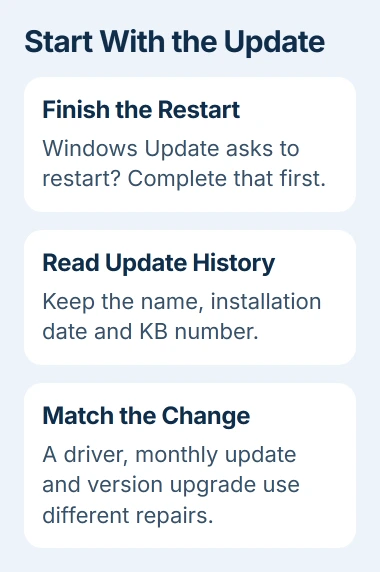
1. Finish the update and compare a fresh start
Save your work, plug in your laptop, and open Settings > Windows Update. If Windows asks you to restart, choose Restart now. Wait until you're back at the desktop and the update screen no longer asks for that restart.
If no restart is pending, choose Restart from the Start menu's power controls. After signing in, open one familiar app and see how it responds before reopening all your browser tabs and background programs.
If the PC slows down only when you open a particular program, keep that program closed for the next check. Try updating or repairing that app before you remove a Windows update.
Press Ctrl+Shift+Esc and look at Processes in Task Manager. Select the CPU, Memory or Disk heading to see which apps are using your processor, memory or drive. Check while the PC is slow, so you can see what's busy at that moment.
Close a busy app through its own window and try the same task again. Leave unfamiliar Windows processes alone. If the machine was already struggling before the update, the slow-computer checks cover storage and memory limits.
2. Identify what changed in Update history
In Settings > Windows Update > Update history, find the installation date closest to when the slowdown began. Write down the update name and any KB number, which identifies that update when you ask for help.
Check the category too: Quality Updates, Driver Updates, or a feature update that moves Windows to another version. You'll use different controls to remove a monthly update and to return to an earlier Windows version.
Press Windows+R, enter winver, and note the version and OS build with the KB number. The build identifies your installed Windows release. A report about a different build may not apply, even if both PCs run Windows 11.
Check Windows Update for a newer fix. Install the normal updates offered for your PC, then test again after any requested restart. Don't add unrelated optional drivers just because they're listed.
If Windows shows an installation error instead of completing the update, follow the update error-code guide. Repeatedly restarting an update that hasn't installed won't repair that error.
3. Roll back a driver when one device changed
A driver lets Windows communicate with a device. Check the display driver if video, scrolling or moving windows became choppy after the update, especially if Update history lists a display driver installed that day.
Select Device Manager from Start's right-click menu. Expand Display adapters, open the affected adapter's Properties, and select Driver. Choose Roll Back Driver if the button is available, then complete the prompts.
Microsoft's driver recovery instructions recommend returning to the previous driver when trouble starts after an update. You'll need administrator access to do this.
Restart if asked, then try the same video or desktop action. If it's smooth again, the driver change may explain the slowdown. Keep the driver that works while you check with your computer's maker for a fixed version.
If you can't roll back, Windows may not have an older driver saved. Follow the maker's support instructions for your exact model. If your laptop uses two graphics adapters, check which driver changed before replacing either one.
If the PC is slow during unrelated tasks and you can't trace it to one device, try the Windows repair next. Changing several drivers together leaves you guessing which change helped.
4. Repair the current Windows installation
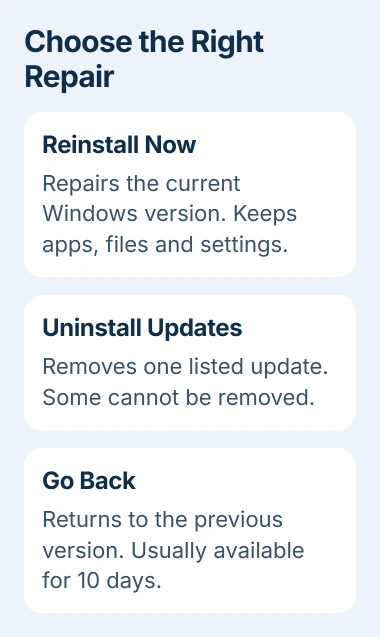
Open Settings > System > Recovery, find Fix problems using Windows Update, and choose Reinstall now. This downloads Windows again to replace damaged system files and components.
This option preserves your apps, files and settings. Reset this PC appears nearby, but it works differently.
Keep the PC powered and online throughout the repair. Read the restart choice, select OK, and wait for Windows to download and install the repair. Restart at the end if you didn't allow an automatic restart.
I'd use this repair before removing a security update. It can replace damaged Windows components while keeping the current version and your installed programs.
This option may be missing on older Windows 11 installations or a PC managed by your workplace. If it's missing on your work computer, give IT the update and build details instead of changing the update policies.
5. Remove an individual update if repair doesn't help
If the slowdown still seems tied to one monthly update, open Settings > Windows Update > Update history > Uninstall updates. Find that update and choose Uninstall if it's available.
The update removal procedure doesn't work for every update. If Uninstall is missing, leave Windows folders alone. Removing a security update also removes its protections, so treat it as temporary while you seek a corrected update.
After the restart, try the same app and desktop actions that were slow. Compare how they respond now with how they behaved before you removed the update.
If the PC is still slow, that update may not be the cause. Give support the results of your comparison before trying to remove several months of updates.
6. Use Go back after a feature upgrade
For trouble that began when Windows changed versions, check Settings > System > Recovery > Go back. This returns to the version installed before the upgrade, when the recovery files are still available.
The rollback window is usually 10 days. Keep Windows.old while you decide, because that folder holds the files needed to go back. Back up important files before you proceed.
Go back keeps your personal files. Apps and drivers added after the upgrade are removed, and Settings changes made since then are undone. Read the on-screen explanation before you confirm.
If it's too late to go back, or your PC is still slow after these checks, ask Microsoft or your computer's maker for help. Include the build, update number, tasks that are slow, and whether restoring a driver or repairing Windows helped.
The Short Version
Choose the recovery route from Update history: a device driver, a monthly update and a Windows version upgrade are different changes. Start with the pending restart, then use the matching repair and compare the same task afterward.
Checked November 4, 2026.

Isaac Smith is the founder and editor of PC Glance, a website that covers computers, laptops, and technology. He is a tech enthusiast and a computer geek who loves to share his insights and help his readers make smart choices when buying tech gadgets or laptops. He is always curious and updated about the latest tech trends.