

A white screen that covers Task Manager after a Windows update may be a setup prompt that didn't load. Disconnecting the internet before signing in has let affected owners reach the desktop and start repairs.
Try that first when the sign-in screen looks normal and only the next screen turns white. A display that's white before Windows loads, or a single blank browser page, needs different checks. The timing matters more than the color alone.
1. Sign in once without an internet connection
Press Ctrl+Alt+Delete. If the security screen appears, choose Sign out to return to sign-in. For an Ethernet connection, unplug the network cable. For Wi-Fi, use the sign-in screen's network control to disconnect or turn Wi-Fi off.
Sign in with the Windows account you normally use. Keep the network disconnected until the desktop finishes loading. If your account can't sign in offline, restore the connection and move to the recovery choices instead.
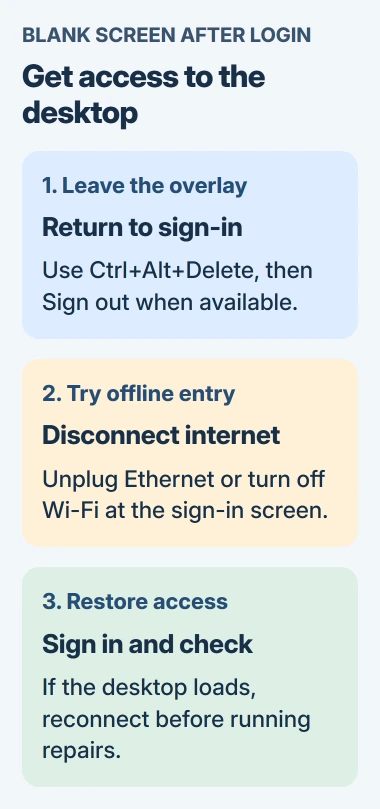
Owners on Microsoft's forum reported that disconnecting before login restored desktop access. This gets you into Windows so you can work on the fault; it doesn't finish the repair.
Once the desktop appears, reconnect the cable or Wi-Fi. Open a familiar app on your PC and check that you can still use the desktop. Then save your work and check for updates.
If the white screen returns only when you next sign in, note that. It helps you tell this startup prompt apart from an app that goes white every time you open it.
If Ctrl+Alt+Delete still works, use its sign-out or restart controls instead of repeatedly holding the power button. That helps you avoid interrupting an update or losing open work.
2. Check the update and the welcome prompt
In Windows 11, open Settings, select Windows Update, and check Update history. Note the latest successful update and any failed entry. Check whether the trouble began after a version upgrade or a monthly update.
Select Check for updates on the main update page and install any current updates offered for your PC. Finish the requested restart, then check whether the same white screen appears with the network connected.
If the screen has returned to a readable welcome page, the welcome-screen controls let you stop the optional prompts. Those controls are easier to reach once the page has usable buttons again.
The welcome setting is under System > Notifications in Windows 11 Settings. Expand Additional settings. Clear the checkbox whose description starts with Show the Windows welcome experience.
That checkbox controls the welcome page without turning off all app notifications. It won't fix every sign-in window. If the white screen still covers your desktop, try the Windows repair next.
On Windows 10, go to System > Notifications & actions instead. The notification settings documentation explains the separate controls for welcome suggestions and app notifications.
3. Repair the current Windows 11 installation
Open Settings > System > Recovery. Choose Reinstall now for the option labeled Fix problems using Windows Update. Your apps, files and settings stay in place while Windows downloads its repair version.
Microsoft describes the repair reinstall as a way to fix system files and components. It uses your current Windows version instead of returning the computer to its factory setup.
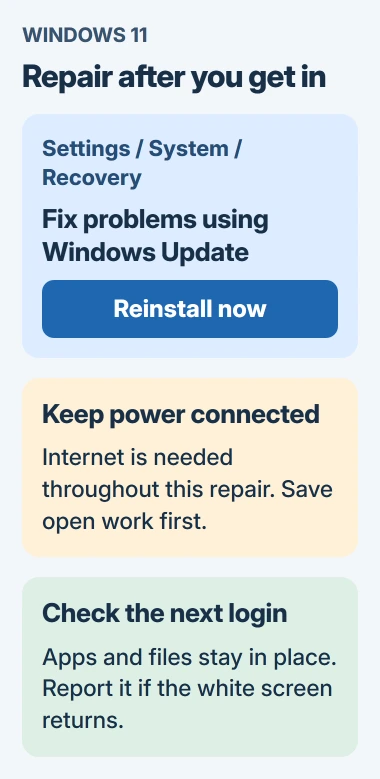
Save your files and keep the computer plugged in and online throughout the repair. Signing in offline helped you get past the white screen, but Windows needs the internet again to download the repair.
In the confirmation window, decide whether to let Windows restart automatically, then select OK. Follow the download and installation in Windows Update, and restart afterward if you didn't choose the automatic option.
The repair didn't always last. In a Windows 11 white-screen thread, one owner reported success, while another said the repair lasted about a week before the problem returned.
After the repair, try signing in with the internet connected and watch for the problem returning later. Getting to the desktop once is progress; if the white screen comes back, contact support.
Older Windows 11 builds and PCs managed by IT may not show this repair option. Windows 10 doesn't have it. Don't choose Reset this PC in its place; that does something different.
4. Use recovery when the desktop stays inaccessible
If disconnecting doesn't help, return to the sign-in or Ctrl+Alt+Delete screen. Hold Shift and choose Restart from its power menu. This opens the Windows Recovery Environment, with repair tools you can use outside the desktop.
Use Troubleshoot > Advanced options to see the available tools. For a failure that began immediately after a monthly update, you can try Uninstall Updates > Uninstall latest quality update.
Have your BitLocker recovery key ready before using recovery tools on an encrypted drive. You may need it to unlock the drive; your Windows PIN or password won't replace it.
A move to another Windows version is a feature update; a monthly update is a quality update. Select the matching update type. If you can't roll it back, note the message rather than trying unrelated recovery commands.
The white-screen thread also includes failed rollback attempts and trouble signing in through Safe Mode. If you can reach the desktop, I'd try the repair reinstall before undoing an update just because the white screen started afterward.
If the white screen returns
Contact Microsoft Support or the computer maker with the Windows version, last installed KB, when the screen appears and whether offline sign-in changes it. Say whether Task Manager appears behind the overlay rather than failing to launch.
If the repair helped for a while, say how long it lasted and what happened before the white screen returned. That helps support decide what to try next instead of assuming the graphics driver failed.
If the white display also hides the manufacturer's startup logo, stop using these setup-prompt steps. Ask the maker to check the display and startup hardware, since the screen turns white before your Windows account loads.
For that earlier failure, compare the notebook's startup picture with its output on another display.
The Short Version
Try an offline sign-in to get past a blank setup overlay. Reconnect and check updates, then use Windows 11's repair reinstall if needed. Recovery offers another route when the desktop stays inaccessible. Report any return of the fault.
Checked November 4, 2026.

Isaac Smith is the founder and editor of PC Glance, a website that covers computers, laptops, and technology. He is a tech enthusiast and a computer geek who loves to share his insights and help his readers make smart choices when buying tech gadgets or laptops. He is always curious and updated about the latest tech trends.