
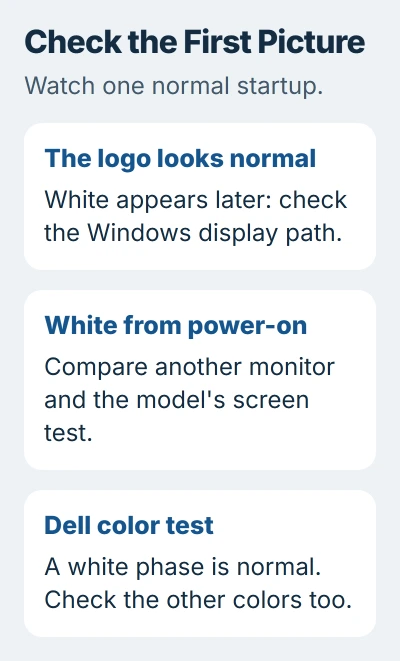
A completely white laptop screen can come from the display or Windows. Restart once and watch whether the manufacturer's logo looks normal before it turns white.
A normal logo followed by a white desktop points toward software. If it's white from power-on, compare it with another display before reinstalling anything. Small white spots are a different problem from a completely white screen.
1. Check whether Windows can still show another screen
Press Ctrl+Alt+Delete once. If the security screen appears with readable choices, your screen can still show a picture at that moment. Restart from that screen's power menu, then watch startup.
If the keyboard responds but the screen is unreadable, press Windows+Ctrl+Shift+B. This asks Windows to reset the graphics driver, which controls the display. Listen for a beep, watch for a flicker, then check the picture.
Microsoft includes that shortcut in its blank-screen troubleshooting. It helps when Windows is running. It can't repair a display that stays white before the operating system starts.
If no normal restart control responds, hold Power down to force a shutdown. This can lose unsaved work. Disconnect a dock and unnecessary USB devices, then start the laptop with its charger connected.
Write down which screen appears first. A readable sign-in screen followed by a white window tells you something different from never seeing the logo. Once you've made that comparison, move on from forced shutdowns.
For a white overlay that starts specifically after an update and sign-in, use the Windows update white-screen repair. That page covers the setup prompt that can hide a working desktop.
2. Compare a monitor connected directly to the laptop
Connect a working TV or monitor to your laptop's video output. Use HDMI if both devices support it. Keep the laptop lid open and set the monitor to the input where you plugged in the cable.
A USB-C port doesn't always support video. Check your model's specifications before trying an adapter. Connect directly when you can; a dock adds another device that could affect the test.
Once Windows has started, press Windows+P. Choose Duplicate if the panel is readable enough to use the menu. If you already have a picture externally, choose Second screen only to work on that display.
Use the multiple-monitor settings to choose the display mode. No Signal means the monitor hasn't received a picture. Check its input and cable before deciding the laptop is at fault.
If the monitor looks normal but the laptop screen stays white, the internal panel or its connection needs checking. A repair shop still needs to inspect the screen, cable and connections before choosing a replacement part.
If both screens turn white at the same point in Windows, follow the software checks later in this guide. When both displays fail, replacing the laptop screen alone may not fix it.
I'd get a usable external picture before changing drivers. A readable monitor lets you save files and read repair messages without guessing what a command did.
3. Run the display test supplied for your model
Some laptops can test their screen without loading Windows. Use the instructions for your exact manufacturer and model. A diagnostic shortcut from a different brand may do nothing or open another menu.
On a Dell laptop, shut down, disconnect accessories and connect the charger. Keep D held down while you press Power. Let go of D once the test colors appear.
Dell's LCD self-test instructions describe this as a hardware check separate from Windows. Look for areas that stay white, distorted patches or other defects across the changing colors.
A brief white screen is normal within that color sequence. The important result is whether the panel can also display the other colors correctly. A white stage in the test isn't the same as a screen stuck on white.
Press Esc to exit. Record any amber and white light pattern as well as what the display showed. Diagnostic codes vary by model, so give support the actual sequence rather than guessing its meaning.
If the test shows the same defect, arrange hardware service. If the colors look normal but Windows still turns white, continue with software repair. An occasional fault can still need a repair check even if this test looks normal.
4. Repair the graphics driver when startup looks normal
Use the working display to open Device Manager, then expand Display adapters. Note the graphics devices listed. Some laptops combine built-in graphics with a separate graphics processor (GPU), with drivers supplied for both.
If the fault began immediately after a graphics-driver change, open the affected adapter's Properties > Driver tab. Use Roll Back Driver if it's available, follow the prompts and restart before comparing the screens again.
When rollback isn't offered, get the supported graphics package from the laptop manufacturer's page for your exact model. The Windows graphics-driver guide explains the update routes and the difference between adapters.
Check the installed device with Device Manager's driver controls. If you can't reach them during normal startup, follow your manufacturer's recovery steps for Safe Mode. It starts Windows with fewer drivers.
Firmware setup is the laptop's settings screen before Windows loads. If it's white there or in the manufacturer's screen test, move to hardware repair. Reinstalling Windows won't fix a damaged display connection.
5. Give the repair team the comparison results
Contact the laptop maker or a qualified repair shop when the panel stays white before startup, the hardware test shows a defect, or supported driver repairs don't help. Include the model and whether an external monitor works.
Mention any drop, liquid exposure or change as the lid moves. Don't keep bending the lid to reproduce it. These details help the shop decide what to inspect rather than assuming every white screen needs the same part.
Request a written diagnosis and quote. If the external monitor works, copy your important files before handing over the laptop. Include the comparison results so the technician can see which tests changed the picture.
The Short Version
Watch startup, reset Windows graphics and compare a direct external monitor. Use your model's screen test to check the hardware. Try the driver repair if startup looks normal, then seek service if the fault remains.
Checked November 5, 2026.

Isaac Smith is the founder and editor of PC Glance, a website that covers computers, laptops, and technology. He is a tech enthusiast and a computer geek who loves to share his insights and help his readers make smart choices when buying tech gadgets or laptops. He is always curious and updated about the latest tech trends.