
Match HP printer error codes to your printer's model before choosing a fix. On the DeskJet 2800, 4200 and 4900 families, E1 and E2 mean a paper-size mismatch, E3 points to the cartridge carriage, and E4 means a paper jam.
Read the whole code before changing settings. Each DeskJet code has its own fix. A longer LaserJet code needs instructions for that model rather than this E-code checklist.
1. Read the printer display and record the model
Check the printer's display and any message in its software. Write down the letter and number together. A number on its own can be a copy count; E followed by a number means an error on these DeskJet models.
Read the full model from its label, including the final letters. Those letters matter when you ask for help because controls and connections can differ. Use the code list for your model to choose the repair.
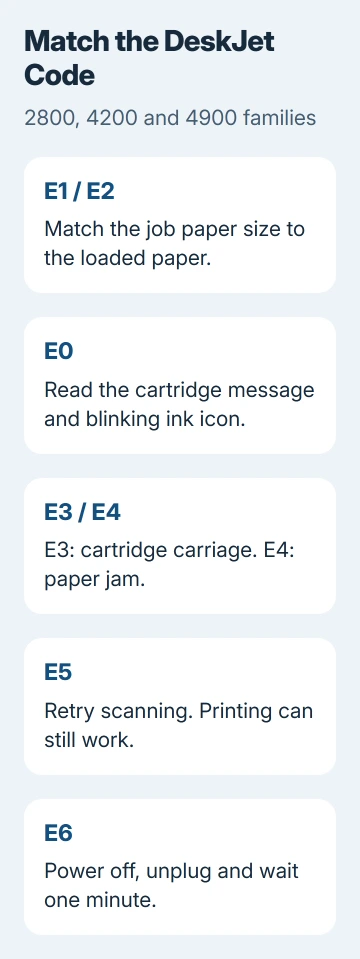
HP explains the codes in its DeskJet code instructions. The matching manual also explains warning lights and connection icons separately from the display codes.
If Windows only says Printer in error state, check the printer first. Microsoft's printing troubleshooting guidance explains that the problem may be in the printer itself.
For that general Windows message, use the printer error-state checks. A code on the printer itself tells you more about where to start.
2. Correct the paper settings for E1 or E2
E1 means paper size mismatch, while E2 means paper length mismatch. The page size in your print job doesn't match the loaded paper. Changing the ink won't fix that mismatch.
Press Cancel to stop the job. Read the size on the paper packaging, then check the paper size in your document and print dialog. Letter and A4, for example, are different sizes even though they look similar.
Load the paper the job asks for, or change the job's paper setting to match what you've loaded. Move the paper guides to fit the stack, then try printing again with the correct size selected.
Check the page's edges and the printer display. If it prints without the code, the mismatch is fixed. If the code returns with another document, check that document's saved page size before changing printer settings again.
3. Follow the cartridge message for E0
On these models, E0 means a cartridge problem. The blinking ink-level icon tells you which cartridge to check: left is color, and right is black.
Read the full cartridge message in the printer software. Follow its steps for that cartridge, checking that it's compatible and refitting it if asked. One blinking icon points to one cartridge, so start with that one.
Check the code and icons again after following those steps. Read any new software message too: a cartridge the printer can't recognize needs different attention from an empty one, even when both stop printing.
If the correct cartridge is fitted and the error stays, give support the full message and cartridge details. Work through the cartridge checks before considering a factory reset.
4. Separate an E3 carriage obstruction from an E4 jam
The ink cartridges sit in a moving holder called the carriage. E3 means it's stuck or stalled. E4 means a paper jam, which can be somewhere else along the route paper takes through the printer.
Press Cancel before clearing the cartridge access area. To remove something by hand, open the cartridge access door and wait until the carriage stops moving and is silent. Turn off the printer and unplug its power and other cables.
Use a flashlight to look for caught paper or objects. Remove accessible paper gently with both hands so it doesn't tear. Do not force a stuck carriage or take apart the printer to reach an obstruction.
Close the access door, reconnect the cables and turn the printer on. For E3, use Resume if the printer asks you to continue. If the same code returns, stop and ask for model-specific service advice.
Our printer jam guide explains why scraps can keep a jam message on screen after you've removed the main sheet. Follow your model's instructions to reach the right part of the paper path.
5. Retry the scanner for E5
E5 means the scanner isn't working on these DeskJet families. Press Cancel, then try the scan again. If it still fails, turn the printer off and back on before repeating the scan.
Printing can still work with this scanner fault. Send an ordinary print job to check whether printing works on its own. Copying uses the scanner too, so a failed copy won't answer that question.
Note the scan error and whether that print job worked. If restarting doesn't fix scanning, give those details to HP rather than repeatedly removing and reinstalling the printer on your computer.
6. Give E6 a full power restart
E6 means a general printer error. Turn the printer off, unplug its power cord and wait one minute. Plug it back in, turn it on and let it finish starting.
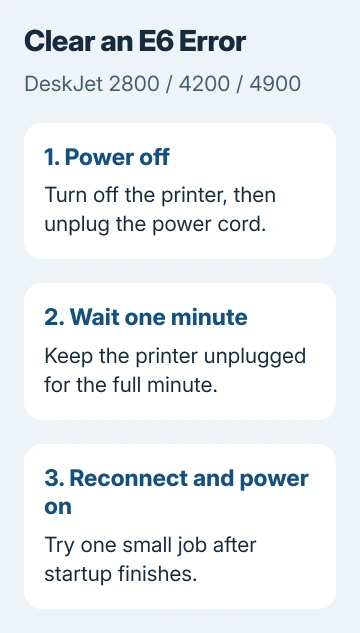
Try one small print job once the display is ready. If the code is gone, check the page before sending a long document. If E6 returns, note whether it appeared straight away or only when you tried printing.
If E6 keeps returning, follow the manual's advice to contact support. When the code appears every time the printer starts, repeating the same restart won't tell you what's wrong.
7. Take other codes to the exact model's instructions
A LaserJet message such as 49 or 50.xx uses a different code system. Write down every digit and any text after it. A similar number doesn't make the DeskJet cartridge or paper steps suitable for that printer.
Give HP the model, full code and results of the relevant checks here. Say whether the code appears at startup, while printing or only while scanning. Those details help the support team choose the next repair.
The Short Version
Match the code to your model. On these DeskJets, E1/E2 mean a paper-size problem, E0 a cartridge problem, E3 a stuck carriage, E4 a jam, E5 a scanner fault and E6 a general error. Try the matching fix, then contact support if it returns.
Checked November 5, 2026.

Isaac Smith is the founder and editor of PC Glance, a website that covers computers, laptops, and technology. He is a tech enthusiast and a computer geek who loves to share his insights and help his readers make smart choices when buying tech gadgets or laptops. He is always curious and updated about the latest tech trends.