An HP printer supply system problem points to the ink cartridges or the system that feeds ink to the printhead. Start with the cartridge checks for your cartridge number, then power-reset the printer.
Vented cartridges and removable printheads need different steps. A warning naming one color narrows the check; a whole-system warning doesn't mean every cartridge is empty.
In this guide
1. Match the message to the cartridge number
Write down the full printer model, the message and any named colors. Check the cartridge number on its label or the sticker inside the access door. When you look up repair steps, use the cartridge number as well as the printer model.
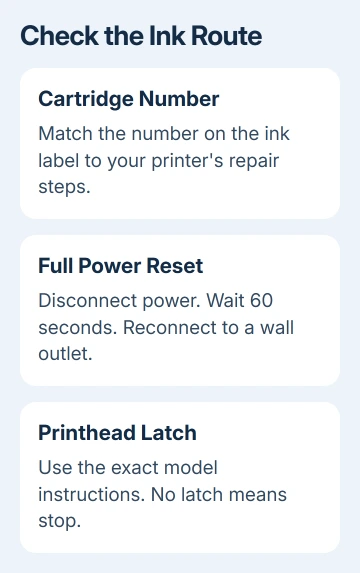
HP says to choose the cartridge group in its supply system repair instructions. Common examples in the first group include 564, 902, 910, 920 and 934/935. The second includes 932/933 and 950/951.
The first group starts with cartridge vents. The second starts with checking ink and, where a latch exists, reseating the printhead. If your cartridge number isn't listed here, check the complete list for your model.
Check the actual wording too. Incompatible cartridge, Use SETUP cartridges and Supply System Problem aren't interchangeable. Buying ink for a different warning can leave the original problem unchanged.
For letter-and-number display warnings instead, the HP printer error-code guide explains why the model and full code matter. Its DeskJet E-codes use different repairs from this ink-system message.
Inspect a removed cartridge for leaks before refitting it. Don't reuse one that leaks; ask support for a replacement instead of attempting another print.
2. Check the cartridges without forcing the carriage
With the printer switched on, open its cartridge access door. Wait for the moving cartridge holder, called the carriage, to stop before touching the cartridges. Use your model's cartridge release instead of pulling against it.
On an OfficeJet Pro 8610-series printer, press the front of a cartridge to release it. Slide the replacement into the slot with the matching colored letter. A cartridge that isn't fully seated needs refitting before another print attempt.
For the vented group, remove any remaining orange pull-tab and clear adhesive or debris from the top vent with a pin or paper clip. Refit each cartridge. Keep the time outside the printer under 30 minutes.
For the second group, the repair instructions call for checking each removed cartridge for ink by shaking it. Refit cartridges containing ink and replace empty ones.
Close the access door, then check whether the same color or message returns.
A change in the message helps you decide what to do next. For example, an ink-system warning replaced by a specific empty-cartridge warning gives you a more precise next action. Record the new wording before replacing anything else.
3. Give the printer a full power reset
Press Power to shut the printer down. Disconnect its power cord from the power source, wait 60 seconds, then reconnect it directly to a wall outlet and the printer. Switch it on and let startup finish.
If the printer won't turn off, disconnect its power cord as directed in the repair instructions. This is a power reset, rather than a factory reset that clears saved settings.
Try a page once the warning clears. Watch both the printer display and the page: reaching the ready screen is progress, but the printer still needs to complete a job without bringing the error back.
I'd do this before buying a full set of ink. It gives the printer a fresh startup after the cartridge check without spending money on supplies.
If the warning returns, continue with your model's cartridge or printhead repair steps.
The HP reset guide separates power resets from network and factory resets. Use the power procedure here; this fault doesn't call for clearing Wi-Fi just because printing has stopped.
4. Reseat a removable printhead only with matching steps
The printhead is the part that puts ink onto the paper. On some OfficeJet printers, it sits beneath the separate ink cartridges and has a release latch. Other printers have a different assembly, so a missing latch is a reason to stop.
Use the model's own instructions for removal. For the OfficeJet Pro 8610 series, the official user guide describes lifting the carriage latch, lifting the printhead up and pulling it out, then reinserting it with the latch raised.
Lower the latch carefully before reinstalling cartridges. That order matters: the manual explains that cartridges can seat incorrectly if the handle is still raised.
Close the access door once the assembly and cartridges are back in position.
For a different printer, match the drawing and latch in its own manual before taking anything apart. If its printhead is fixed in place, follow that model's service instructions.
After reseating, check the startup message again. If the printer returns to ready, try printing. If the same error returns, tell support what happened instead of removing the assembly again unless they ask you to.
5. Decide between replacement ink and service
The repair sequence can lead to a new set of cartridges, then printhead replacement or printer service if the fault remains. Check warranty coverage before paying for either. Give support the cartridge numbers as well as the printer model.
Mention any cartridge already replaced and whether that changed the warning. A second new cartridge producing the same message is a reason to discuss the ink system with support, rather than continuing to buy the same color.
Ask HP Customer Support for the next repair for Supply System Problem, including whether your model's printhead can be replaced separately. Request the total repair price before comparing it with another printer.
Have the serial number, error text, cartridge details and reset result ready. If your printer is under warranty, ask how to get replacement supplies or service covered by it.
Those details help support work on the ink fault without starting again with wireless setup.
The Short Version
Use your cartridge number to choose the repair steps, refit the cartridges and reset printer power. Follow your model's printhead procedure. If the warning returns, compare warranty coverage and repair costs before buying more ink.
Checked November 13, 2026.