
Press Command+S in Word for Mac to save your document. The first time, give it a name and choose a folder you recognize, especially if Word offers OneDrive when you wanted to save it on your Mac.
After that, saving updates the same file. Use Save As or Save a Copy when you want a different name, folder or separate version.
Give the new document a name and a destination
In the desktop Word app, open your document and choose File > Save or press Command+S. For a new document, replace the default name with one that helps you recognize the file.
Choose where to save it. Keep Word Document (.docx) as the format for a file you can keep editing in Word. Select Save, then check that the document title shows the name you entered.
Microsoft explains folders on your Mac and online storage in its Mac saving instructions. Your choices in the save window can vary with your account, permissions and organization's setup.
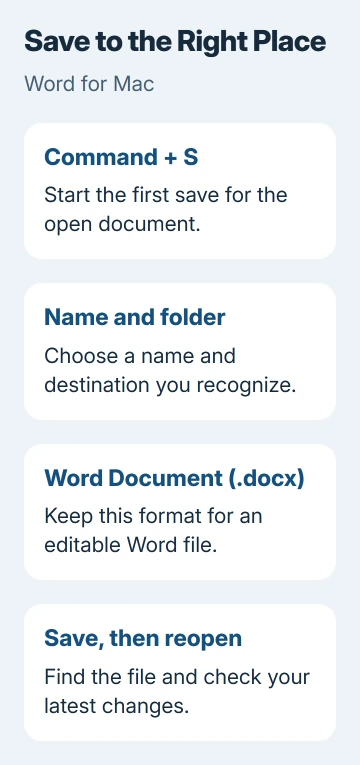
Use a project name or date that helps you recognize the work. Two files called Document1 can save correctly in different folders, yet leave you guessing which one to attach to an email.
Before clicking Save, read both the selected folder and the filename. The folder you used for another document may not be where you want this one.
Choose a Mac folder when the dialog shows online locations
If the save window shows online services, select On My Mac to browse folders on your computer. Open the folder you want, check the filename and save. Use New Folder to create a separate project folder if you need one.
If you can't see the folder list, use the small expand control beside the filename to open more of the save window. You can then browse folders instead of accepting the one already selected.
When you see the Online Locations button, you're already viewing computer folders. The button names the view you can switch to next. Read the selected folder too, rather than judging the location by that button alone.
A file saved through On My Mac can still sync online. OneDrive and other sync services can have folders in that list, and files you save inside them can upload.
For a file that stays on the Mac, choose a folder outside the sync service's folders. Save work documents in your organization's approved location rather than moving them to a personal account.
Save online when you want the cloud copy updated
While viewing folders on your Mac, select Online Locations to switch to an online service. Choose the OneDrive or SharePoint location you want, open its folder, name the document and select Save.
Check which account you're using. Personal and work OneDrive accounts can both be available on one Mac. A file saved successfully to the wrong account can still be hard to find later.
Some work or school setups show online storage in Finder instead of Word's online-location list. If yours works that way, use the folder your organization has set up.
AutoSave can save Microsoft 365 changes every few seconds when the document is in OneDrive or SharePoint Online and uses a supported format. Check the AutoSave explanation for its storage and format requirements.
A grayed-out AutoSave switch on a local file doesn't mean your manual save failed. Saving on the Mac and cloud AutoSave work differently. Use Command+S to save changes to your local document.
Save changes or create a separate version
Press Command+S as you work after the first save. Word updates the file where you saved it, rather than creating a separately named version each time.
Use File > Save As, or Command+Shift+S, to choose another name or folder. Some cloud documents offer Save a Copy instead. Use whichever command appears for your file.
To keep an original unchanged, make a Word copy before editing. Cloud AutoSave may already have saved your edits to the original by the time you make a copy at the end.
For a finished document someone only needs to read, save a separate PDF. Keep the .docx too, so you can edit that file later instead of trying to rebuild it from the PDF.
To change the file format, choose it in Word's save or export controls. Renaming the ending in Finder doesn't convert the file. Check the file Word creates before sending it.
Find and reopen the file before you close the task
Open Finder, go to the folder you chose and open the saved document. Check that your latest words are there. That confirms you've found the file containing your work.
If the same filename appears in two folders, compare their locations before choosing one. A downloaded copy, a draft on your Mac and a cloud document can each have different edits.
I'd reopen the file once after saving to an unfamiliar folder. It's quicker than sorting out an email attachment after you've sent someone the wrong copy.
If the file isn't there, keep the document open and check where Word is saving it. Leave that window open while you search; it may be the only place that still has your changes.
Keep AutoRecover separate from a completed save
AutoRecover keeps information that helps recover your work after Word or the Mac crashes. It doesn't replace saving the document regularly, with a name and folder you've chosen.
Choosing Don't Save when closing removes the AutoRecover file, as the Mac recovery guidance explains. Choose Save to keep your work.
Open Word > Preferences > Save and check Save AutoRecover info to see how often Word keeps recovery information. This timing is separate from the AutoSave switch on a cloud document.
If Word shows a save error, leave your work open. Note the exact message, Word version and folder you're saving to, then ask Microsoft Support or your IT team for help before closing it.
The Short Version
Use Command+S, name the document and check its folder. Switch between On My Mac and Online Locations as needed. Keep .docx for editing, create a copy before changing an original, and reopen the saved file to verify its contents.
Checked November 5, 2026.

Isaac Smith is the founder and editor of PC Glance, a website that covers computers, laptops, and technology. He is a tech enthusiast and a computer geek who loves to share his insights and help his readers make smart choices when buying tech gadgets or laptops. He is always curious and updated about the latest tech trends.