

The file-in-use error in Word 2016 for Mac can appear alongside an AutoRecover warning even when another person hasn't opened the document. Try saving a copy with a simple filename first, especially if the name contains a question mark.
An owner reported that removing that character stopped the repeated messages for three hours. Check the filename and saving location before assuming a backup drive or another app has locked the file.
In this guide
1. Save the open work with a simple name
With your document still open, select File > Save As. Use a short name containing letters, numbers, spaces or hyphens, such as Project notes 2.docx. Choose a local folder you'll recognize for the new copy.
If Word shows online destinations, select On My Mac to browse local folders. Check the selected path before saving. A folder inside a cloud service's sync location can still upload even when reached through the Mac's folder browser.
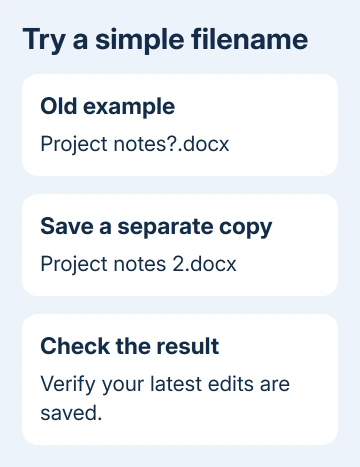
Open Finder at that destination and check for the new file. Open the saved copy and confirm your latest edits are present before closing the original. Seeing the filename in Recent doesn't tell you whether your latest edits were saved.
If Save As also fails, copy the document's text into another app such as TextEdit and save that rescue copy. Check tables, images, headers and footnotes separately, because copying the main text doesn't preserve every Word feature.
I'd protect the current writing before changing preferences or restarting the Mac. The open window can still contain work that hasn't reached either the document file or its recovery copy.
For a save window that is simply hard to navigate, use the Mac Word save-location instructions. Continue here when an actual file-in-use or AutoRecover message interrupts saving.
2. Check the specific filename workaround
In the original Office 2016 thread, the owner's document name ended in a question mark. Its AutoRecovery name didn't contain that mark. Renaming the original without it stopped the warnings during their reported three-hour check.
For a similarly named file, verify the saved copy and close the document. Select its filename in Finder and remove any remaining question mark. Keep the document's proper file extension.
Don't rename a recovery file to force it to match the document. The useful change in that report was simplifying the original document's name. A recovery copy can contain different edits and needs checking on its own.
Reopen the document with its simpler name and keep working past the point when the warning used to return. Save a small change manually. If both normal saving and the recovery interval pass without the message, continue using the new copy.
If the name had no unusual punctuation, or renaming doesn't help, note that and continue. The filename workaround only addresses one possible cause of the file-in-use message.
3. Separate the document destination from AutoRecover
Read both messages carefully. A document-save error is about your working file; an AutoRecover error is about the emergency recovery copy. They can appear together but refer to different saved items.
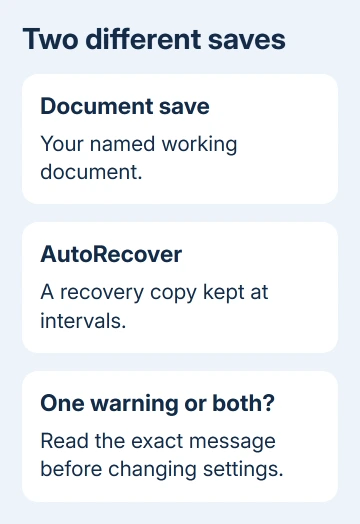
Open Word > Preferences > Save and inspect Save AutoRecover info. AutoRecover keeps recovery information at intervals so Word can offer work after a crash. It isn't a replacement for manually saving your document.
Under Word > Preferences > File Locations, check the AutoRecover folder if your version lists it. Confirm that it exists and belongs to your user account. Menu choices can differ between versions.
Microsoft's Mac recovery instructions explain how recovery copies differ from normal saves. If Word already closed without a saved copy, use the Mac Word AutoRecovery steps before overwriting files.
Compare a fresh blank document saved to a known local folder with the original file. If only the original fails, keep the checked copy and note the original filename. If both fail, the problem goes beyond that one document's name.
Don't turn AutoRecover off as the repair. Turning it off stops the recovery attempt, so the missing warning won't tell you whether saving works. You'll also lose that recovery option while the saving problem remains.
4. Restart only after saving a verified copy
After protecting the work, quit Word completely with Command + Q and reopen it. If the error returns, restart the Mac through Apple menu > Restart, then test the simply named local document again.
The original asker had already restarted several times without success. They also ejected the external backup drive and still received the message. Neither action helped them. If the error stays, move on instead of repeating those attempts.
If saving fails only in a shared or synchronized folder, tell the person managing that storage. Include the exact path and whether another app has the file open. Use the verified local copy while they check access.
If every local document fails too, note the versions shown in Word > About Word and Apple menu > About This Mac. The original report involved Word 15.18 (160109) on OS X El Capitan 10.11.2, not a current Microsoft 365 release.
Get the old installation checked when saving still fails
Ask your Mac administrator to check both save locations, your account's access and whether your Office build works with that macOS version. Send both full error messages and what happened with the simpler filename and fresh document.
Office 2016 for Mac is no longer supported. Plan a supported replacement that fits the Mac's operating system. Keep the rescued writing and original document until the replacement opens both correctly.
The Short Version
Save a verified copy with a simple filename, especially if the old name contains a question mark. Compare manual saving with AutoRecover and try a fresh local document. Protect the writing before restarting or changing the installation.
Checked November 17, 2026.






