

Paragraphs that disappear while typing in Word for Mac can still be in the file. Scroll away and back, or change zoom, to see whether the text returns. Owners reported this after upgrading to macOS Big Sur, including with Word 16.43.
Text that returns when Word refreshes the page needs a different fix from words that were deleted or replaced. Check that distinction first so you don't type a second copy into a paragraph that's only temporarily invisible.
In this guide
1. Redraw the page before retyping anything
Stop typing when a paragraph turns blank. Scroll far enough to move that part of the page out of view, then return to it and click in the document. Read the paragraph before entering more words.
Another quick check is to change the zoom using Word's zoom control, then return to a comfortable reading size. Owners in the Big Sur discussion used scrolling or zoom changes to make missing lines visible again.
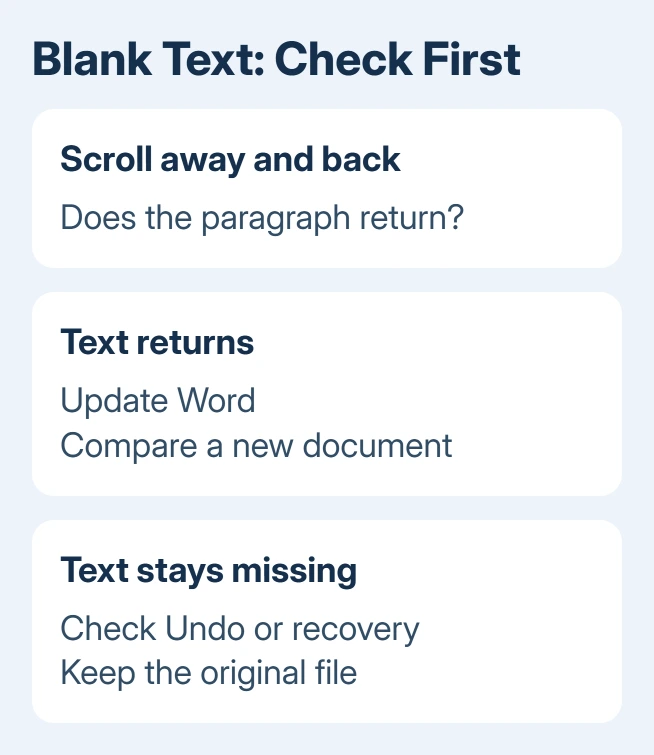
If the words return unchanged, they were still in the document but weren't showing on screen. That isn't a permanent fix. Save the document and check for updates before starting another long editing session.
An owner also brought text back by selecting the blank area and choosing black font color, but only temporarily. Don't apply that to a whole report first; it can replace intentional colors without stopping the fault.
I'd try scrolling first because it doesn't alter the document's formatting. If that restores the paragraph, rebuilding the text or deleting its styles isn't necessary simply to make the page visible again.
2. Update Word through its installation source
Use Word > About Microsoft Word to record the version. The original reports involved macOS Big Sur 11.0.1 and Word 16.43. A later reply said the problem appeared fixed after 16.46, while noting that more testing was needed.
That old reply doesn't tell us whether an update will fix every current display problem. If Word is still on one of those builds, install the available update for that Mac rather than trying to find version 16.46 specifically.
For Word downloaded from Microsoft, save the document and open Help > Check for Updates. Install the Word update offered by Microsoft AutoUpdate. Close Word when asked, then reopen it after the installation finishes.
For an App Store copy, use the Updates section in the App Store. Microsoft's Mac Office update steps cover both routes; the one to use depends on where the app came from.
On a managed Mac, ask IT to update Word. Include its build, the macOS version and the detail that existing paragraphs disappear during typing. That gives IT a clearer description of the problem than a request to reinstall Office.
Open the same file after updating and edit a short passage where the blanking happened. If the text remains visible, save the changes. If it disappears again, compare files before altering the report's formatting.
3. Find out whether other documents lose visible text
Start a new Word file. Enter several short paragraphs with its default formatting. Add a line, scroll through the text and check whether earlier paragraphs stay visible. Keep the original document open for comparison.
If text disappears in both files, your original report isn't the only document affected. Record whether changing the zoom restores it in each file. Support can use that small example instead of inspecting your private work.
If only the original file has trouble, save a separate copy before making changes to its content or styles. The Mac Word saving options help keep that copy separate from the original and from a shared cloud file.
Copy a short affected passage into a new document as another comparison. This isn't a repair by itself. It helps show whether the behavior follows that passage or occurs only in the original document's window and layout.
Avoid moving the entire report to plain text just to perform this check. That would remove tables, fields and formatting you might need. A small sample lets you compare the behavior without changing the finished document.
4. Treat consistent white text as a formatting problem
The Big Sur reports describe random paragraphs vanishing during editing and reappearing after a redraw. A passage that stays invisible every time you open the file may instead have white font color or another formatting choice.
Select only the affected passage. On Home, check Font Color and choose a visible color such as Automatic if the current color matches the page. Click elsewhere and see whether the passage stays readable.
If the passage now stays visible, review its paragraph style before applying the change elsewhere. If the same style keeps applying the wrong color, fix that formatting rather than relying on scrolling.
If the paragraph disappears again later, changing its color hasn't fixed the problem. Return to the version and document comparison results, rather than repeatedly recoloring each line as you type.
For a document that also shows the wrong typeface or weight, the Helvetica Neue Light checks address a separate Mac Word font fault. Use those only when that specific font is involved.
5. Recover text that really has gone missing
If scrolling, zoom and the saved copy all show the words are absent, stop treating it as a display refresh problem. Use Edit > Undo promptly if the disappearance followed a deletion, replacement or pasted selection.
When the issue followed a crash, reopen Word and inspect any recovered document it offers. Save a recovered file immediately under a separate name. Don't close a useful recovered copy before keeping it.
AutoRecover works in the background, but doesn't record every edit as a separate version. Choosing Don't Save when closing can delete the recovery file. Remember that before dismissing a document with missing work.
If the text really is missing, follow the Office for Mac recovery steps. Those steps help recover missing work; scrolling only helps when the words are still there.
Send support the version and a repeatable example
If an updated Word still blanks paragraphs in a fresh document, use Help > Feedback to report it. On a work installation, have the administrator request Microsoft 365 support for disappearing text during Mac Word editing.
Include the Word build, macOS version, whether scrolling restores text and whether a fresh document behaves the same way. Share an invented-text sample if possible. This helps support tell hidden text from lost content.
The Short Version
Scroll or change zoom first. If the text returns, update Word and compare a fresh document with the affected file. Correct persistent font-color problems separately; use Undo or recovery only when the content itself is missing.
Checked November 17, 2026.
 If you have any business, I can build it online






