Make a copy of a Word document before editing it when the original must stay intact. Use File > Save a Copy, choose a distinct filename and destination, then confirm that the copy is the document currently open.
Keep that original when repairing a VisualCV Word export, so page and paragraph changes can be compared with the download.
This order matters for OneDrive and SharePoint files with AutoSave. Editing first and copying afterward can already have changed the original.
In this guide
Save the separate file before making changes
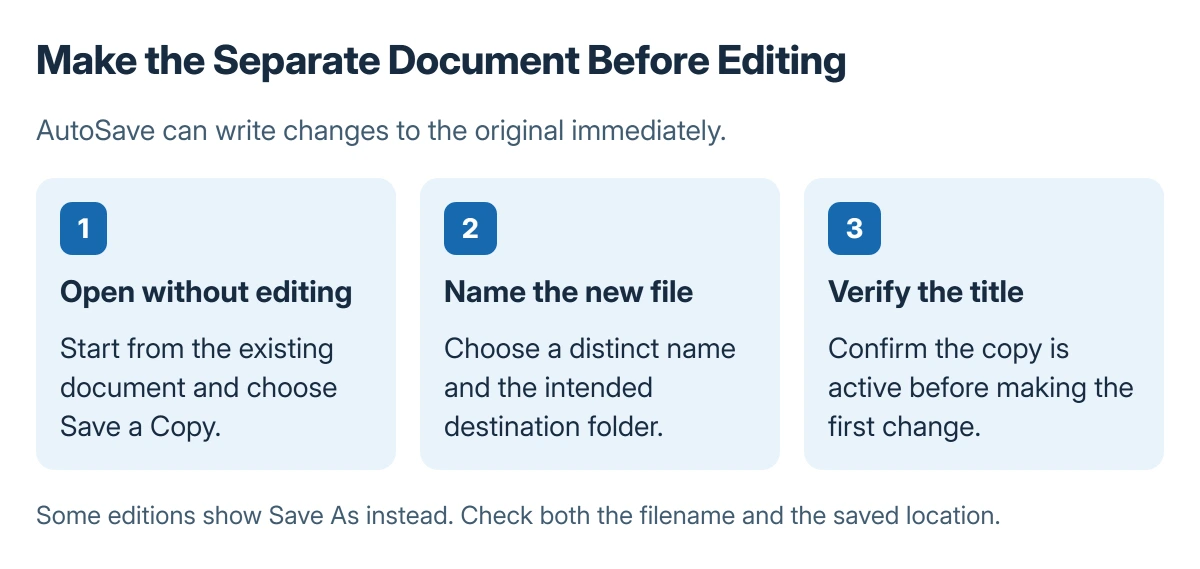
Open the original document without changing its text. Choose File > Save a Copy. If that command is unavailable in the edition being used, look for Save As instead.
For a reading overview before making changes, ask Copilot to summarize the Word file and compare important details with the original.
On a Mac, choose the Word saving destination carefully so the new file lands in the intended local folder or cloud account.
Microsoft says to create the copy before editing when AutoSave is active. Its copy-before-editing guidance explains why the older habit of saving a new version at the end can overwrite source content.
Status: Save a Copy and cloud Version History documented by Microsoft, checked 23 October 2026. No existing document was opened or changed to write this procedure.
Enter a name that identifies the new purpose, such as a different month or recipient. Check the folder as well as the filename, then save the copy in the normal Word document format if it must remain editable.
For a contact-card sheet, match Word's business card layout to the stock before replacing the sample details.
For a letter that needs different recipient details, connect an Excel list through mail merge to create personalized copies from one document.
When working in a browser, Word's download command saves an independent local version of the online file.
Confirm which document will receive the edits
Inspect the document title after saving. Confirm it shows the new name, and check its saved location when two folders contain similarly named files.
Once the copy is active, edit its wording and formatting before saving the revised document.
Whole-document edits can begin with Word's Select All command, once the copied file is active.
For a roster whose order needs changing, sort Word paragraphs or complete table rows while retaining the untouched source.
Use that separate file to remove a Word section break when testing a layout change; joining sections can replace the preceding layout.
For a passage that needs different columns, add its own section boundaries in the copy before changing the layout.
Microsoft documents Save As as a way to save a file under another name, format or location. A distinct name in the intended folder creates the separation; reopening the original would put later edits back there.
When the required copy must use a newer format, save it as DOCX in Word and check whether any macros need preserving.
To work on that copy in a browser, open the Word file through Google Drive and decide whether to retain Word format or convert it.
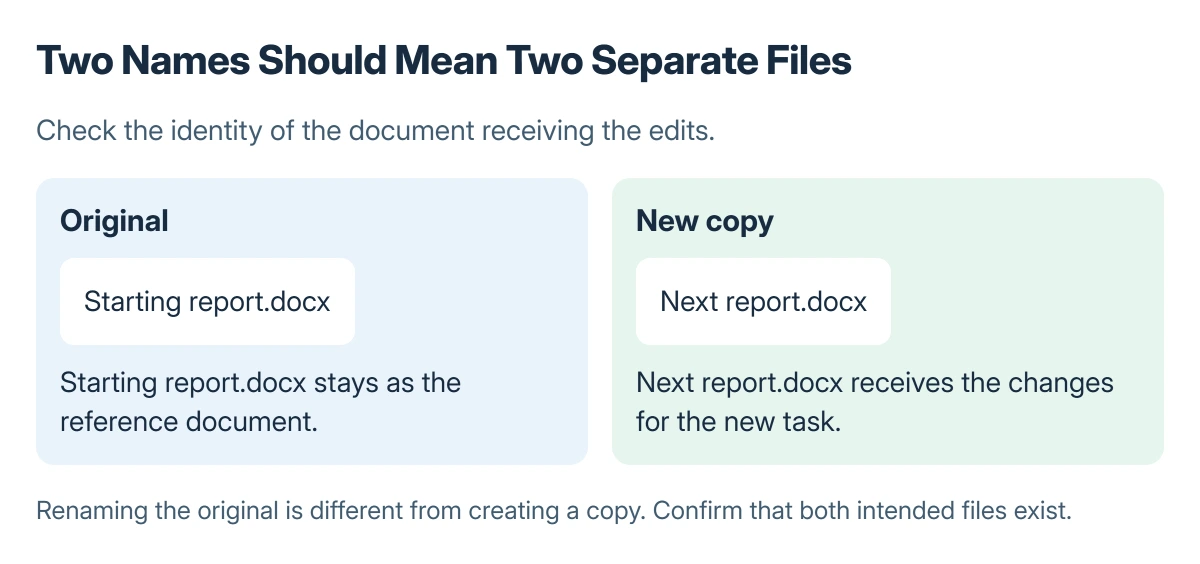
For a local file, another option is to close it, copy it in File Explorer, and open the duplicated file. Confirm that both files exist before beginning work on the duplicate.
When neither copy opens, use the Word file-opening repairs to distinguish document damage from a failing Office installation.
After the final wording is agreed, digitally sign the finished Word file and retain the editable copy for later revisions.
That duplicate can become the destination for combining several Word files while the source documents remain available.
A blank copy can become a reusable questionnaire by adding fillable Word controls instead of leaving ordinary spaces for typed answers.
A copied address-label document preserves its table, but check the label stock and alignment before printing new addresses on another product.
The duplicate can receive an embedded PDF attachment while the starting document keeps its original contents.
If the duplicate still refuses changes, identify the Word editing restriction; another filename cannot grant missing permissions.
Once a duplicate is no longer needed, remove the saved Word file or its Recent entry according to what should remain.
If the copied Word file contains private material, encrypt it with a password to open before distributing that file. A different filename does not restrict access.
When the copy is ready, send the Word document by email as a file attachment or choose a link for shared editing.
Recover an earlier cloud version if editing began too soon
For supported files stored in OneDrive or SharePoint, open Version History from the document title or the File information controls available in that edition. Inspect the earlier version before choosing a restoration.
Microsoft states that Office Version History works with files stored in OneDrive or SharePoint. Do not assume a local folder has that cloud history, or restore a shared file without considering other people's newer edits.
An app crash with unsaved work has different document recovery options. To repeat only one page inside the same file, use the page duplication procedure instead of copying the complete document.
The Short Version
Create the separate document with a distinct name and confirm its location before editing. AutoSave can change the original immediately; supported cloud files may offer earlier versions if that already happened.
Where to Next
Close and reopen the new copy when the names remain confusing. Check the title once more before making changes that should never reach the starting document.