
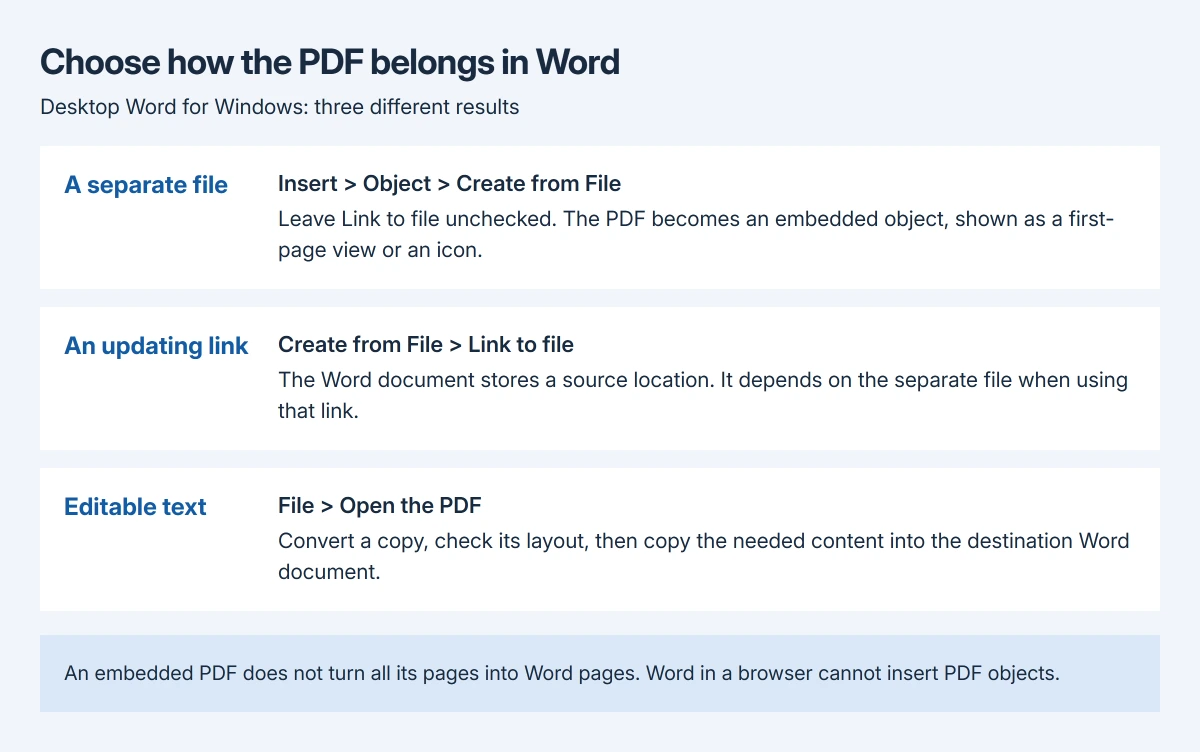
Insert a PDF into a Word document with Insert > Object > Create from File in Word for Windows. This embeds the PDF as a separate object. It does not turn every PDF page into editable Word pages.
For text that needs editing inside the document, convert a separate copy in Word, then transfer the needed content. Choose the result before inserting anything: an attached file and editable text behave differently.
Put the PDF at the right place in the document
Open the destination in desktop Word for Windows and place the cursor where the PDF should appear. If the document is a template or shared original, make a separate Word copy before changing it.
Microsoft's PDF insertion instructions document the object route. Have Adobe Acrobat or Reader available to view the PDF, as Microsoft specifies for this procedure.
Status: Microsoft's PDF object, conversion and browser guidance checked October 28, 2026. These insertion steps cover desktop Word for Windows. No file was inserted or converted locally.
- Select the Insert tab, then Object in the Text group. If the button has a menu, choose Object, not Text from File.
- In the dialog, choose Create from File, then Browse.
- Select the PDF and choose Open or Insert, depending on the file picker.
- Leave Link to file unchecked to include the PDF in the Word file. Select Display as icon if a compact attachment is easier to use.
- Click OK, then save the Word document.
The document should now contain the object at the chosen position. An icon or a representation of the first page is expected; this insertion does not lay out the PDF's later pages as additional Word pages.
Decide whether the file should travel with the document
Microsoft says embedded objects become part of the Word file in its object guide. The inserted copy is then disconnected from the original PDF.
Choose Link to file only when the document should use a separately maintained source. The Word file then stores the source location, and updates to the source can update the linked object.
For a document being sent to someone else, an embedded copy avoids depending on a file path on your computer. That is our recommendation based on those storage differences. The recipient still needs suitable software to open the object.
Double-click the inserted object to check that it opens the intended PDF. Inspect its filename and pages before sending the Word file. If it fails, confirm that the original PDF opens in its reader and retain any error message.
Bring editable text into the document instead
Use File > Open in Word to open the PDF separately when its words need to become part of the document. Accept Word's conversion prompt, review the converted copy, then copy the required text into the destination.
Microsoft states that PDF conversion preserves the original file but can change layout. Text-heavy PDFs work better than pages dominated by graphics, which may become a single image.
Check headings, tables and page breaks against the PDF before relying on the converted material. A passage that only appears as a picture has not become editable text. Ask the sender for the source document when accurate editing matters.
If only a short passage is needed and Copy is unavailable, the PDF text-copy checks distinguish scans, permissions and garbled text. Repeatedly inserting the PDF as an object will not resolve those causes.
For an entire converted Word document, Microsoft documents Insert > Object menu > Text from File in its document insertion guide. Use that on the saved Word copy, then review the combined layout.
Word in a browser needs a different route
Word for the web does not insert PDF objects. Microsoft's PDF guide directs users with desktop Word to Open in Word or Open in Desktop for this task.
Opening a PDF in the browser edition for editing converts it into a Word document instead. That can supply text to copy, but it does not create an embedded PDF attachment.
For a PDF that opens correctly by itself but repeatedly fails during insertion, contact Microsoft Support with the Word version and exact error. Ask the document sender for a fresh copy if only that PDF fails.
The Short Version
Use Object and Create from File to embed a PDF in desktop Word for Windows. Choose a linked source only when that dependency is intentional. Convert a separate copy when the PDF's text needs to join the document.

Isaac Smith is the founder and editor of PC Glance, a website that covers computers, laptops, and technology. He is a tech enthusiast and a computer geek who loves to share his insights and help his readers make smart choices when buying tech gadgets or laptops. He is always curious and updated about the latest tech trends.