The Canon TR4520 scans a stack through its automatic document feeder and saves it as one PDF. In Windows IJ Scan Utility, set Document Scan to the feeder and choose PDF (Multiple Pages) under Data Format.
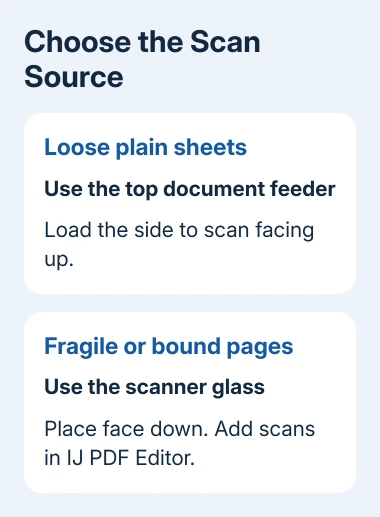
Loose sheets belong in the feeder. For a book or fragile original, use the glass and build the PDF one scan at a time in IJ PDF Editor. Choose the method that suits the pages you're scanning before you start.
In this guide
Choose the feeder or glass for the originals
The automatic document feeder, or ADF, is the tray on top that feeds separate sheets through the scanner. It's useful for a stack of ordinary documents.
The glass under the document cover is better for originals that shouldn't be fed through rollers.
For A4 or Letter originals, the TR4500-series manual gives a limit of 20 sheets of 20 lb paper, within a stack height of 0.08 inch. Legal originals have a smaller limit of five sheets and 0.02 inch.
Thicker paper won't necessarily fit within those limits.
Use plain sheets of the same size, weight, and thickness together. Remove clips and staples; keep torn, curled, glued, sticky-note-covered, photographic, or unusually thick originals out of the feeder.
Put unsuitable originals on the glass instead.
This procedure uses IJ Scan Utility on Windows. The Mac application is IJ Scan Utility Lite and has its own controls, so the Windows buttons in these steps won't match the Mac app.
Load a stack with the scanned side facing up
Remove any original from the glass, open the document tray, and slide the document guides outward. Place the stack in the ADF with the side to be scanned facing up, inserting it until it stops.
Move the guides in to match the paper width without squeezing the stack. Tight guides can interfere with feeding; loose guides leave room for pages to enter crookedly.
Canon says to position originals face up in its TR4500-series loading instructions for the document tray.
The tray holding originals is separate from the cassette that holds blank printing paper.
I'd try two numbered pages before scanning an important packet. Open that small PDF to check that the pages face the right way and appear in the right order before scanning the whole packet.
Set Document Scan to produce a multipage PDF
Open IJ Scan Utility on the computer connected to the TR4520. Click Settings…, then select Document Scan. This changes the settings used by the utility's Document button.
Under Select Source, choose Document (ADF Simplex) to scan one side of each sheet. Document (ADF/Platen) also supports feeder scanning, but choosing ADF Simplex makes it clear you're using the feeder.
Set the paper size and color mode to match the originals. Under Data Format, choose PDF (Multiple Pages). A JPEG is a separate image, so choosing JPEG won't create the single multipage document you want.
Check Save in and note the destination folder. If Save to a subfolder with current date is enabled, the result goes inside a dated subfolder rather than directly into the main destination.
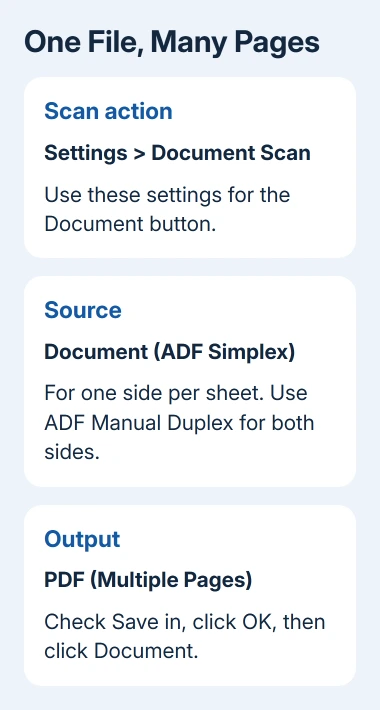
Click OK to return to the utility, then click Document. Let the feeder take the loaded sheets. When scanning ends, open the saved PDF and check its page count, order, and legibility before sending it.
Scan both sides with the manual-duplex setting
For double-sided originals, select Document (ADF Manual Duplex) in Settings > Document Scan > Select Source. Keep PDF (Multiple Pages) as the output format.
Open Document Scan Orientation Settings… and set the page orientation and binding side. This tells the utility how the fronts and backs line up. You'll still need to turn the pages yourself; the feeder doesn't flip them automatically.
Start with Document. After the first pass, follow the onscreen instructions to reload the pages and continue.
The required placement depends on the selected binding side, so follow that prompt instead of guessing which way to turn the stack.
Canon's manual-duplex procedure distinguishes long-edge and short-edge handling.
Check that both sides of the finished PDF read upright and that no blank or repeated sides slipped into the order.
Add glass scans through IJ PDF Editor
For pages that need the glass, empty the feeder and open PDF Editor from IJ Scan Utility. In its Settings, choose Document Scan and set Select Source to Document (ADF/Platen).
Place one original face down on the glass, aligned for document scanning, then use the editor's Scan control to add its scanned page.
Replace the original and scan the next page into the same editor. Continue until the document is complete. The editor also lets you add pages from existing image or PDF files, which helps when part of a packet was already scanned.
Review the thumbnails before saving. Use the move-page controls to correct order and the rotate controls for sideways pages. Save the finished PDF only after checking that every intended page is present.
If the finished scan belongs in a document, the PDF insertion steps for Word explain how to include it.
Keep your originals until you've opened and checked the saved PDF. Seeing the pages in the scan window isn't the same as checking the file you'll send.
Fix a one-page result or a missing scanner
If every sheet becomes its own file, reopen Document Scan and check Data Format. Check the settings for Document itself. Changing a different scan button's settings won't necessarily change what Document does.
If only one side appears, confirm whether ADF Simplex was selected. For both sides, use the manual-duplex procedure and complete its second pass.
If pages are missing, check the feeder stack and repeat only after correcting the loading problem.
If IJ Scan Utility can't find the TR4520, check the selected scanner and its connection.
The Canon Wi-Fi setup guide helps with a network connection, while the Windows scanner checks help confirm device detection.
For a continuing feeder fault, contact Canon Support with TR4520, Windows version, scan source, and whether a single glass scan works. That tells support whether the fault is in the feeder or the computer's connection to the scanner.
The Short Version
Load suitable sheets face up in the ADF. In Windows IJ Scan Utility, set Document Scan to the correct ADF mode and PDF (Multiple Pages), then click Document.
Use manual duplex for two-sided sheets or IJ PDF Editor for glass scans.
Checked November 11, 2026.