
Canon printers connect to Wi-Fi through the setup method for their exact model. Start with the model number and Canon's setup guide, then transfer the router details using Easy Wireless Connect if that model offers it.
The worked example uses the PIXMA TS3500 series. Its buttons are not a universal Canon sequence. A printer with a touchscreen, or a different PIXMA model, can use different controls.
Select the printer model and the intended connection
Read the full model on the printer. Open ij.start.canon and select that model, your language and the device used for setup. Use the matching instructions rather than a download offered for a similarly named printer.
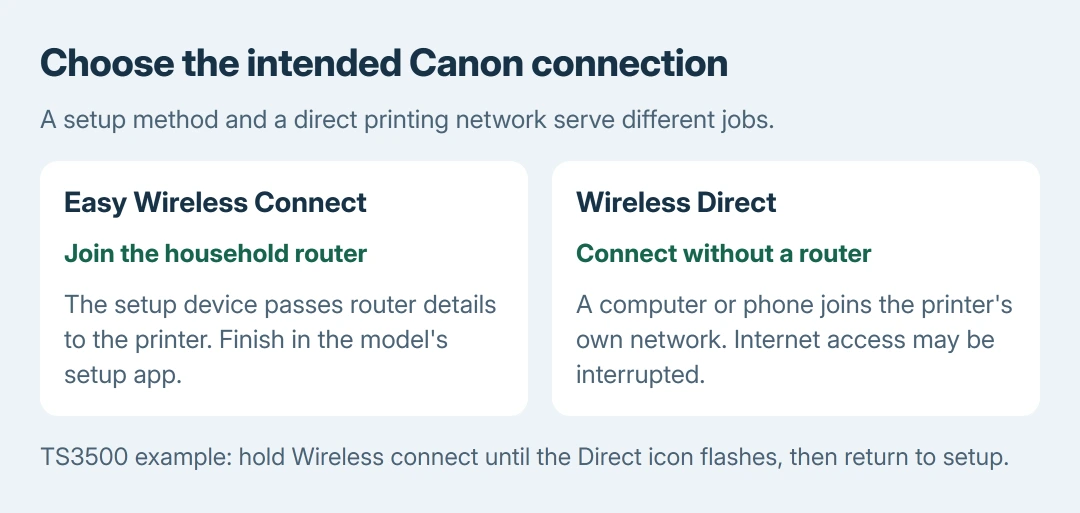
For household printing, choose the route that connects the printer through the wireless router. Wireless Direct instead creates a connection between the printer and a computer or phone without that router.
Status: Canon TS3500-series setup and reconfiguration checked October 28, 2026. Other models need their own guide. Research involved instructions rather than a physical printer.
Keep the household network name and password available. Microsoft says the printer and Windows computer need the same network. A guest network can prevent discovery from the main network.
Different radio bands can still belong to the same home network. The important requirement is communication between the devices, plus a wireless band and security mode the printer supports. Check those capabilities in its manual.
Start Easy Wireless Connect on a TS3500-series printer
Open the model's setup software or instructions before starting the printer's connection mode. Canon says Easy Wireless Connect sends the router information from the setup device to the printer without operating the router itself.
For the TS3500 series, follow Canon's illustrated button procedure:
- Turn the printer on. Wait for cleaning, print-head alignment or other active maintenance to finish.
- If the ON lamp is flashing, press Stop as directed by the setup guide.
- Hold Wireless connect and release it when the Direct icon starts flashing.
- Check that the network-status icon and the indicated horizontal bars flash as shown in Canon's guide.
- Return to the setup application and continue its instructions to pass the intended router's information to the printer.
Canon's reconfiguration page describes holding that Wireless connect button for three seconds. Use the flashing display state to confirm the mode rather than repeatedly tapping Wireless select.
Wireless select and Wireless connect are different controls on this series. A direct-network icon during setup does not mean that joining the printer's permanent Wireless Direct network is the desired final connection.
Finish setup on the computer, then print one page
Follow the model's application prompts through network selection and software setup. Confirm the selected household network before accepting it. Enter its wireless password when requested, then let setup finish.
A temporary internet interruption is documented by Canon during Easy Wireless Connect setup. Leave the setup process running rather than treating that brief interruption alone as a failure.
On Windows 11, check Settings > Bluetooth & devices > Printers & scanners afterward. If needed, choose Add device and select the Canon printer. Windows 10 places Printers & scanners under Settings > Devices.
Open a short document, select the newly configured Canon entry in Print, and send one page. The paper result checks more than a completed setup screen. Our recommendation is to verify this before adding the printer to other devices.
For discovery that fails after the printer joins, the wireless-printer network checks cover the next stage. A completed router connection and a stalled print queue need different checks.
Use the alternative method for unsupported setup devices
Canon excludes Chrome OS and Windows 10 in S mode from this TS3500 Easy Wireless Connect route. Choose Other setup in its guide and follow the offered method for that printer and device.
A direct connection is useful when there is deliberately no router involved. The Wi-Fi Direct printing guide explains that arrangement; its Epson button example should not be copied onto a Canon.
After a router replacement or changed wireless password, return to the Canon model's reconfiguration instructions. Installing another copy of the Windows printer entry does not itself teach the printer the new router credentials.
If the documented display state never appears or setup reports an error, contact Canon with the full model, setup device, displayed code and chosen connection method. That gives support a specific setup stage to address.
The Short Version
Choose the Canon model's router setup. TS3500-series Wireless connect starts Easy Wireless Connect; finish in its app. Wireless Direct serves a different purpose. Verify the result with a printed page.

Isaac Smith is the founder and editor of PC Glance, a website that covers computers, laptops, and technology. He is a tech enthusiast and a computer geek who loves to share his insights and help his readers make smart choices when buying tech gadgets or laptops. He is always curious and updated about the latest tech trends.