
Wi-Fi Direct setup connects a computer to a supported printer's own wireless network. Enable it on the printer, join the displayed network with its displayed password, then select that printer in the printing app.
The printer supplies this local connection. It does not turn into a broadband service, and a laptop using its Wi-Fi for that connection may temporarily lose its usual internet access.
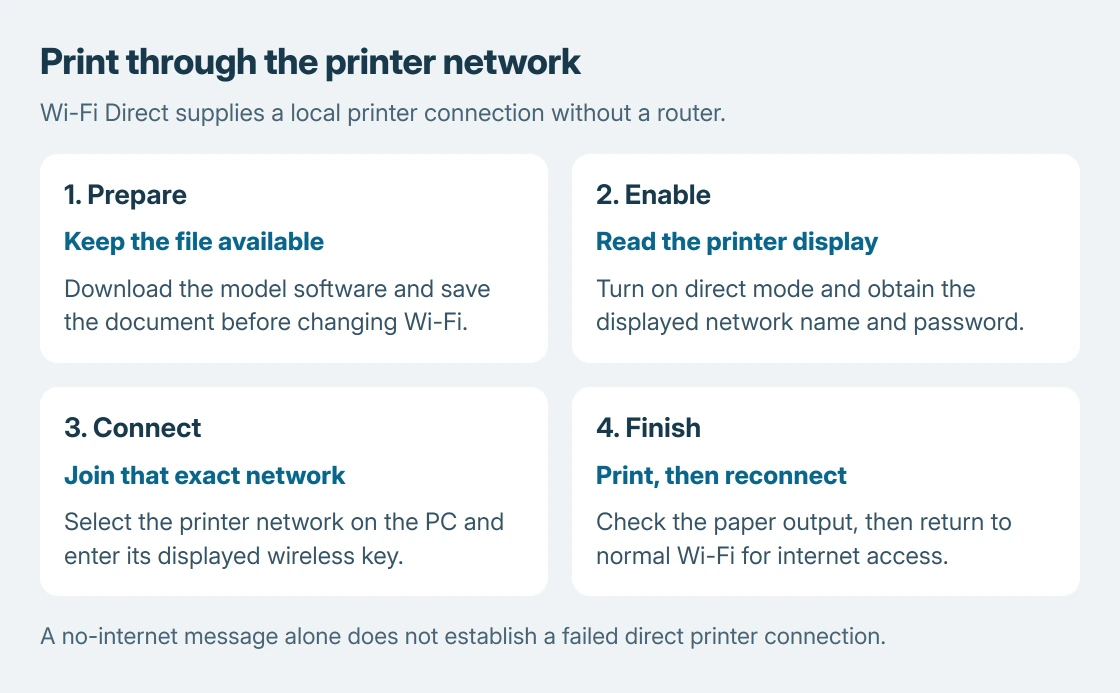
1. Prepare the software while internet still works
Check the printer's exact model and confirm its manual includes Wi-Fi Direct or Simple AP. A wireless-capable printer does not automatically support every direct-connection method.
Download the model's computer software before changing networks. For a phone or tablet, Epson says to install Epson Smart Panel or another compatible Epson printing app before connecting to the ET-2850.
Status: Epson ET-2850 Wi-Fi Direct instructions and Microsoft's Windows connection controls reviewed October 25, 2026. No printer connection was tested.
Save an online document locally first. The preparation order is ours: finish downloads before exchanging the normal internet connection for the printer's network.
For continuous household access, use the router-based printer setup instead. Direct mode is useful when the intended connection is specifically between a device and the printer.
2. Enable direct mode on an Epson ET-2850
This example is documented by Epson for the ET-2850. Another printer can place the controls elsewhere; use its own model guide.
- Press Home if needed. Select Wi-Fi Setup with the arrow buttons and press OK.
- Select Wi-Fi Direct, press OK, then press OK twice to display the product information.
- For a computer connection without Smart Panel, press the left arrow. Select Other OS Devices and press OK.
- Keep the displayed network name and password available while joining from the computer.
- After connecting, select Done with OK on the printer. Check that its blue Wi-Fi Direct indicator appears.
For an iPhone or iPad, Epson provides an iOS choice and a displayed QR-code route instead. Do not substitute the household router password for the printer's direct-network password.
3. Join the printer's network from Windows
On Windows 11, select the taskbar's network area and open Manage Wi-Fi connections. Choose the exact name displayed by the printer, select Connect, and enter the displayed wireless key.
On Windows 10, select Network beside the taskbar clock. Microsoft's Wi-Fi joining instructions show the connection controls for both versions.
A no-internet notice alone cannot establish whether this local printer link works. Check the selected network name and the printer's direct-mode indicator. Browser loading is the wrong success test for this local connection.
Epson's mode description says the ET-2850 acts as an access point for up to eight devices. That limit is model-specific, not a promise about every Wi-Fi Direct printer.
4. Print the document, then return to normal Wi-Fi
Complete any remaining printer-software prompts. Open the saved document in its app and select the actual printer as its output destination. The first-page printing guide covers destination, paper and preview checks.
Send one short job and check the paper output. Rejoin the normal household Wi-Fi when finished if the computer needs its usual internet connection again.
If the printer's network never appears, return to its direct-mode screen and verify that mode is enabled. If Windows joins but printing still fails, give Epson the model, selected connection method and exact software error.
The Short Version
Prepare the software and document, enable the printer's direct network, and join it using the printer's credentials. Print locally, then reconnect to ordinary Wi-Fi. Follow the exact model's menu rather than a generic button sequence.

Isaac Smith is the founder and editor of PC Glance, a website that covers computers, laptops, and technology. He is a tech enthusiast and a computer geek who loves to share his insights and help his readers make smart choices when buying tech gadgets or laptops. He is always curious and updated about the latest tech trends.