
An HP printer's WPS PIN appears on its screen or a printed network page, depending on the model. Check what the setup prompt asks for, then use your printer's controls to show or print the code.
A WPS PIN isn't your home Wi-Fi password. The printer gives you the PIN for a particular setup method. Use your router's network password when setup asks for the normal wireless-network password.
Match the PIN request to the setup method
Read the prompt before looking for a number. WPS PIN, Wi-Fi password and Wi-Fi Direct password belong to different parts of printer setup. The code can be rejected if you enter it in the wrong field.
For WPS setup through a router, the printer generates or displays a PIN that you enter in the router's WPS setup. Windows may also ask for a printer PIN while searching for a printer to add.
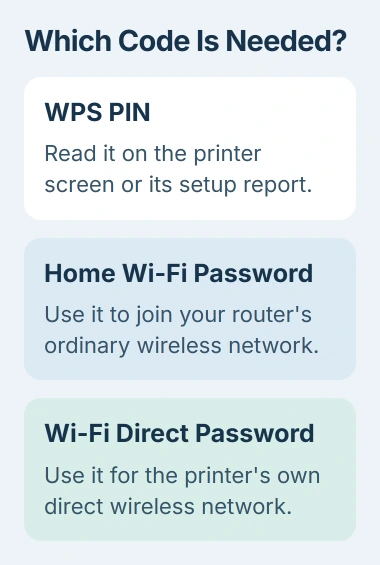
When Windows asks for a printer PIN, check the printer straight away for a setup message or newly printed sheet. Use the code for that request, rather than one on an older sheet beside the printer.
For WPS through your router, use the example for your model in the next sections. The PIN location and buttons differ, so a DeskJet button combination won't apply to every OfficeJet or PageWide.
If you're choosing between direct printing and joining the home router, the Wi-Fi Direct setup guide explains that separate connection. A direct link to the printer doesn't have to provide internet access.
Find the PIN on a touchscreen PageWide printer
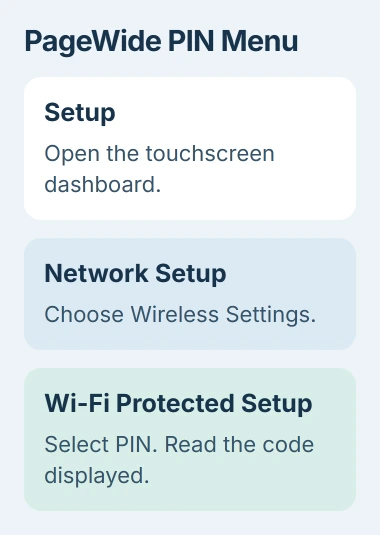
On the HP PageWide P75050-60 series, turn on wireless and open the touchscreen dashboard. Swipe down the dashboard tab or touch the strip at the top of the printer's Home screen.
Open Setup > Network Setup > Wireless Settings > Wi-Fi Protected Setup, then choose PIN. The WPS PIN appears on the printer's screen. Keep it open while you finish the matching WPS setup on your router.
HP explains these steps in the PageWide manual. If another touchscreen model's menus look different, check the network setup chapter in that printer's manual.
To connect the PageWide through your router, open the router's setup software and enter the printer's code in its WPS PIN section. If you can't find that section, check your router's manual; the menus differ between models.
Don't enter the printer's code into the router administrator password box. That box signs you into the router's settings and isn't the WPS pairing field.
Give the PageWide about two minutes to connect. Its wireless light stays steady once it has joined the network. Then add the printer to Windows.
Print the PIN on a DeskJet GT 5820
On an HP DeskJet GT 5820, press Wireless and Information together to print the network configuration page. Find the WPS PIN at the top of that printed page.
To start this model's PIN connection, hold Wireless for more than three seconds until its light starts blinking. Enter the printed PIN in your router's WPS setup software and wait for the connection to finish.
The DeskJet GT 5820 manual gives these button commands. Once connected, the printer's wireless light stays on without blinking.
The GT 5820 supports 2.4 GHz wireless. That's a limit for this model, so check which bands your own printer supports instead of assuming every HP printer has the same limit.
I'd find the PIN section in the manual before trying button combinations. Resetting network settings isn't the same as printing a report, and you'll have to do more setup if you reset them by mistake.
Use the configuration page on an OfficeJet 7110
The HP OfficeJet 7110 also prints its WPS PIN at the top of the network configuration page. It uses a different button from the DeskJet to print that report, so follow the 7110 instructions.
With the printer ready, press Network Information to print the network configuration page. Read the section labeled for WPS instead of using the printer's serial number or network name as the code.
To use the PIN method on this model, hold Wireless for three seconds until the wireless light blinks. Enter the PIN in your router's setup software, then give it time to connect before starting again.
The OfficeJet 7110 manual covers the printed code and router setup. If your printer has different buttons, stop and get the manual for the model printed on it.
When the code is rejected or no PIN appears
Start the setup that asked for the code again and check the printer's new response. Read any time limit on the screen. A code from an earlier attempt may not work for the current request.
Check the selected printer's full name too. Nearby printers can have similar names when Windows searches for devices. Make sure you've selected the matching model before entering a code from a printer across the room.
If you only want the printer on your home network, use its supported wireless setup wizard or normal setup software instead of forcing the WPS PIN route. The HP Wi-Fi setup checks explain returning a disconnected model to setup mode.
Once it's connected, use the Windows printer-addition controls to add it to your PC. If you get a driver error after pairing, check the driver instead of searching for another PIN.
If pairing keeps failing, tell HP Support your model and which screen asks for the code. Say whether a PIN appeared and the wireless light stayed steady. That helps them tell a connection failure from a later PC setup problem.
The Short Version
Use your model's controls to display or print its WPS code. Keep Wi-Fi and Wi-Fi Direct passwords separate from that PIN. Complete the matching setup request and check the wireless connection.
Checked November 4, 2026.

Isaac Smith is the founder and editor of PC Glance, a website that covers computers, laptops, and technology. He is a tech enthusiast and a computer geek who loves to share his insights and help his readers make smart choices when buying tech gadgets or laptops. He is always curious and updated about the latest tech trends.