
An HP printer not connecting to Wi-Fi after a password or router change needs to join again. Check its wireless light, then restore the model's setup mode if HP software cannot find it.
HP printers use different controls and reset timings. The examples here come from HP's own DeskJet, Smart Tank and OfficeJet manuals, so match the model before holding any buttons.
Read the wireless light before reinstalling a driver
On these models, a steady wireless light indicates a network connection. A blink can mean disconnection, a connection attempt or setup mode. Check the report to confirm which network, if any, the printer joined.
HP says the DeskJet 2700's Wireless + Information buttons print its wireless test and network configuration reports. Read the connected network name and any failed test before deciding whether the fault is at the printer or computer.
Status: HP DeskJet 2700, Smart Tank 510 and OfficeJet Pro 9010e manuals reviewed October 26, 2026. Reset controls are model-specific; no printer was connected or reset here.
The report command is in the DeskJet 2700 manual. If the printer already reports the right network, use the computer's wireless printer discovery checks before erasing a working connection.
Put the disconnected printer back into setup mode
Have the intended Wi-Fi name and password ready. Restoring network settings removes the saved connection, so the printer must be joined again. Choose the network reset rather than a factory or cold reset.
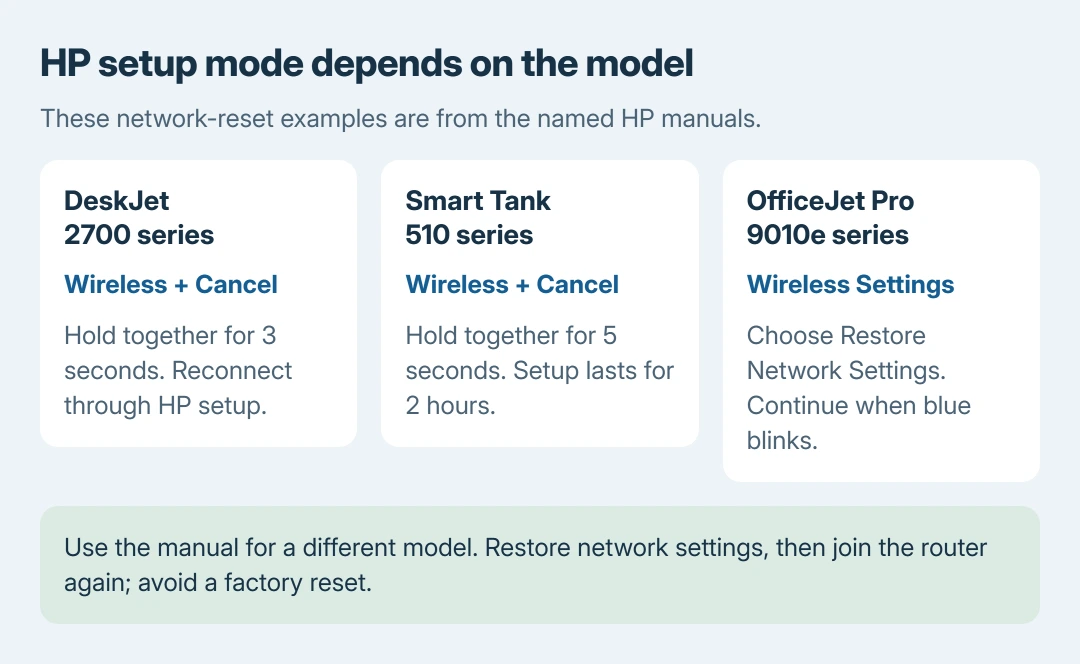
- DeskJet 2700 series: press and hold Wireless + Cancel together for three seconds. This timing is documented by HP in the model's manual.
- Smart Tank 510 series: hold Wireless + Cancel for five seconds. HP's reference guide says setup mode lasts two hours after restoring network settings.
- OfficeJet Pro 9010e series: open Wireless Settings > Restore Network Settings on its touchscreen to return to wireless setup. Continue when the wireless light blinks blue.
For another model, obtain its manual from HP Support and find the network-reset instructions. The different timings in these examples are a reason to check, rather than treating one button combination as universal.
Join the router again through HP software or the wizard
Open the HP setup software and add the printer while it is waiting for setup. The manuals direct users to 123.hp.com for the appropriate software. Select the home network and provide its current Wi-Fi password.
On the OfficeJet Pro 9010e, a touchscreen route is also available: open the Dashboard, tap Wireless > Settings > Wireless Settings > Wireless Setup Wizard, and follow the prompts.
HP states in the OfficeJet manual that the wireless light stops blinking and stays lit after a successful connection. Confirm that change, then print a test page from the computer.
Check the exact model's band support if the router name is missing. The saved DeskJet 2700 manual lists 2.4 GHz or 5 GHz support; it would be inaccurate to tell every HP owner that only 2.4 GHz can work.
Use the wireless report when setup still fails
Move the printer nearer the router for another attempt. Disconnect a VPN on the setup computer if it blocks access to local devices; HP includes that check in the DeskJet setup instructions.
For OfficeJet Pro 9010e, open Dashboard > Setup > Reports and print the Wireless Test Report. HP says it checks connection conditions and provides corrective messages for detected problems.
If the wireless light becomes steady but Windows still reports Offline, continue with the printer status and queue checks. Repeating the network reset at that point removes a connection that may already be working.
For a printer not yet installed on the PC, Microsoft's Windows printer setup explains the Add device stage after the network connection works.
If the printer never joins, give HP Support the exact model, router change and failed items on the report. Our handoff is that report and connection state, rather than another broad reset that loses unrelated printer settings.
The Short Version
Use the wireless report, restore setup mode for the exact model, then rejoin the router. A steady light points to computer discovery or the queue; a failed wireless test needs HP support.

Isaac Smith is the founder and editor of PC Glance, a website that covers computers, laptops, and technology. He is a tech enthusiast and a computer geek who loves to share his insights and help his readers make smart choices when buying tech gadgets or laptops. He is always curious and updated about the latest tech trends.