
Your printer is switched on. Its own screen says ready. It has paper. And Windows insists it is offline and will not send it a thing.
That combination is infuriating, because the machine in front of you is plainly working and the computer refuses to believe it. I have put seven fixes in order for you, cheapest first.
The last one is a single checkbox that quietly does this to network printers.
These are independent solutions, not steps. Stop as soon as yours prints.
1. Power cycle it, and give it the full thirty seconds
Documented by Microsoft: "Turn off your printer and unplug it, wait 30 seconds, plug your printer back in".
The thirty seconds matter. Network printers hold their state in memory, and a quick off and on will not clear it. Pull the plug at the wall. Do not use the power button.
While it starts up again, watch for an IP address on its screen. You will want that later.
2. Check Windows is looking at the printer you think it is
Windows will change your default printer on you, and this is the fix people skip because it sounds too simple.
Documented by Microsoft: set it at Settings, Bluetooth & devices, Printers & scanners, choosing your printer and setting it as default.
Now the part that matters. Microsoft tells you to accept a prompt reading "Windows will stop managing your default printer for you".
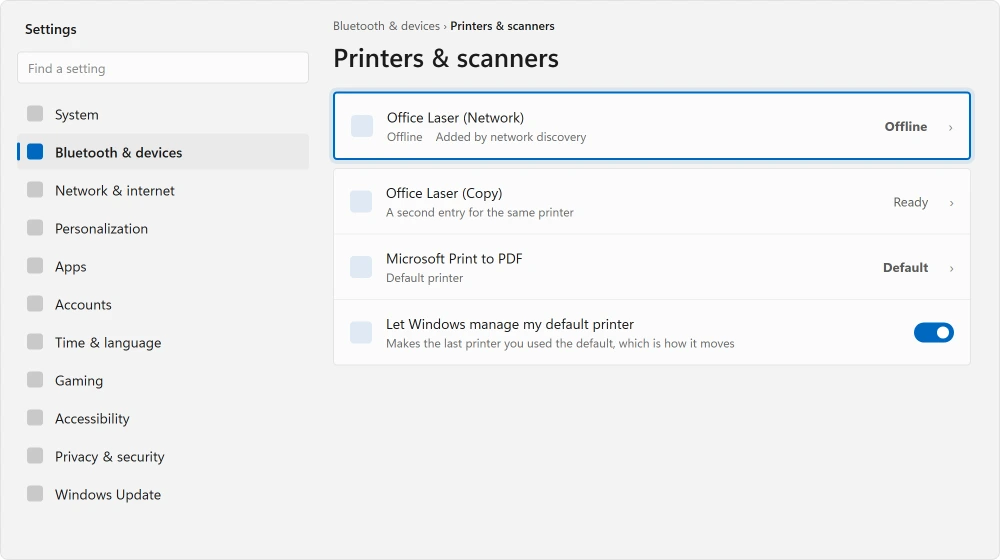
That prompt is Windows admitting what it has been up to. Left alone, it makes whatever you printed to last into your default. Print one thing to a PDF writer, or to a printer at the office, and your real printer is no longer the target.
It never went offline. Windows is simply aiming somewhere else.
Accept the prompt. The switching stops for good.
3. Clear the queue
One stuck job blocks everything behind it. While it waits, your printer reports itself unavailable.
Documented by Microsoft as checking the print queue and cancelling pending jobs. Open Settings, Bluetooth & devices, Printers & scanners, click your printer, then Open print queue.
Cancel everything in the list. That includes anything showing error or deleting.
A job that refuses to cancel points at the spooler, which is next.
4. Restart the print spooler
The spooler is the service that holds your queue. It can hang while everything else looks perfectly normal.
Documented by Microsoft: "Scroll down to the Print Spooler service, select and hold (right-click) it, and select Restart".
Press Windows + R, type services.msc, press Enter, and find Print Spooler in the list. That same window is where the audio services live, if you ever need a PC with no sound.
Restarting it re-establishes contact, though it does not empty the queue. A job that refused to cancel at step three needs the spooler stopped, everything in C:\Windows\System32\spool\PRINTERS deleted, then the service started again.
A spooler that hogs the processor while nothing prints needs the same clear-out, and sometimes a program removed.
5. Clear the offline flag Windows set on it
One checkbox literally tells Windows to treat your printer as offline. It gets set automatically after a failed job.
Documented by Microsoft, though only in its Windows 10 instructions: "clear Pause Printing and Use Printer Offline if they are selected".
Notice where that quote comes from.
Microsoft's offline printer guidance gives that instruction under Windows 10 and does not repeat it in the Windows 11 list.
The setting still exists on 11, and it still does the same thing.
To reach it on Windows 11, open the print queue as in step three. Click Printer in the menu at the top. Clear Use Printer Offline and Pause Printing if either is ticked.
Printer drivers reach you through Windows Update, so if that is jammed on your machine, clear an update that will not move before you go further.
6. Remove the printer and add it back
More disruptive, and it clears a whole class of problem in one go.
Documented by Microsoft as removing and reinstalling the printer. In Settings, Bluetooth & devices, Printers & scanners, click the printer and choose Remove.
Before you add it back, look hard at the list you just came from. I would bet on what you find there. Ours, and marked as ours: duplicates are very common. They are also why this fault outlives every other fix.
The same printer often appears twice, once discovered over the network and once added by name, and Windows shows you the status of the dead copy. Remove every one of them, then add it back a single time.
If the printer hangs off another PC on your network, adding it back may ask for that PC's login. If it refuses a login you know works, Credential Manager is where that login belongs.
7. The checkbox that does this to network printers
Now the narrow one. It applies only to a printer on your network, not one on a USB cable.
Windows checks a network printer is alive by polling it with something called SNMP. No answer to that poll and Windows marks it offline, even when the printer is perfectly reachable and would print quite happily.
Plenty of printers never answer, or answer on settings that do not match. I have yet to see a page that mentions this. The result is a printer that pings, prints from your phone, and reads as offline on your PC.
Reported working by an owner on Microsoft's Q&A, 21 April 2024, on an HP wireless printer that could be pinged at its address the whole time:
> "The printer came back online. It is terrible that something like that could kill my printer and make it impossible for most people to use it."
To turn it off, open Control Panel, then Devices and Printers. Right-click your printer and choose Printer properties.
Open the Ports tab, make sure your printer's port is selected, and click Configure Port. Clear SNMP Status Enabled.
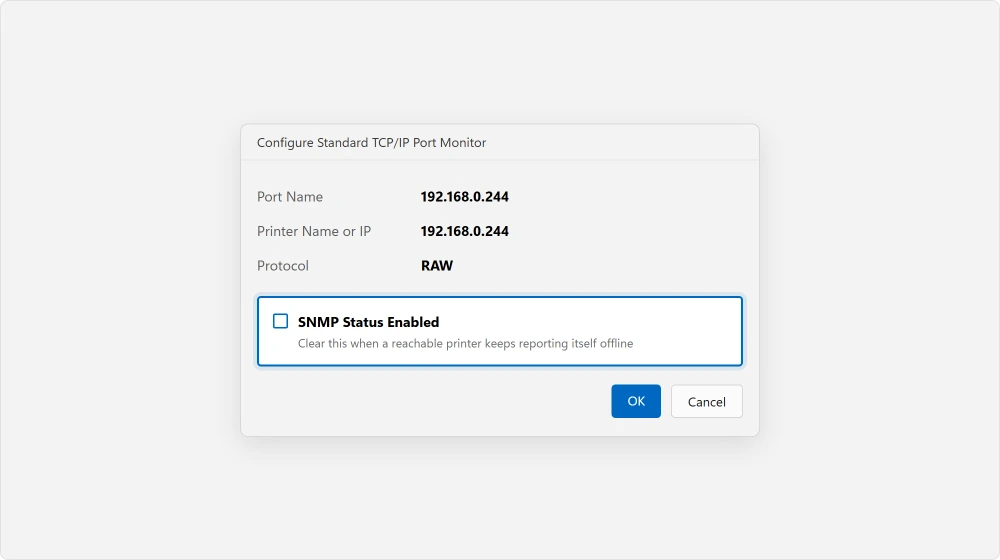
Reported as not applicable by another owner four months later on that same thread, using a Brother HL-3150CDW: "I can't find the SNMP check box.. Where is it please". Nobody answered them.
That deserves an explanation rather than a shrug. The checkbox lives on a Standard TCP/IP port. If your printer went in as a WSD device, which Windows often does by itself, there is no Configure Port button to press at all.
Remove the printer and add it back by IP address instead, choosing to add it manually. The port options appear then.
Status: re-checked 21 August 2026, both current editions. Microsoft gives the Use Printer Offline instruction in its Windows 10 list only, though the setting behaves the same on 11.
Why does my printer say offline when it is on?
Windows and the printer disagree. The commonest reasons are a default printer Windows switched on you, a stuck print job, and the SNMP status poll marking a perfectly reachable network printer as offline because it did not answer.
Where is Use Printer Offline in Windows 11?
Open Settings, Bluetooth and devices, Printers and scanners, click the printer, then Open print queue.
Click Printer in the menu at the top of that window and clear Use Printer Offline. Microsoft documents this under Windows 10 but the setting is still there on 11.
Why does Windows keep changing my default printer?
Because it is set to manage it for you, and it makes whatever you printed to last the default. Setting a default yourself produces a message saying Windows will stop managing it. Accept that and the switching stops.
What is SNMP Status Enabled on a printer port?
It is how Windows polls a network printer to ask whether it is ready. When the printer does not answer that poll, Windows reports it offline even though it can be reached and would print. Clearing the checkbox stops Windows asking.
The Short Version
- Unplug the printer for a full thirty seconds, not a quick off and on.
- Windows changes your default printer to whatever you used last.
- One stuck job blocks the queue and reports the printer as unavailable.
- Use Printer Offline still exists on Windows 11, in the print queue window.
- Duplicate entries mean you may be reading the status of a dead copy.
- SNMP polling marks reachable network printers offline, and it is one checkbox.
Where to Next
Offline and error state are different words for different things, and the second one is Windows repeating what the printer told it.
If it has never printed at all rather than gone offline, start further back. Getting a wireless printer onto the network is its own short list.
On a network printer I would go to the SNMP box first. It explains the version of this fault that outlives every other fix, and clearing it takes ten seconds.
If your printer refuses from a phone as well as from the PC, this is not the page you need.
A printer that will not accept jobs from an iPhone is a different mechanism entirely, and the fixes do not overlap.
A printer that says offline and a printer with paper stuck inside it are different problems, and the jam has a direction that matters.
When the printer is not there to go offline in the first place, adding it by address beats waiting for discovery.
Where the right printer is online but jobs keep going somewhere else, Windows is choosing the default for you.
Drop your printer model in the comments, and say whether it went in by IP address or was discovered on the network. That second detail decides whether the SNMP fix is even available to you.

Isaac Smith is the founder and editor of PC Glance, a website that covers computers, laptops, and technology. He is a tech enthusiast and a computer geek who loves to share his insights and help his readers make smart choices when buying tech gadgets or laptops. He is always curious and updated about the latest tech trends.