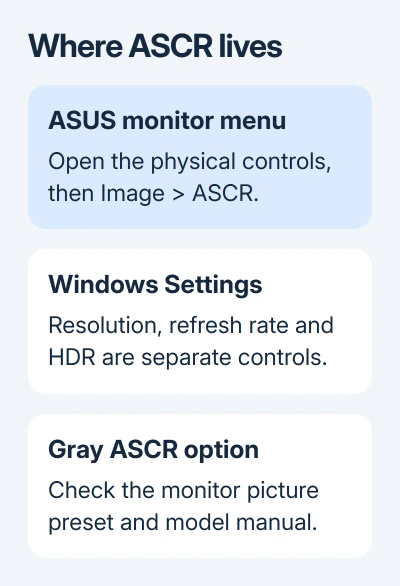
ASUS ASCR is usually controlled through the monitor's own buttons, not Windows 11 Settings or MyASUS. Open the monitor's menu and look under Image > ASCR.
If the option is gray, change the monitor's picture preset before looking for a Windows fix.
Check which of these three situations matches your screen. Windows may have no ASCR setting, another monitor mode can lock a gray option, and a laptop's built-in screen might not support ASCR at all.
In this guide
1. Open the ASUS monitor's own menu
Find the joystick or menu buttons on the monitor's back or lower edge. Use the control shown in your monitor's manual to open its on-screen display, often shortened to OSD. That's the monitor's own menu.
Choose Image, then ASCR, and select ON or OFF. ASUS's ASCR instructions give that menu path. The location of the physical control varies by model, so don't copy a button sequence for a different screen.
ASCR means ASUS Smart Contrast Ratio. It adjusts brightness to match what's on screen. Turning it on can change how a dark scene looks compared with a bright scene; it isn't a switch that increases the panel's resolution.
After changing it, close the menu and compare the same content. If the control works and keeps your choice when you reopen the menu, you've reached the right setting. No Windows restart is needed for this monitor control.
I'd use these physical controls first. They get you to the monitor directly and avoid installing software just to discover that the current picture mode has locked the option.
If the monitor doesn't offer an ASCR entry, go to the model check in section 3. If the entry exists but can't be selected, work through the preset checks next.
2. Change a picture mode that locks ASCR
Open the monitor's GameVisual or Splendid menu and note the selected preset. These control the monitor's picture, rather than Windows power use. A preset can lock several picture adjustments together.
With GameVisual, ASCR isn't configurable in Racing Mode or sRGB Mode, according to the same support instructions. Choose another mode listed as supporting ASCR in your monitor's manual, then return to Image > ASCR.
With Splendid, the support page says ASCR isn't available in Standard Mode or sRGB Mode and notes the SplendidPlus compatibility limit. Use your exact model's manual to choose a supported alternative.
Don't assume every ASUS screen has the same set of modes. A gaming monitor's GameVisual list and an office monitor's Splendid list can differ. A graphics-driver installation won't add a preset to the monitor menu.
Change one preset, then check the ASCR entry immediately. If it becomes selectable, the preset was restricting the control. Choose the final picture mode based on how you actually use the display, rather than enabling ASCR at any cost.
A switch that becomes available after changing modes doesn't mean the old mode was broken. Color-focused presets can intentionally limit adjustments. Keeping sRGB and leaving ASCR unavailable can be the right choice for consistent color.
If ASCR stays gray, check the manual's notes beside ASCR and the active picture mode. Those restrictions are more useful than trying random Windows settings that don't control the monitor's menu.
3. Check whether this particular display supports it
Check the rear label for the monitor model. Use the monitor model, not the ASUS laptop or desktop model connected to it. Similar model names don't always mean matching menus or utility support.
Open the manual supplied with that model and search for ASCR. Check both its Image menu description and the notes for picture presets. Check what the setting is called, whether it's available, and what limits apply to your screen.
When ASCR isn't listed in that manual, its absence doesn't indicate a Windows 11 fault. The feature isn't a universal Windows option, and an ASUS brand name alone doesn't mean every display supports it.
For an ASUS laptop with no external monitor, check its own display documentation. The built-in panel isn't the same product as an ASUS desktop monitor. A MyASUS picture feature with another name isn't automatically ASCR.
When several displays are connected, use the buttons on the screen whose brightness you're trying to change. The Windows main-display choice doesn't transfer one monitor's internal picture controls to another monitor.
If the model manual lists ASCR but your menu doesn't, compare the manual's supported modes with the current menu first. Record the model and active mode before asking support about a missing entry.
4. Use DisplayWidget only on a supported monitor
Some compatible monitors provide ASCR through ASUS DisplayWidget Lite. Its GameVisual controls include ASCR and Shadow Boost. This is a separate monitor utility, rather than a missing page inside Windows Settings.
If the matching utility is already installed, open it and select the connected monitor. Check its GameVisual controls and picture mode. The app can't add ASCR to a panel that doesn't support it, and a locked preset still matters.
Don't install an unrelated utility package because another ASUS model has it. If your model doesn't list DisplayWidget Lite support, stay with its physical menu and the instructions in its own manual.
If the buttons work but an installed utility doesn't, the problem is with software control. Tell ASUS support your monitor model, connection type, and utility version, rather than reporting that Windows has lost ASCR.
5. Separate ASCR from Windows brightness changes
Something other than ASCR can also make an ASUS screen keep getting lighter and darker. Before changing more controls, decide whether the behavior happens on the external monitor, the laptop panel, or both.
Windows HDR is a separate feature. Check Settings > System > Display, select the affected screen, then open HDR.
Microsoft's HDR settings guide explains the Windows controls.
Use the monitor manual to check whether HDR or another active mode restricts ASCR on that model. Don't assume turning off HDR is required for every ASUS monitor. It changes the display mode, so compare the result before keeping it off.
The Windows HDMI settings guide explains which display adjustments belong to Windows. For an unwanted warm tint, check Night light instead of changing dynamic contrast.
If the documented monitor controls still won't work, ask ASUS support whether ASCR should be available with your exact model, input, and picture preset.
Include a photo of the monitor menu and the model label, without personal account details.
The Short Version
Open the monitor's Image menu for ASCR. A gray option often needs a different supported picture preset. Check the exact monitor manual before installing utilities or treating a missing control as a Windows problem.
Checked November 13, 2026.