Lenovo laptop speakers can sit beside the keyboard or underneath the base, depending on the model. Check the keyboard's side grilles first, then the underside near the edges.
The exact model and generation matter: a ThinkPad and an IdeaPad can send sound out in different directions.
The speaker icon in Windows is a software control, not a map of the hardware. If you're looking because the laptop is quiet, identify the speaker openings and check the selected audio output before assuming a speaker is missing.
In this guide
Look beside the keyboard and underneath the base
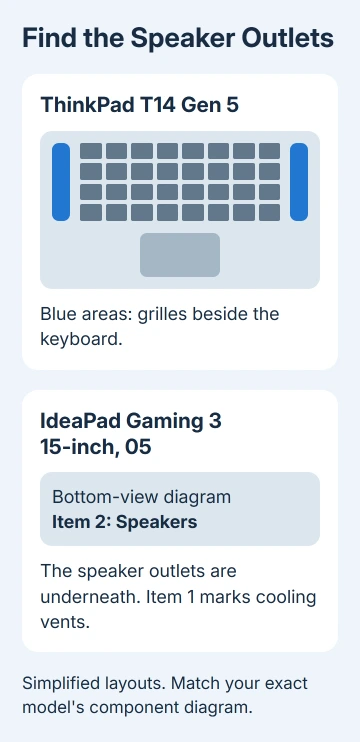
Open the laptop in its normal typing position. Look for matching grilles on either side of the keyboard. Some models place their speakers there so sound comes toward the person using the computer.
Next, shut down the laptop and disconnect its charger and accessories before turning it over. Look near the outer edges of the underside for matching groups of small openings. Use good light so you can compare both sides.
Don't assume every grille is a speaker. Large ventilation openings let cooling air move through the computer. A microphone opening can be much smaller and sit near the webcam or along an edge.
Compare the openings with the hardware illustration for that exact Lenovo model. The drawing's label is more reliable than the direction you think the sound is coming from, since sound from underside speakers can bounce off your desk.
If you only wanted to find the hardware, that identification is enough. Leave the bottom cover attached; you can find the speaker openings without exposing internal parts.
Find the complete Lenovo model name
Find the complete model on the underside label or your original paperwork. Keep the generation and model code, not just Lenovo, ThinkPad, Yoga or IdeaPad. Different screen sizes in the same family can use different layouts.
If Windows starts, search Start for System Information. Open it and read System Model.
If the entry is a machine-type code rather than a familiar retail name, use that code alongside the product label or Lenovo Vantage's product information.
Open the matching user guide you received or downloaded for the laptop. Look in the hardware overview for Front view, Base, Bottom or Bottom view, then read the table naming the numbered components.
A manual can cover several models. Select the illustration matching your own size and generation. Check the keyboard and nearby ports too; a drawing of another laptop can look right until you compare those details.
Our Lenovo power-button location guide uses the same model-matching approach for another control whose position changes. Identifying the exact chassis helps with both questions.
ThinkPad T14 Gen 5: speakers beside the keyboard
For the ThinkPad T14 Gen 5 and ThinkPad P14s Gen 5 AMD, the front-view drawing marks a speaker grille on each side of the keyboard. Look at the narrow perforated areas running alongside the keys.
Lenovo describes the two speakers in its front-view component guide. The same drawing marks microphones near the camera.
The microphone openings collect your voice; they aren't the playback speakers.
That manual also contains a ThinkPad T16 Gen 3 section. Its separate illustration matters. Don't assume the T16 shares the T14's speaker layout just because both computers appear in one guide.
Keep papers and other objects away from the identified grilles while listening. If the laptop sounds muted only when something covers those openings, clear that obstruction before changing the audio driver.
A grille's length also doesn't tell you how many individual speaker units sit behind it. Use the model's specifications or service documentation if you need the internal part count for a repair.
IdeaPad Gaming 3 15-inch, 05: speakers underneath
On the IdeaPad Gaming 3 (15-inch, 05), the bottom-view guide identifies item 2 as Speakers. Item 1 identifies ventilation slots for incoming cooling air. Those two sets of openings serve different jobs.
Use the matching bottom illustration to find the speaker outlets. This example is for that model generation; a later Gaming 3, LOQ or Legion needs its own guide rather than the same item numbers.
The IdeaPad Gaming 3 bottom view provides that distinction.
A broad cooling grille isn't an extra speaker simply because sound seems to come through the base.
Set the laptop back on a firm, flat surface before playing audio. Soft bedding can cover underside openings and interfere with cooling as well. Keep the laptop in its ordinary position for the listening check.
I'd compare the sound on a desk before buying an external speaker. If a cushion or your lap covered the speaker openings, moving the laptop to a desk lets you hear the difference without changing any software settings.
Check Windows when the speakers you've found are silent
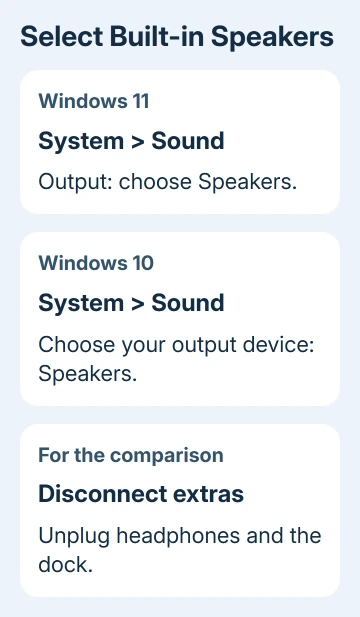
Disconnect headphones, a dock or an HDMI display for a quick comparison. Switch off any Bluetooth headset currently paired for playback. Sound can go to those devices instead of the built-in speakers you've just found.
On Windows 11, open Settings > System > Sound. Under Output, select the built-in Speakers entry. It can include the audio chip maker's name, such as Realtek, rather than the word Lenovo.
On Windows 10, open Settings > System > Sound and use Choose your output device. Select the laptop speakers, turn off mute and play a familiar clip at a comfortable volume.
The Windows audio troubleshooting steps cover output selection.
If the correct speakers stay silent, follow our Lenovo sound repairs for app volume and driver checks.
Ask for the exact speaker part when arranging service
For a replacement, send Lenovo Support your machine-type code and full model name. Ask which speaker assembly fits your laptop and what repair options are available before ordering a part from a photograph.
Describe whether headphones work, whether both speaker outlets are quiet, and mention any drop or spill before the trouble started. Those details help distinguish a playback setting from a damaged speaker or internal connection.
For an unfamiliar model, ask support to identify the speaker outlets in its component diagram. Opening the case just to find the speakers won't tell you whether they need replacing.
The Short Version
Check beside the keyboard and underneath, then match the openings to the exact model's component diagram. T14 Gen 5 speakers sit beside the keyboard; the specified IdeaPad Gaming 3 has underside speakers.
Silent hardware also needs a Windows output check.
Checked November 13, 2026.