Lenovo laptop power buttons usually sit near the keyboard or along a side edge. Check both places with the lid open. Some buttons include a fingerprint reader, so they look like a flat sensor.
The button's position varies across ThinkPad, IdeaPad, Yoga, and Legion models. Match the laptop's full model to its component diagram if the button isn't obvious. A small reset opening or Novo control isn't the ordinary power button.
In this guide
Check the keyboard area, then the sides
Start with the laptop open in its normal typing position. Look around the keyboard for a distinct button or a power key. Its usual symbol is an incomplete circle crossed at the top by a small vertical stroke.
Next, inspect the left and right edges. A convertible needs controls you can reach when it's folded into tablet mode, so checking only the keyboard can miss its power button.
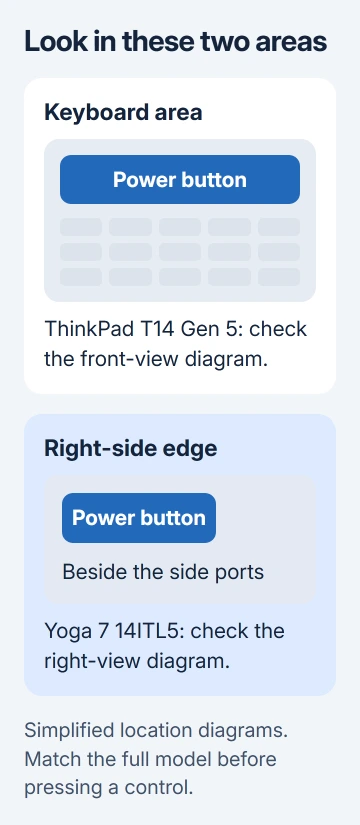
Use good light and read any small symbols. Don't press every small control in turn. The camera privacy control, a status light, a card slot, and a recessed reset opening can all sit near the button, but each does a different job.
Save open files before trying an unfamiliar button on a running laptop. Its Windows settings may assign sleep to an ordinary power-button press.
Use the example that matches your Lenovo model
The model name matters more than the family name. Yoga alone doesn't identify a particular chassis, and an IdeaPad sold with several screen sizes may use different numbered component diagrams.
ThinkPad T14 Gen 5 and T16 Gen 3
Lenovo's own front-view guide shows the keyboard-area power control. It lists a power button with fingerprint reader, with the reader fitted only on selected models.
Use the correct T14 or T16 drawing. A numbered label in that drawing won't identify the same part on every ThinkPad. The keyboard's red TrackPoint and its nearby click buttons don't control startup.
A flat fingerprint surface can still be a pressable power button. Fingerprint sign-in and startup are separate functions; an unregistered finger doesn't stop you from pressing the identified button to start the computer.
Yoga 7 and Yoga 7i convertibles
The Yoga 7 14ITL5 and 15ITL5 guide locates this button on the right side. That guide lists the power light separately, so look for the pressable control rather than assuming the illuminated spot is the button.
The newer Yoga 7/7i 2-in-1 Series guide also lists a right-side power button. Its nearby controls and ports differ from the older models. Use the diagram matching the ports on your laptop.
On these supported models, pressing the button starts the computer when it's off. A brief press while it is running normally puts it to sleep by default, though Windows lets you change that behavior.
IdeaPad 3 and Slim 3 examples
The IdeaPad 3/Slim 3 generation 7 manual labels the control under Base, meaning the view of the open keyboard area. It calls the control Power button/Fingerprint reader, with the fingerprint option on selected models.
Its 14-inch drawing uses item 2 for the button, while the 15-inch and 17-inch drawings use item 1. Match the screen-size drawing before following its number; the same manual doesn't use one number for every version.
The IdeaPad component guide also labels the nearby light separately. A light tells you about status; it isn't necessarily the surface you press.
These examples show why a location from another Lenovo isn't enough. For a Legion, LOQ, older IdeaPad, or another ThinkPad generation, use that model's own Top, Base, Front view, or Right view diagram.
Match the product label to the user guide
Find the model or machine type on the underside label, original box, or purchase paperwork. If Windows opens, search Start for System Information and check System Model. Lenovo Vantage can also show product information.
Keep the generation and screen-size details. A name such as T14 without its generation, or Yoga 7 without the model code, can lead to a drawing of a different laptop.
In the matching user guide, search for power button. Read the component table next to the drawing and compare the nearby ports, keyboard, and lights with your machine. Matching those details helps you check that you've got the right manual.
The same model-specific drawings help you locate Lenovo speaker grilles without mistaking the cooling vents for audio outlets.
I'd use that diagram before trying a recessed control. It takes the guesswork out of a small symbol, especially on a secondhand laptop whose original setup sheet is missing.
Don't confuse power, Novo, and emergency reset
The ordinary power button starts the computer. If your laptop has a Novo control, it opens a startup menu with options such as choosing a startup device or starting recovery. It isn't simply another everyday power key.
An emergency-reset hole serves a different purpose again. For example, the T14 Gen 5 guide identifies one on the underside for an unresponsive computer that can't be turned off with the power button.
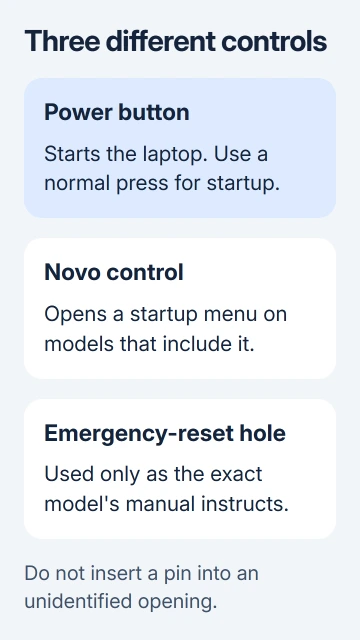
Do not put a pin into an unidentified opening. Use the exact-model instructions for a reset, and avoid recovery choices unless you're intentionally repairing or reinstalling Windows.
For an intentional reinstall, the Lenovo reset procedure explains the backup and recovery-key preparation. Finding the power button doesn't require a factory reset.
Found the button, but the laptop stays dark?
Connect the correct adapter directly to the laptop and a working outlet. Give the power control one brief press, watching for a Lenovo logo, lights, or fan activity. Don't begin with a prolonged hold.
If a light or fan responds but the display stays dark, the laptop has responded to the button. Continue with the Lenovo screen checks rather than searching for a second power switch.
If nothing responds, use the laptop's no-power support instructions. Windows' power and sleep settings control a running computer; they can't start a machine receiving no power.
Give Lenovo support the complete model and machine type when asking about a control or startup failure. Describe any charging light, power light, fan activity, or screen response so they know how the laptop responds when you press power.
The Short Version
Search the keyboard area and sides, using your exact model's diagram. The power button may include a fingerprint reader. Identify Novo and emergency-reset controls separately, and start the laptop with a normal press.
Checked November 10, 2026.