A Surface Pro pen needs power for writing, while its top-button shortcuts also depend on Bluetooth. Charge a Slim Pen or check the battery in a standard Surface Pen first, then test writing separately from the top button.
If the pen writes but won't open an app, work on pairing and shortcut settings. If it won't write anywhere, compare apps and touch input before replacing the pen or resetting Windows.
In this guide
1. Restore power using the right pen model
Open the Surface app and find the pen among its connected accessories, or in its Pen tab on older layouts. Pair the pen with your Surface so the app can show its battery level.
Press the top button to check its light on models with that indicator. Amber or red signals low power.
For Surface Slim Pen and Slim Pen 2, use the compatible charging accessory. Their batteries aren't user-replaceable. A magnetic place to store the pen isn't necessarily a charger, so check the accessory's model.
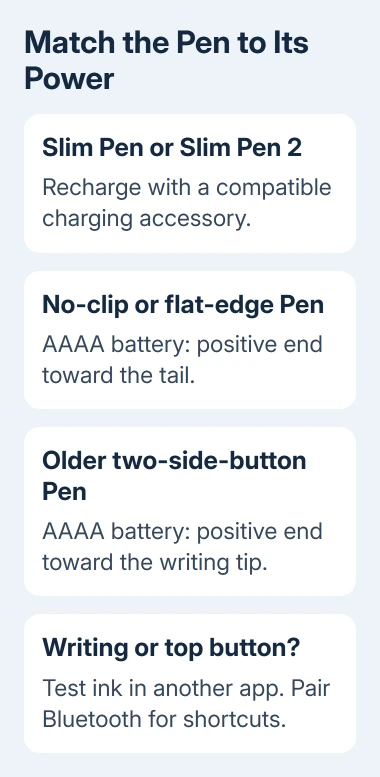
For a Surface Pen with no clip, pull the top straight out and replace the AAAA battery with its positive end toward the pen's tail. Align the flat sides and push the parts back together.
For the single-button flat-edge model, turn the eraser cap counterclockwise about 30 degrees until it clicks, then pull it out. Its replacement AAAA battery also points positive toward the tail. Align the guide and close the cap.
The older two-side-button pen uses a different orientation: unscrew the top and put the AAAA battery's positive end toward the writing tip. Its cap also has separate Bluetooth button-cell batteries.
Use the pictures and model descriptions in the Surface Pen battery instructions before opening the pen. A battery direction copied from another generation can leave the pen unpowered.
After charging or replacing the correct battery, try writing again. If the light still won't turn on after checking power for your model, have the pen checked for repair instead of repeatedly trying to pair it.
2. Restart and test writing in a second app
Save your work, choose Start > Power > Restart, then open a pen-enabled app such as Paint, OneNote or Sticky Notes. Select its drawing tool when necessary and try a short stroke.
Microsoft says testing a different writing app helps distinguish a pen problem from an app problem. If you can write in another app, check the original app next.
If the second app works, check the first app's drawing mode and available updates. Report an app-only failure to that app's provider with its name and version. A pen that writes normally elsewhere doesn't need replacing to fix one app.
If writing fails in every app, try ordinary finger taps on the Surface screen too. Pen writing depends on the touch screen working, so if finger taps fail too, check the tablet's drivers and screen as well.
Check that your pen works with your Surface model. The Surface app can help identify the device. A pen that sticks magnetically to a device doesn't mean you can write with it or charge it there.
I'd test the second app before changing Bluetooth settings. Pairing can repair the shortcut button, but a successful Bluetooth connection doesn't confirm that the pen tip can write on this screen.
3. Pair the pen when the top button fails
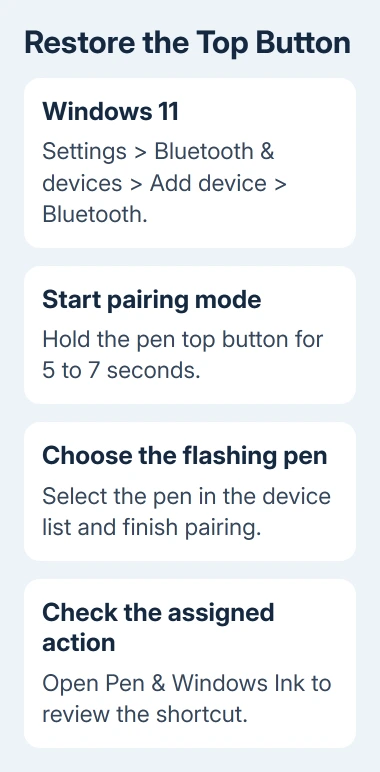
In Windows 11, open Settings > Bluetooth & devices and turn Bluetooth on. Choose Add device > Bluetooth. Hold the pen's top button for about 5 to 7 seconds until its LED flashes, then select the pen and finish pairing.
Windows 10 uses Settings > Devices > Bluetooth & other devices. Choose Add Bluetooth or other device > Bluetooth, then select the pen while its pairing light is flashing.
If the light blinks continuously but the pen doesn't appear, restart the Surface and retry pairing. If it flashes for only 2 to 3 seconds, it may already be paired with another nearby Surface.
For that case, remove the pen from the other Surface's Bluetooth list before pairing it with this one. On Windows 11, open the device's menu in Bluetooth & devices and choose Remove device.
When the pen is connected but clicking does nothing, open Settings > Bluetooth & devices > Pen & Windows Ink. Check the top-button shortcut choices and assign an action for the click you're testing.
Windows 10 keeps Pen & Windows Ink under Settings > Devices. Check the chosen action for a single click, double-click or press and hold where the model offers them. The button's assigned action may not be the one you're expecting.
Classroom Pen models don't have the same Bluetooth and pen-cap functionality. Don't treat a missing pairing feature as a fault on a pen that doesn't support it.
4. Update Surface software and check the tip
Open the Surface app, expand Help & support, and check its update status. Choose Check for updates when offered to open Windows Update, install what's offered there and restart when requested.
If pen input and touch still fail, use the device-specific driver route linked from the writing repair page. Match the download to your exact Surface model and Windows version; different devices need different touch components.
On a work-owned Surface, ask IT to check the model's touch firmware and drivers. Tell them if Device Manager shows missing Surface Touch or HID-compliant touch-screen components, rather than uninstalling unrelated input devices.
When writing works but strokes are jagged or inaccurate, compare another drawing app first. A worn, broken or poorly seated tip can also need replacement. Follow the replacement instructions for the pen model.
Don't repeatedly remove a Slim Pen 2 tip as a general reset. Its removable tip is intended for replacement, and repeated removal can damage the pen. Use a compatible replacement when the tip itself is damaged.
If the keyboard also fails, the Surface keyboard checks cover its connector separately. A tablet can have more than one accessory problem, and a keyboard connector repair isn't a pen-pairing repair.
5. Choose service before an unnecessary reset
If possible, compare another compatible pen on the same Surface or this pen on another compatible device. Give support the result alongside the battery, app and touch checks; it helps support decide which device needs checking.
The writing guide includes a reset after the driver steps. Before starting recovery, find your BitLocker recovery key and back up your personal documents. The Surface reset choices explain what each route removes.
For a pen replacement, use the service link in the Surface Pen troubleshooting page. Sign in, register the Surface if needed, select it, then choose Accessory and the appropriate Pen issue.
Replacement options depend on your warranty and exchange eligibility. For a work device, use its business service route or IT team. Tell support whether writing fails, the top button fails or both, rather than saying the pen won't connect.
The Short Version
Restore power for your pen generation and compare writing apps. Check Bluetooth and assigned shortcuts for a top-button failure. Update touch software when writing fails across apps, then seek service for the affected device.
Checked November 13, 2026.