
Lenovo laptop screen problems come in two kinds: Windows settings and drivers, which a change on the laptop fixes, and a failing panel, cable or graphics chip, which needs a repair. The Lenovo logo at startup sorts one from the other.
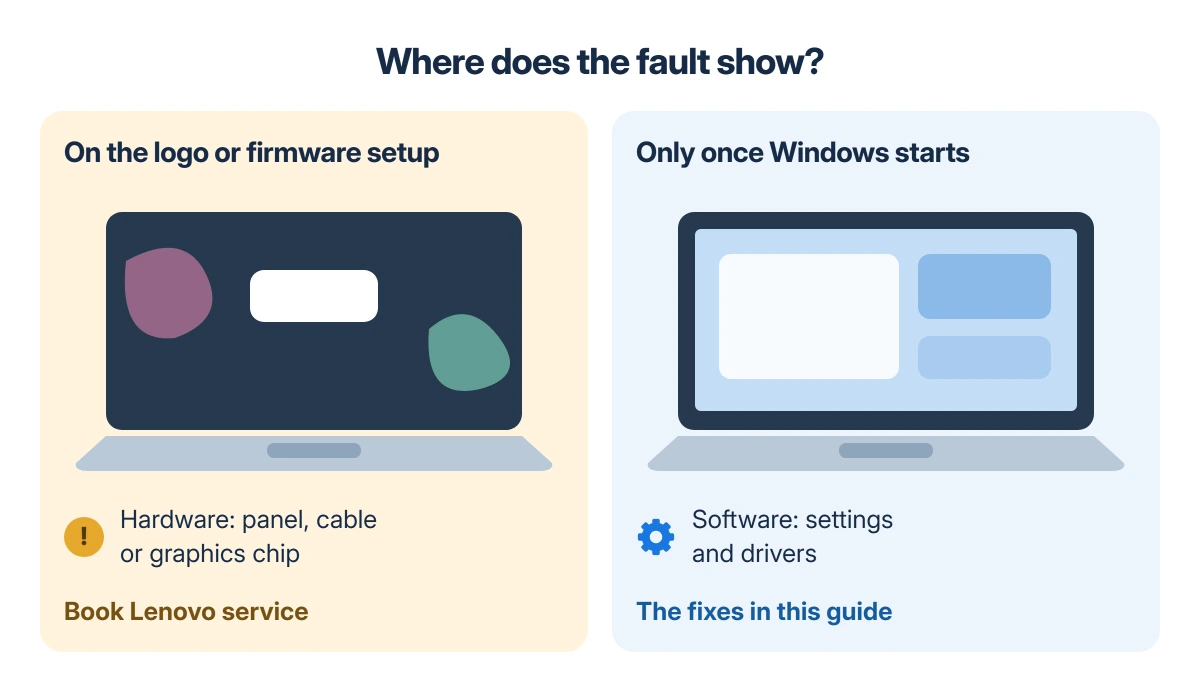
That logo appears before Windows loads its display driver. Lines, flicker or a dim picture on the logo point to hardware; a fault that starts with Windows points to settings and drivers first, which most fixes here cover.
One test first: does it show before Windows starts?
Restart the laptop and watch the Lenovo logo. For a longer look, open the firmware setup: on a ThinkPad, Lenovo's guide says to press F1 at the logo, and on IdeaPad and Yoga models the Novo button menu offers the firmware setup utility.
The Novo button sits in a small recessed hole; press it with a straightened paper clip while the laptop is off. A setup screen that stays clean while Windows flickers points at Windows first, not the screen.
Status: Lenovo's 2026 Yoga 7i guide, its T480 and IdeaPad guides and Microsoft's display pages, checked 19 October 2026 for Windows 11. No Lenovo laptop was tested here.
An owner of an 8th-generation ThinkPad X1 ran exactly that check on Microsoft Q&A after a Windows update left the screen flickering. "In the BIOS, no issue," in their words.
A System Restore to an earlier date then stopped the flicker, until the same update came back.
An external monitor is the second check. Connect one by HDMI or USB-C and press Windows key + P. A clean picture there narrows a fault on the laptop to its panel, its cable or the driver's handling of the built-in screen.
Yellow or warm tint: Eye Care Mode and Night light
Lenovo's own guide says Eye Care Mode "intelligently adjusts the color temperature of the screen" to ease eye strain, so it is the first switch to check when whites look yellow.
Turn it off in Lenovo Vantage > Device Settings > Display, under Eye care mode.
The same Vantage page has Color management, where Lenovo lets you pick the color space. Windows' Night light, under Settings > System > Display, shows warmer colors on purpose, Microsoft says, so check that it is off too.
A Yoga Slim 7 Pro X owner found a tint appeared after the Windows 11 24H2 update whenever Night light was left on through a restart. Switching Night light off and restarting cleared it each time, and the owner traced it to that update.
A tint that survives all of those can come from the display driver. One owner on Microsoft Q&A with Intel HD Graphics 620, brand not given, uninstalled the driver in Device Manager.
The colors were normal again straight away, and still normal 15 minutes after a restart.
Flickering: reset the driver, then run Task Manager
Press Windows key + Ctrl + Shift + B. Lenovo and Microsoft both list it as the way to reset the graphics driver, and Microsoft says a beep or a flicker shows it worked. Restart the laptop if that does nothing.
Then open Task Manager with Ctrl + Shift + Esc and watch it. Microsoft says a Task Manager that flickers with everything else points to the display driver, while a still Task Manager points to an app.
For the driver, open Device Manager > Display adapters, right-click the adapter, choose Properties > Driver and click Roll Back Driver.
If that button is unavailable, Lenovo says Windows has no earlier driver to return to; update or uninstall the driver on the same tab instead.
For an app, update it or uninstall it, one at a time, restarting after each. Our screen flickering guide goes deeper on both branches.
Some Lenovo screens also switch refresh rate. Lenovo's guide gives Fn + R as the shortcut on models with two rates, or Settings > System > Display.
Lenovo says to try a different rate or a newer driver before taking the laptop to a technician.
A flicker only on battery is a documented complaint without a documented cure: a Microsoft Q&A question about a G50-30 has 100+ Same question votes and no fix. Note whether it stops on the charger before you call Lenovo service.
Brightness that changes by itself
Lenovo's Yoga guide explains it: the laptop may include an ambient light sensor, which Windows' adaptive brightness follows. Turn off Change brightness automatically when lighting changes under Settings > System > Display > Brightness.
A second setting changes brightness and contrast with what is on screen, to save power. Microsoft calls it content adaptive brightness, and picking Off under Change brightness based on content stops it.
Our brightness guide covers the graphics driver's own version.
If the brightness will not adjust at all, Lenovo names two suspects: adaptive brightness left on and an outdated display driver. Right-click the adapter under Device Manager > Display adapters and choose Update driver.
Power light on, screen black
Lenovo's ThinkPad guide starts with the keys: press the display-mode key to bring the picture back, then the brightness-up key. A laptop in sleep wakes with Fn or the power button.
Microsoft adds Windows key + P: press P again, then Enter, to cycle through the display modes until the built-in screen is back.
On the IdeaPad 305, Lenovo also points to F9, which switches the screen's backlight on and off.
Then shine a phone flashlight at the dark screen. An IdeaPad S540 owner could just make out the desktop that way after a Windows update: the image was there and the backlight was not lit.
Uninstalling the display driver did not bring it back for them, and the thread never found the cause. A backlight that stays dark past the keys and a driver reinstall is one for Lenovo service.
No Lenovo logo at all, with the fan running, is beyond Windows settings. A screen that goes black only after Windows starts points to Windows and its drivers first, and the black screen on startup guide works through it in order.
A screen that dims when you step away
Newer Lenovo laptops can watch for you with a presence sensor and turn the screen off or lock it when you leave. The sensor is working as designed, and our presence sensing guide shows where Lenovo Vantage keeps it.
Lines, dots and marks: the hardware side
A few dots that are always there are normal, Lenovo says. Its ThinkPad guide calls missing, discolored or bright dots "an intrinsic characteristic of the TFT technology" when only a very small number appear.
Lines or flicker that change when you move the lid, or when you press on the case, point to the display cable.
Owners of a Lenovo G530 on Super User found the flicker stopped while they pressed the panel next to the power switch, over the left display cable.
After a screen replacement, a black screen once the Intel driver loads can mean an incompatible panel. On Super User, the accepted reply sends the owner back to the technician for a compatible part.
After a knock, artifacts that fade can still mean a connector shaken loose, an adviser on a ThinkPad T470 question says, and a technician should look at it.
On a laptop under warranty, the accepted answer on a ThinkPad E420 question says to contact the vendor before opening it to reseat anything.
A ThinkBook 14s owner on Super User, already waiting on Lenovo support, noticed the flicker eased with Wi-Fi off and with the Wi-Fi adapter's Transmit Power lowered. Two dead pixels appeared later.
Until a repair, an external monitor keeps the laptop usable, as our broken laptop screen guide explains.
When nothing works
Check the warranty and book Lenovo service, and say whether the fault shows on the logo, in the firmware setup and on an external monitor. Those three answers narrow the cause before anyone opens the laptop.
For the Windows side, Microsoft's screen flickering page has the driver steps in full for both Windows 11 and 10.
The Short Version
- Restart and watch the Lenovo logo or the firmware setup: a fault there is hardware; one that starts in Windows points to settings and drivers first.
- Yellow tint: check Eye Care Mode in Lenovo Vantage and Night light in Windows.
- Flicker: Windows key + Ctrl + Shift + B, then the Task Manager test, then roll back the display driver or try Fn + R.
- Brightness that changes by itself: turn off the two automatic brightness settings in Settings > System > Display.
- Lines that move with the lid point to the display cable; a dark backlight needs the backlight key, a driver check and then Lenovo service.
Where to Next
Which Lenovo is it, and does the fault show on the logo screen? Put the model and that answer in a comment; the two together point to a setting or a repair.

Isaac Smith is the founder and editor of PC Glance, a website that covers computers, laptops, and technology. He is a tech enthusiast and a computer geek who loves to share his insights and help his readers make smart choices when buying tech gadgets or laptops. He is always curious and updated about the latest tech trends.