

You open a white web page and your laptop screen gets brighter, then you switch to a dark app and it dims a moment later. The light in your room has not changed.
I would check two places, because Windows has a switch for this and your graphics driver has its own.
This fault drew 124,251 views to a single Super User question from January 2013. On a Microsoft Q&A thread from 2021, where the asker found the driver switch, 100+ people clicked that they had the same question.
Why a dark window dims the whole screen
Most laptop panels light every pixel from one backlight, and to save battery, the system turns that backlight down when the picture is mostly dark. It raises the contrast to make up for it. A white page pushes it back up.
Microsoft says some Windows 11 PCs change brightness and contrast with what the built-in screen shows. It describes a dark scene in a video followed by a sunny one, and adds "This is normal".
Graphics makers built the same idea into their drivers: Intel calls it Display Power Saving Technology, or Display Power Savings in its newer app. AMD calls it Vari-Bright.
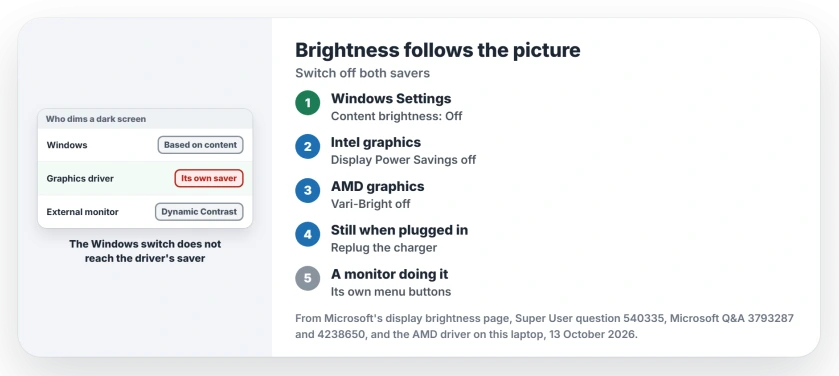
Status: compared with Microsoft's display page and this laptop's AMD driver, 13 October 2026. Windows and the graphics driver each dim dark screens on their own; switch off both.
A Super User answer from 2013 gave the driver's aim: to "reduce power usage by reducing brightness when you look at dark images". So it is a battery saver, and your screen is fine.
It is not the light sensor either. That setting reacts to your room. An adviser on that Q&A thread pointed out that most laptops have no such sensor.
1. Turn off Change brightness based on content
Open Settings, then System, then Display. Select Brightness to expand it. Set the drop-down called Change brightness based on content to Off.
Microsoft's display brightness page lists three choices: Off, Always and On Battery Only. It warns that Off "can result in shorter battery life".
Ours: the setting's own description in this laptop's Settings files reads "Help save power by optimizing screen contrast and brightness for the content shown".
No drop-down on your laptop? Then Windows is not the one doing it. Owners on Windows 10 hit the same wall. One wrote "There is no setting for adaptive brightness or contrast in either the video or power option settings".
For a manual level change on that older system, use the Windows 10 brightness controls. They do not replace the graphics-driver switch.
2. Switch off the graphics driver's version
Owners confirm this fix over and over. The Windows drop-down does not reach it. I would turn it off even when Windows already says Off, since the two work separately.
Intel graphics
Open Intel Graphics Command Center, which comes from the Microsoft Store. Go to System, then Power. Turn off Display Power Savings.
Reported working by the asker of that Q&A thread, who wrote "after multiple trials and tests, I can confirm that it works".
A 2024 comment on Super User adds a detail. The Power page has one tab for battery and one for plugged in, and the savers "appear to be on by default". So turn it off on both tabs.
Another owner switched off the older Display Power Saving Technology. It stopped white pages turning "blindingly bright" for them, which is likely the glare you are seeing too.
AMD graphics
Open AMD Software: Adrenalin Edition. Go to its settings and the Display tab, then switch off Vari-Bright. One owner with AMD graphics, on the older Catalyst Control Center, wrote "it worked for me (amd)".
Ours: this ASUS laptop runs AMD Radeon graphics with AMD Software 26.8.1, and its English strings list Vari-Bright and a Vari-Bright Level among the Display settings. The driver's registry key holds a Vari-Bright level of 3.
Still changes when plugged in?
Older Intel control panels only offered the switch for battery, and two owner tricks cover your plugged-in case.
First, change the setting, then unplug the charger and plug it back in. One owner found that "after unplugging AC power from my laptop and reconnecting it, the problem was solved".
Second, for Intel graphics only, there is a registry value. Before any change, right-click the key and choose Export to keep a copy. It sits here, under 0000, or 0001 if your laptop has two graphics chips:
HKEY_LOCAL_MACHINE\SYSTEM\CurrentControlSet\Control\Class\{4d36e968-e325-11ce-bfc1-08002be10318}\0000The value is DCUserPreferencePolicy. Its author noticed that "Contrary to its name, it seems to affect the AC behavior as well". Owners set it to 0, along with ACUserPreferencePolicy.
One wrote "This worked for me after restarting the laptop", while a Dell owner found theirs already at 0, with no luck. Ours: on this AMD laptop the key holds no such value, so skip this step if your graphics are not Intel.
An external monitor that does it
Your monitor can carry its own version. Look for Dynamic Contrast, DCR or, on Samsung screens, MagicBright, and neither Windows nor the driver can switch that off. Use the monitor's own menu buttons.
Two owners fixed it there. One found that only the HP screen changed, and "deactivating Dynamic Contrast did the trick". Another, with a Samsung, wrote "I turned it off and the problem was fixed".
Two fixes that miss
Enable adaptive brightness, in the old Power Options, is the light sensor setting. An owner who tried it alongside everything else wrote "Nothing worked". The system file checks an adviser suggested change nothing here either.
Does your laptop have no brightness slider at all? That is its own problem, explained in our page on the missing brightness slider.
If your screen dims after a minute without input, it is a timeout instead, which why your monitor goes black walks through.
The Short Version
- Dark windows dim the screen to save battery, in Windows and in the graphics driver.
- Settings, System, Display, Brightness: set Change brightness based on content to Off.
- Intel: Graphics Command Center, System, Power, Display Power Savings off on both tabs.
- AMD: AMD Software, Display, Vari-Bright off.
- Still on when plugged in: replug the charger, or the Intel registry value.
- An external monitor: turn off Dynamic Contrast in its own menu.
Where to Next
Was it Windows, the driver or the monitor on your laptop? Post your model in the comments so I can list which brands do what.

Isaac Smith is the founder and editor of PC Glance, a website that covers computers, laptops, and technology. He is a tech enthusiast and a computer geek who loves to share his insights and help his readers make smart choices when buying tech gadgets or laptops. He is always curious and updated about the latest tech trends.