A dark video in Edge can come from a dim display, an HDR mismatch, or the recording itself. Raise screen brightness for viewing; use Clipchamp's Exposure control when you want to save a brighter video.
Edge's video enhancement improves supported low-resolution playback; it isn't a general brightness slider. Check whether the whole screen is dim, only HDR playback looks wrong, or the recording itself is too dark.
In this guide
Match the brightness change to the result you need
Display brightness controls how much light your screen puts out. It doesn't change the video file, so someone watching the same clip on another device won't receive your brighter display setting.
An exposure adjustment makes the exported picture lighter or darker. That's the useful route for a recording you're preparing to share. The original recording and the brighter export can remain separate files.
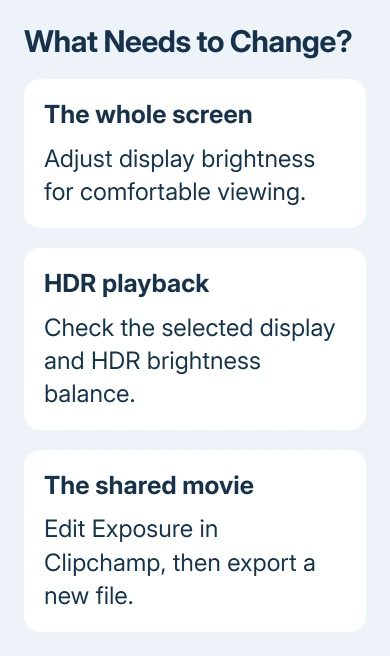
Pause on a frame with both a face and a bright object, such as a window. Use that frame while changing one setting. It helps you notice when shadows improve but the lighter parts lose their detail.
I'd avoid changing three controls at once. If you raise display brightness, change HDR balance, and edit exposure together, it's hard to tell which adjustment you actually needed.
Raise display brightness for watching
On Windows 11, open Settings > System > Display and adjust Brightness for the built-in screen. The taskbar's quick settings also provide a brightness control on supported laptops.
Windows 10 also places its display brightness slider under Settings > System > Display. Adjust it while keeping the paused video visible, then return to playback and check the darker scene.
An external desktop monitor may not have a Windows brightness slider. Use the monitor's own buttons and on-screen menu instead. Pick its brightness control rather than changing the browser's theme.
Microsoft explains the difference between built-in and external display controls in its brightness instructions.
A missing Windows slider doesn't mean Edge needs an extension.
If the desktop, browser menus, and other apps all looked dim, a display adjustment should improve them together. If they already look normal but one video stays dark, keep the display comfortable and check the video or HDR settings next.
On some Windows 11 PCs, brightness and contrast can change with the content on screen. Expand Brightness in Display settings and check Change brightness based on content if that option appears.
Its availability depends on the computer.
When dimming follows the picture, check the content-dependent brightness controls.
For more detail about a dim screen across apps, use the Windows brightness guide. It deals with display controls rather than creating an edited movie.
Check HDR when ordinary pages look normal
HDR video can use a wider brightness range than ordinary video. A mismatch between the display mode and the content can make playback look different from the surrounding browser page. First, check which display has the problem.
On Windows 11, open Settings > System > Display, select the affected monitor if you use several, then open HDR. Check whether HDR is enabled and which brightness balance controls are available for that screen.
The balance control can be named SDR content brightness or HDR content brightness. SDR means standard dynamic range, the ordinary picture range used by much desktop content.
The same control works differently on external and built-in HDR screens.
On an external HDR monitor, SDR content brightness changes ordinary content relative to HDR. On a built-in HDR display, the separate display brightness setting also matters. Keep the video visible while making a small change.
Windows 10 uses Settings > System > Display > Windows HD Color settings for its HDR controls. Select the correct display and review its HDR/SDR brightness balance rather than following the Windows 11 panel names exactly.
Use the HDR display instructions for your Windows version.
Write down the starting value. Return to it if the adjustment harms the rest of the picture.
Replay the same scene afterward. If HDR content is now comfortable and ordinary pages still look right, keep that balance. If only one uploaded clip remains dark on multiple devices, editing the source is the more direct route.
Brighten your own video with Clipchamp
To brighten a file you have permission to edit, open Clipchamp and create a project. Import the video, then place that imported clip on the timeline. Click that timeline clip to bring up its editing controls.
Open Adjust colors in the property panel. Move Exposure to the right to make the clip brighter. Start with a small movement, then play through sections filmed under different lighting.
Use Contrast only as needed after the exposure change. Too much contrast can make shadows hard to see again. Too much exposure can turn bright areas into flat white patches, so keep checking faces and the brightest parts of the picture.
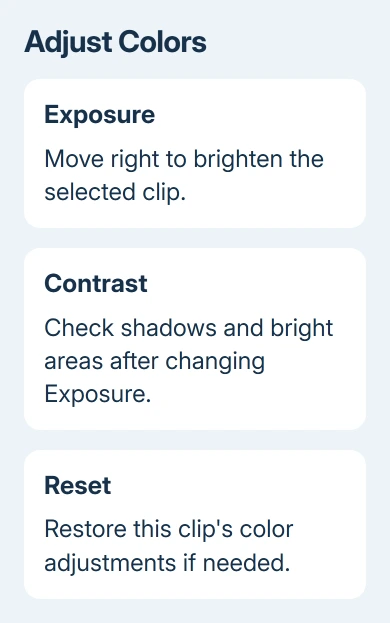
The Clipchamp brightness instructions identify Exposure and Contrast as the relevant controls.
The Reset button in Adjust colors restores that selected clip's color adjustments if you dislike the result.
When several clips share the timeline, check each one you want to change. Selecting one dark shot doesn't mean all the other recordings need the same adjustment. A brighter outdoor shot can look washed out with the indoor clip's settings.
Export the finished project to create the new movie file, then open that export and watch the edited scenes. The project preview shows your edit before export; check the copy you'll actually send.
Keep the original recording until you've checked the export. For a browser project, save the downloaded movie where you can find it again. A project link and a finished video file serve different purposes.
Skip enhancement controls that don't change exposure
Edge's video super resolution feature reduces blocky or fuzzy marks from video compression and improves supported low-resolution video. It needs compatible hardware and playback, so it isn't available on every computer or for every stream.
An Enhance videos control or HD indicator, when available, is for that playback enhancement. It doesn't replace Clipchamp's exposure adjustment, and it doesn't create a brighter saved copy of the movie.
Browser page zoom and a light theme also won't repair the lighting in a recording. If Edge is the only app displaying an otherwise normal file badly, compare the same file in another player before editing the original.
For a persistent display problem, send your PC or monitor support team the model, Windows version, HDR setting, and whether other apps are affected.
For a failed Clipchamp export, use Clipchamp Support and include the export error and project type.
The Short Version
Use screen brightness for watching, HDR balance for an HDR display mismatch, and Clipchamp's Exposure control for a brighter video file. Export an edited copy and check it before sharing. Edge video enhancement isn't an exposure editor.
Checked November 16, 2026.