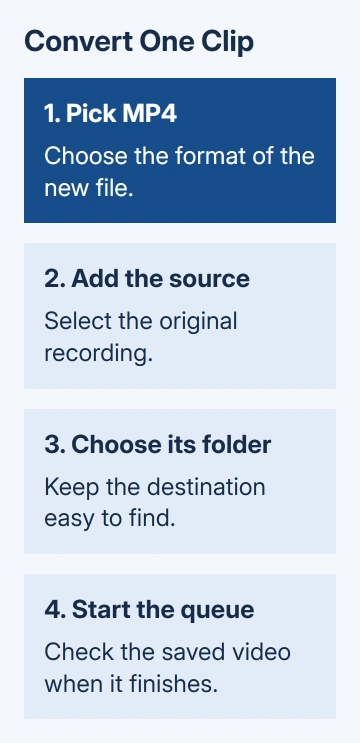
Format Factory converts video, audio, and picture files on a Windows PC. To make a video copy in another format, choose the output format first, add the source file, confirm the output folder, and start the queued job.
A failed conversion needs the actual error message. Fail to decode points to damaged or unsupported input, while Illegal file name has a different fix. Changing every quality setting won't solve both problems.
In this guide
Get the Windows edition that fits your computer
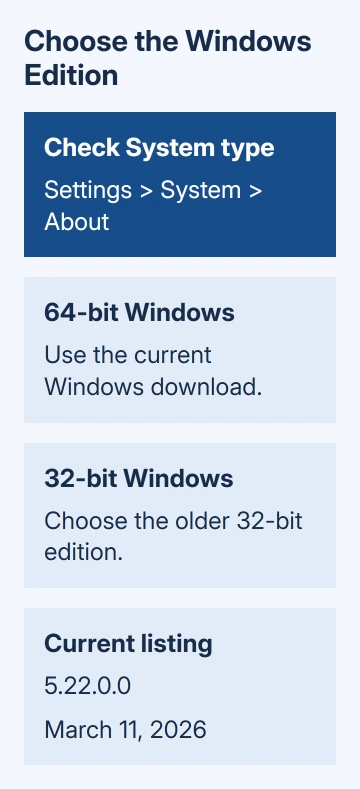
Open Settings > System > About and read System type. Free Time says the current release supports 64-bit Windows; its older edition is the option for 32-bit PCs.
Use the developer's Format Factory download page. Match the current Windows download or older 32-bit edition to your PC. The listing shows version 5.22.0.0, dated March 11, 2026.
Follow the setup file's prompts on the PC, reading the choices before accepting them. If Windows security blocks a download or installer, stop and review the warning rather than disabling protection to continue.
Open Format Factory when setup finishes. The download website supplies the program. To convert a file saved on your PC, select it inside the Windows app.
With Format Factory already on your PC, start with one short file rather than reinstalling it. One completed conversion tells you more than adding a large folder and waiting for several failures.
The developer's current package is for Windows. A Mac needs a different conversion route, such as the MOV-to-MP4 options on a Mac, rather than an attempt to run this Windows setup file directly.
Choose the output format before adding the video
Open the Video category and select MP4 when that's the format you need. The format you select describes the file to create, so the source can have a different extension.
Use the conversion dialog's file-selection control to add your source video. Check its name and displayed media details before accepting it. That prevents a similarly named clip from being queued by mistake.
Keep the original file while working. A conversion creates a new result, and that result still needs checking. A failed or poor-quality output shouldn't become the only remaining copy of an important recording.
Choose one output folder you can find again, and note it before starting. Output Folder in the main window helps you reach the conversion destination. The original recording's folder can be a different location.
Review Output Setting if you need a particular size or quality. Leave unfamiliar settings as they are for the first attempt. Change them only when the converted file has a specific problem you need to fix.
Confirm the conversion dialog with OK to add the job to the main list. A row marked Waiting is queued; it isn't a completed video. The main window's Start control begins processing that queue.
Start one job and check the saved result
Select Start and let the conversion run. Keep the computer on until it finishes. Watch the job's progress in the main window rather than repeatedly opening the destination folder.
The main interface also has an After Converting choice. Check that it won't shut down the computer unexpectedly when you're using other programs. A completed media job doesn't need to interrupt the rest of your work.
Open Output Folder after the job reports completion, then open the new video. Check playback at the start, halfway through, and near the end. Listen to the sound too, especially when a silent result was the original problem.
Compare the duration with the source. A playable first few seconds won't tell you whether the entire recording survived. If the destination device is a phone, TV, or another PC, try the file there before deleting the source.
An MP4 file holds video and sound, but devices also need to support the way they're stored inside it. That means seeing MP4 in the filename doesn't mean the result will play on an older device.
I'd use a small sample to settle the playback settings before converting a collection. That keeps a wrong destination format from turning into hours of unnecessary work and makes it easier to compare two output choices.
Fix Fail to decode by checking the source
Format Factory's error help says Fail to decode means the file is corrupted or uses an unsupported format. The program couldn't read the media it needs to convert.
Try opening the source in its normal player. If the file also stops or fails there, get a fresh export from the recording app or transfer another copy from the recording device. Retrying the same damaged copy won't restore missing data.
For a download, check that the transfer finished before adding it. A partial file can still appear in File Explorer with a plausible name. Get the complete recording from its original source when it's available.
If the source plays but Format Factory can't decode it, check which format the recording app exported. Choose another supported export from that app when it offers one, then retry a single file in the converter.
Changing a file extension isn't conversion. Use the Windows file-extension controls to see the real suffix, rather than renaming a video to MP4 and expecting different contents.
Keep the exact decode error when asking for help. Tell support whether Format Factory failed to read the source or your TV rejected the converted video; those problems need different fixes.
Fix Illegal file name and keep the destination simple
The developer gives a separate remedy for Illegal file name: rename the file using English characters. Make a working copy first, then give that copy a short plain name and retry it.
Select the renamed copy again in the conversion dialog. Remove the old queued entry and add the renamed file. Otherwise the retry still uses the previous filename.
Choose a destination folder you can open and save files in. If the output is missing, confirm the selected folder before searching the entire computer. A source-name fix and a destination-location check address different parts of the job.
For an app that crashes or refuses to launch, use the Windows app-repair choices available for the program. Some desktop programs have no Repair option.
If conversion still fails, use Help in Format Factory or the developer's support page. Give the program version, Windows system type, source format, selected output, and exact error. Mention whether the source plays elsewhere.
The Short Version
Choose the output format, add one source file, note the destination, and start the queued conversion. Check the saved video before deleting the original. Fail to decode and Illegal file name need different input checks.
Checked November 16, 2026.