Chrome normally updates automatically, but a computer can keep using the old version until you relaunch the browser. Open Help > About Google Chrome to check for an update, then finish with Relaunch when offered.
Phones use a different route: update Chrome through Google Play on Android or the App Store on iPhone and iPad. A Chromebook updates its browser through ChromeOS rather than a separate Chrome installer.
In this guide
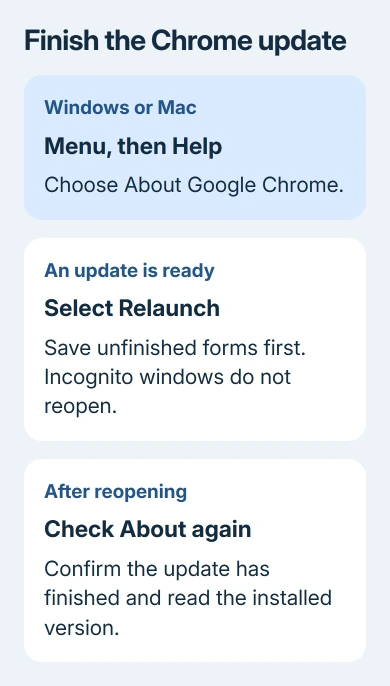
Check and finish the update on Windows or Mac
In Chrome's upper-right corner, open its three-dot menu and choose Help > About Google Chrome. Leave the page open during its update check. This page also shows your installed version if a site asks for a particular release.
If the browser has downloaded an update, select Relaunch to complete it. A page saying Chrome is up to date means this installation has no newer update offered right now.
Google's Chrome update instructions explain this built-in route. Windows 10 and 11 both use this Chrome menu, separate from Windows Update.
Save unfinished forms before relaunching. Normal tabs and windows reopen, but Incognito windows don't. Even when a tab reopens, the site might not have saved everything you typed.
After Chrome reopens, return to About Google Chrome. Check that the Relaunch request has cleared and the page finishes checking. Downloading the update isn't enough; Chrome also needs to restart.
Selecting Not now postpones the restart. That can be convenient during work, but it leaves the update waiting until Chrome restarts. Closing one tab while other Chrome windows remain open doesn't finish that job.
I'd check this page before downloading any installer. It's the simplest way to see whether Chrome is current, waiting for a restart, or reporting an actual update failure.
Get the Android update through Google Play
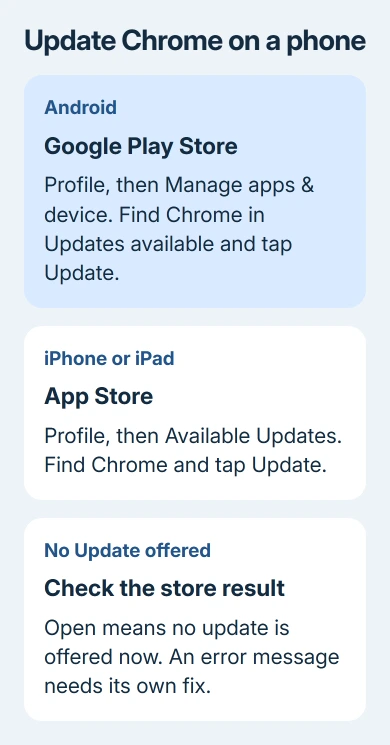
Use Google Play Store, rather than searching the web for a browser-update file. Choose the store's upper-right profile picture. Open Manage apps & device, then look under Updates available.
Find Chrome and tap Update. Let the installation finish before opening the browser again. If Chrome isn't in the pending list, check its Play Store listing to see whether it offers Update or only Open.
If the button says Open, your installed copy has no pending update in the store right now. If the store reports an error instead, keep its exact message for the next check.
To read the installed browser details, open Chrome and use three-dot menu > Settings > About Chrome. Record that version if a school, employer or website needs a specific browser release.
Automatic updates depend on the Play Store settings. If you've turned automatic app updates off, check the store yourself. The desktop Relaunch steps don't apply on your phone.
The current help page lists Android 10 or later for Chrome. An older phone might keep an older copy installed, but checking for updates won't make the current release compatible with it.
Install the iPhone or iPad app update
In App Store, select your profile in the upper-right corner. Scroll to the Available Updates list. Find Chrome and tap Update if it's listed. If asked, complete sign-in using your Apple Account.
Wait for the store to finish, then open Chrome. Updating through the store replaces the app software; you can leave your Google Account signed in and keep the existing Chrome app.
To check browser information, open Chrome's More menu, choose Settings, then Google Chrome. Look for Google Chrome here, About Chrome on Android, and the Help menu on computers.
Automatic downloads depend on your App Store update settings. If automatic updates are enabled, Chrome can already be current by the time you check the list. If Chrome isn't in the pending list, that alone isn't an error.
The current Chrome instructions require iOS 18 or later. An older iPhone or iPad needs a compatible system version before it can receive the current app. A browser reinstall won't change the device's system support.
If the store won't update other apps either, handle that as an App Store problem. A problem limited to Chrome needs the Chrome listing, installed version and exact store message when you request help.
Update a Chromebook or a Linux installation
On a Chromebook, Chrome is part of the operating system. Use the Chromebook update steps to check ChromeOS and complete its restart. Updating an Android app named Chrome isn't the same operation.
Administrators can control updates on school and work Chromebooks. Give the administrator the ChromeOS version and the update message if the device doesn't offer the release your class or workplace requires.
On Linux, use your distribution's package manager. That's the software tool that installs and updates applications. Linux handles updates differently from Windows and Mac, so don't expect the same Relaunch control.
If the package manager reports a repository or dependency error, save that text. It identifies the failed update operation more clearly than a website's general warning that your browser is old.
Follow the error when Chrome won't update
A page saying the update failed needs different treatment from an update waiting for Relaunch. Reboot your computer, then repeat the check from Chrome's About page. Keep any error number rather than repeatedly requesting the same update.
Use the failed-update troubleshooting for the exact message. The administrator might need to approve updates or fix how updates reach a managed browser. Leave organization controls with IT.
Check operating-system requirements too. Current desktop Chrome requires macOS 13 Ventura or later. On Windows, the requirements list an Intel processor with Windows 10 or newer, or an ARM processor with Windows 11 or newer.
If Chrome won't launch far enough to reach About, the Mac Chrome launch checks address that separate failure. Updating isn't possible through a menu you can't open.
For a supported device that still fails, use Post to the help community on the failed-update page. Include the operating system, Chrome version and error. Explain whether the download failed or Relaunch kept returning.
The Short Version
Computers update through Help > About Google Chrome and Relaunch. Android uses Google Play; iPhone and iPad use the App Store. Chromebooks update ChromeOS. Check the operating-system requirement when no current version is offered.
Checked November 16, 2026.