
An update downloaded to a Chromebook still needs its restart to finish installing. Select Restart in the update notification, or open Settings > About ChromeOS > Check for updates to request a check manually.
Keep the charger connected and save open work first. If no update is offered, check whether the Chromebook is current, managed by an organization or past its final update date before trying a reset.
Request a ChromeOS update from Settings
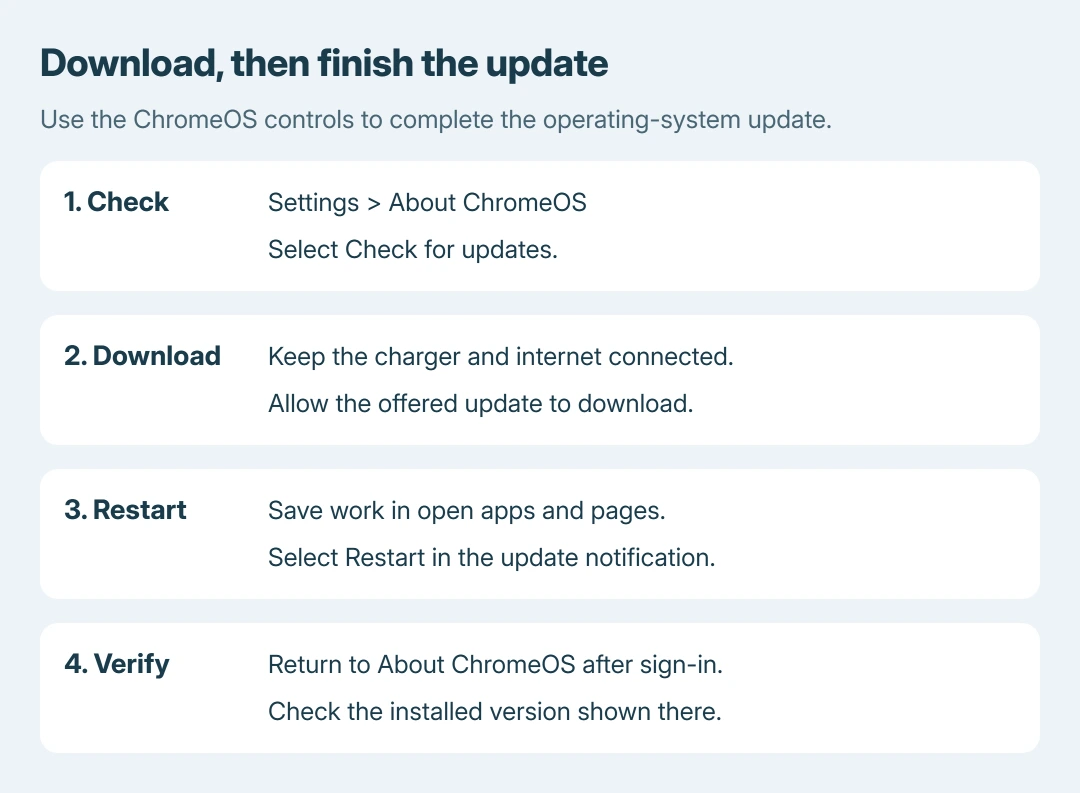
Connect to Wi-Fi, select the clock and open Settings. Choose About ChromeOS near the bottom of the settings list. The page shows the installed version under Google ChromeOS.
Select Check for updates. Google says an available update begins downloading automatically in its Chromebook learning guide. Wait for that stage to finish.
Status: Google's manual update, restart and support-schedule instructions checked October 26, 2026. No Chromebook version was changed or measured.
The Chromebook also checks automatically while connected to the internet. Opening a webpage or updating an Android app is not the same task as checking the ChromeOS version.
For a phone connection or cellular connection, Google states that an alert shows the update's data requirement. Use Wi-Fi or Ethernet when that download would exceed the available allowance.
Complete the restart, then check the installed version
When the update notification appears beside the date, save work in open apps and pages. Select Restart in that notification. Google documents the restart as the step that completes the downloaded update.
After signing in again, reopen Settings > About ChromeOS and inspect the installed version. That verification step is ours: check what is installed instead of assuming the finished download applied it.
Do not use Powerwash to finish a pending update. The normal restart is the requested action, and it preserves the distinction between installing an offered update and erasing the user profile.
For an accessory problem afterward, the Chromebook Bluetooth controls show separate pairing checks. Completing the OS update does not prove that the accessory fault is repaired.
A school or work Chromebook has different controls
Google's full update instructions describe a blue notification as recommended and an orange one as required on managed Chromebooks. Select Restart to update when offered, after saving work.
If the update cannot be requested or the page says updates are managed, contact the administrator. Give them the model, installed version and visible message rather than resetting a managed device to try to obtain another release.
The installed version on another person's Chromebook is not proof that this device should offer the same update immediately. Its management settings and support eligibility need checking on this machine.
A download fails or no update appears
Restart normally and retry over Wi-Fi or Ethernet. Google's update troubleshooting recommends those checks before its reset and recovery options, especially when updating through a phone connection fails.
For a supported Chromebook still unable to download, send the error and version to its manufacturer or Chromebook Help community. A factory reset removes local files, so preserve them before that escalation.
Google also lists operating-system recovery for persistent failures. That operation erases local storage and reinstalls ChromeOS; it is separate from a routine update and should follow the official recovery instructions for the model.
For an absent update, open Settings > About ChromeOS > Additional details and inspect Update schedule. Google's support-schedule page places the model's final-update information there.
After a final software update, the device no longer receives ChromeOS or browser updates through the ordinary update service. Repeatedly selecting the check control does not extend that model's support.
For purchase and continued-use decisions, the Chromebook support-date explanation covers that wider question. Keep this task focused on whether an eligible update was found, downloaded and applied.
The Short Version
Check About ChromeOS, let an offered update download and complete the requested restart. Confirm the reported version afterward. A failed download, organization policy and an expired update schedule need different next steps.

Isaac Smith is the founder and editor of PC Glance, a website that covers computers, laptops, and technology. He is a tech enthusiast and a computer geek who loves to share his insights and help his readers make smart choices when buying tech gadgets or laptops. He is always curious and updated about the latest tech trends.