
A Chromebook factory reset, called Powerwash, erases its local files, apps and settings. Back up local work first, sign out, then press Ctrl + Alt + Shift + R to open the reset sequence.
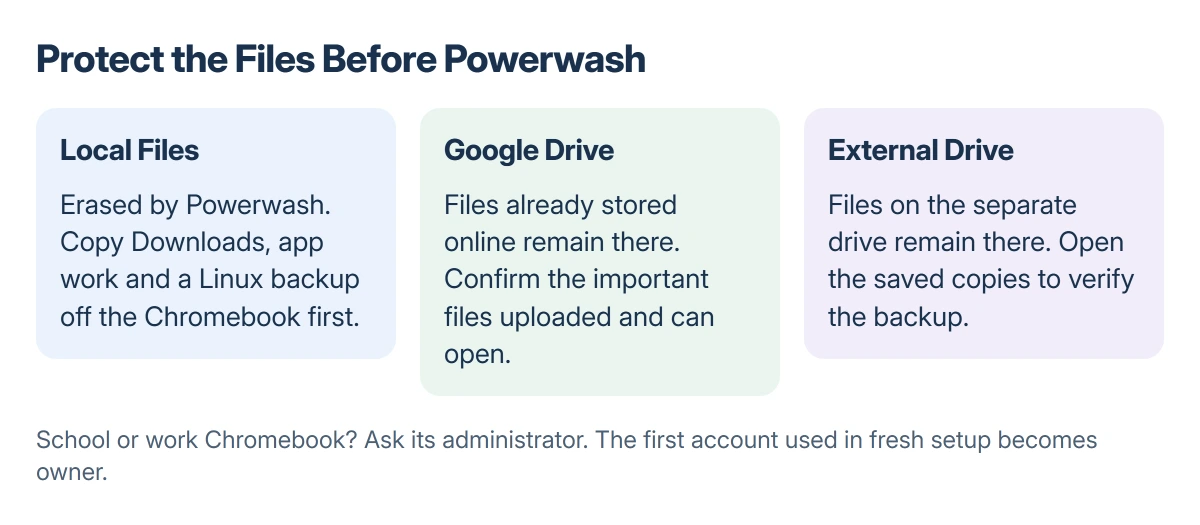
Files already stored in Google Drive or on an external drive are not erased by Powerwash.
An organization-managed Chromebook must be handled by its administrator. Resetting it is not a way to remove organization management.
Back up the files that live on the Chromebook
Open Files and inspect My files, especially Downloads. Copy anything important to Google Drive or external storage, then open the copied files from that destination to check that the backup is usable.
Google states in its factory-reset instructions that all user data on the Chromebook's internal storage is erased, including Downloads. A browser sign-in does not turn every downloaded file into a cloud copy.
Status: Google's Powerwash, file and Linux backup guidance checked 22 October 2026. No Chromebook was reset, and no local file recovery is promised.
Check app-specific work too. Save unfinished documents and confirm where they were saved. Google's Files instructions distinguish local folders, Android app files and cloud locations; they are not interchangeable backups.
For Linux files and apps, follow Google's steps to open Linux > Back up and restore in Settings. Create a Linux backup and keep that file off the Chromebook before resetting, so it does not disappear with the original environment.
The route is listed under Advanced > Developers on Google's Linux help page. If the Settings layout differs, search Settings for Linux and open its backup control.
Decide whether Powerwash fits the problem
Google recommends trying a restart and disabling troublesome extensions before erasing a profile. A hardware reset is another distinct procedure, intended for certain hardware problems.
Powerwash can suit persistent profile or settings trouble and a change of owner. It is not a repair for a damaged screen, broken charging port or a cable fault.
For a distorted picture, work through the Chromebook screen checks first. Those compare browser, external-monitor and built-in display symptoms before suggesting an erasing reset.
Before selling or passing the machine on, verify that the off-device backup is complete. After Powerwash, the first Google Account used during setup becomes the Chromebook's owner account.
Run Powerwash from the sign-in screen
Sign out of the Chromebook. At the sign-in screen, hold Ctrl, Alt and Shift, then press R. Select Restart when prompted.
When the reset box appears, choose Powerwash, then Continue. Follow the on-screen instructions while the Chromebook clears its local data and returns to setup.
For your own reset, sign in with the Google Account you want as owner. If the device is going to somebody else, leave the new-owner setup for that person rather than signing back in yourself.
Google says the first post-reset sign-in establishes ownership. That is why entering any convenient account during a handover can create a second reset job.
Check the clean setup before restoring everything
After setup, check the original symptom before reinstalling every extension and app. If it returns only after restoring a particular item, report that sequence to the item's developer or the Chromebook help community.
Copy your saved files back only after confirming the machine works as expected. Restore a Linux backup through its separate backup-and-restore control if you used that environment.
A reset does not restart the model's software-support period. Check the Chromebook update schedule if the actual problem is that ChromeOS no longer offers updates.
Managed devices and problems that survive the reset
Google's instructions direct work and school users to their administrator for wiping and re-enrollment. If setup asks for an organization's account, take that screen to the organization or seller.
For ChromeOS is missing or damaged, Google's recovery procedure removes and reinstalls the operating system. Recovery also erases local storage, but it is a separate route from Powerwash.
If the fault persists immediately after a clean setup, contact the Chromebook manufacturer with the model, ChromeOS version and exact symptom. Repeating the same reset will not restore a file that was never backed up.
The Short Version
Copy local and Linux work off the Chromebook first. Sign out, use Ctrl + Alt + Shift + R, then select Restart and Powerwash. The first setup account becomes owner.
Managed devices need their administrator, and persistent hardware or OS faults need the appropriate support route.
Where to Next
Confirm both the backup and the original fault after setup. Keep the backup until the restored files open correctly and the Chromebook is ready for ordinary use.

Isaac Smith is the founder and editor of PC Glance, a website that covers computers, laptops, and technology. He is a tech enthusiast and a computer geek who loves to share his insights and help his readers make smart choices when buying tech gadgets or laptops. He is always curious and updated about the latest tech trends.