
Flicker, lines or a broken picture on a glitching Chromebook screen keep interrupting simple tasks and make your text hard to read.
I'll work through the software checks and explain when to stop resetting. A faulty display or cable needs different help from a browser problem.
1. Restart, then check where the glitch appears
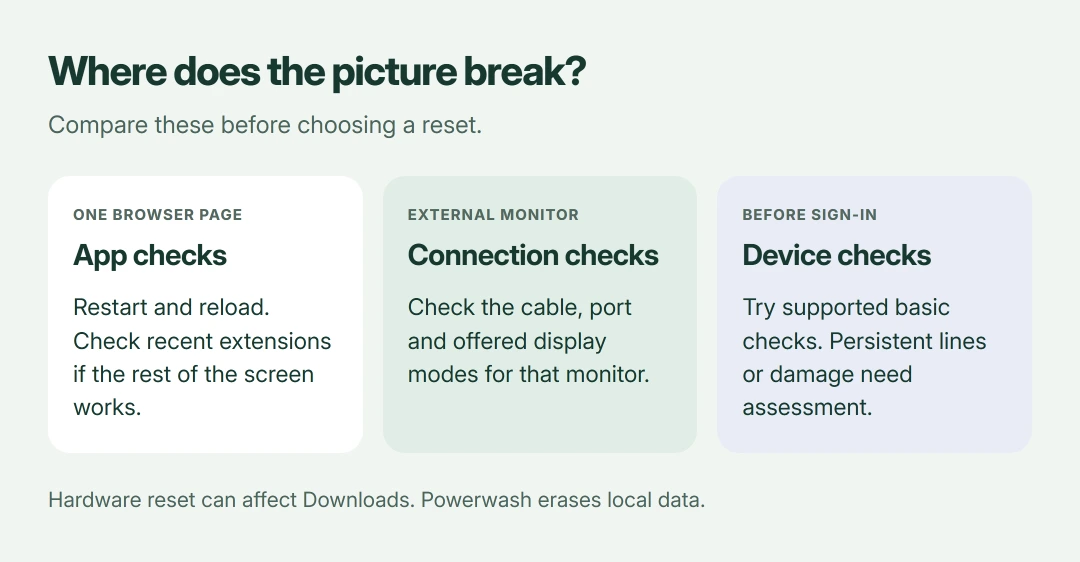
Save anything you can and shut the Chromebook down normally, then start it again. Notice whether your display glitches before signing in or only after opening a particular page.
Restarting and closing troublesome apps are documented by Google in its hardware and system troubleshooting. If one tab causes the freeze, it also suggests Ctrl + Shift + R to reload that page fully.
Status: ChromeOS troubleshooting checked 18 October 2026. An Acer owner's external-display workaround is model-specific. No Chromebook panel or cable was tested.
I would note that timing first. A problem already visible at the sign-in screen isn't caused by the website you haven't opened yet.
2. For an external screen, check its connection
If only your connected monitor flickers, check its cable and adapter before changing the Chromebook's internal display settings. Try another compatible connection if you already have one.
One owner with an Acer Spin 713 CP713-2W reported that their connected monitor flickered at its highest resolution when using the laptop's right USB-C port. Their left-port test worked.
Lower resolutions also worked for them. They reported the same right-port fault on a second unit, and Powerwash had not resolved it.
Treat that as a specific workaround. It supports testing another suitable port or display mode, not assuming every Acer Chromebook has the same hardware problem.
3. Adjust the affected display, then update ChromeOS
Google's monitor instructions put display controls under Settings > Device > Displays. Select your external monitor by name before changing its offered resolution or refresh rate.
Choose a supported mode and check again. The built-in display offers different controls, so you may not see the same resolution choices there.
Next, follow Google's ChromeOS update route, with your charger connected: Settings > About ChromeOS > Check for updates. Complete the restart when prompted.
An update is a supported maintenance step. I can't promise it contains a fix for your particular display, so check the same screen afterward.
4. Try Google's hardware reset
Google says a hardware reset can resolve some Chromebook faults when the simpler restart and app checks haven't helped your machine. Some Downloads files might be deleted.
Copy important local files somewhere safe first. Keep that backup if you later consider Powerwash, which has a much wider erasing effect.
For most Chromebook laptops, switch off, hold Refresh, and tap Power. Release Refresh when the Chromebook starts again.
Tablet models use a different sequence. Google's page lists Volume up + Power held for at least ten seconds, along with exceptions for particular older machines.
Check your model against those exceptions. This hardware restart is separate from factory resetting, and it doesn't establish that a damaged panel has been repaired.
5. Use Powerwash only for persistent software trouble
Google recommends disabling extensions individually before a factory reset. If your screen works normally until your apps or profile load, test recently added extensions and check the result after each change.
Google states in its Powerwash instructions that local apps, settings and files are erased, including Downloads. A school or work Chromebook needs its administrator to handle the reset.
For your own Chromebook, verify the backup from the previous section. Sign out, press Ctrl + Alt + Shift + R, select Restart, then choose Powerwash > Continue when offered.
Check the picture during the fresh setup. If it remains distorted before you've restored your apps and settings, report that result rather than erasing it repeatedly.
6. Stop resetting when the display needs assessment
Persistent lines, patches or flicker before sign-in deserve the manufacturer's attention, especially after a drop or when moving the lid changes the picture. Those observations don't identify a particular replacement part by themselves.
A working external monitor can help you describe what fails. Use Google's display connection guidance to compare the two pictures without opening the laptop.
Google directs unresolved faults to the manufacturer. Give support your model and ChromeOS version, describing when the picture breaks and which checks changed the behavior.
If your machine is actually restarting through installation rather than showing a faulty picture, the Spin 714 boot-loop article describes that separate reported fault.
If an update isn't available, our Chromebook support-date guide explains how to check whether your model has reached the end of its update schedule.
The Short Version
Identify whether the trouble affects a page, external monitor, or built-in display. Restart, check connections and updates, then consider a hardware reset. Powerwash erases local data; persistent physical display symptoms need support.
Where to Next
Does the glitch appear before you sign in, and does another screen show it too? Add your Chromebook model in a comment. I'd also like to know whether the picture changes when you move the lid.

Isaac Smith is the founder and editor of PC Glance, a website that covers computers, laptops, and technology. He is a tech enthusiast and a computer geek who loves to share his insights and help his readers make smart choices when buying tech gadgets or laptops. He is always curious and updated about the latest tech trends.