
An HDMI cable connects a Chromebook to a TV without Wi-Fi, provided the Chromebook has HDMI output or a suitable display adapter. Select the cable's HDMI input on the TV, then enable mirroring in ChromeOS to show the laptop screen.
Wireless connection uses Google Cast instead. The TV needs Google Cast built in or a compatible streaming device; being a smart TV alone does not establish support.
Connect the cable and select the TV input
Check the Chromebook's model instructions for its video output. Use a direct HDMI cable when both devices provide HDMI, or the specified display adapter when the Chromebook uses another output.
Google says to match the Chromebook output to the display input in its external-display guide. For a USB-C adapter, confirm that the port and adapter support video.
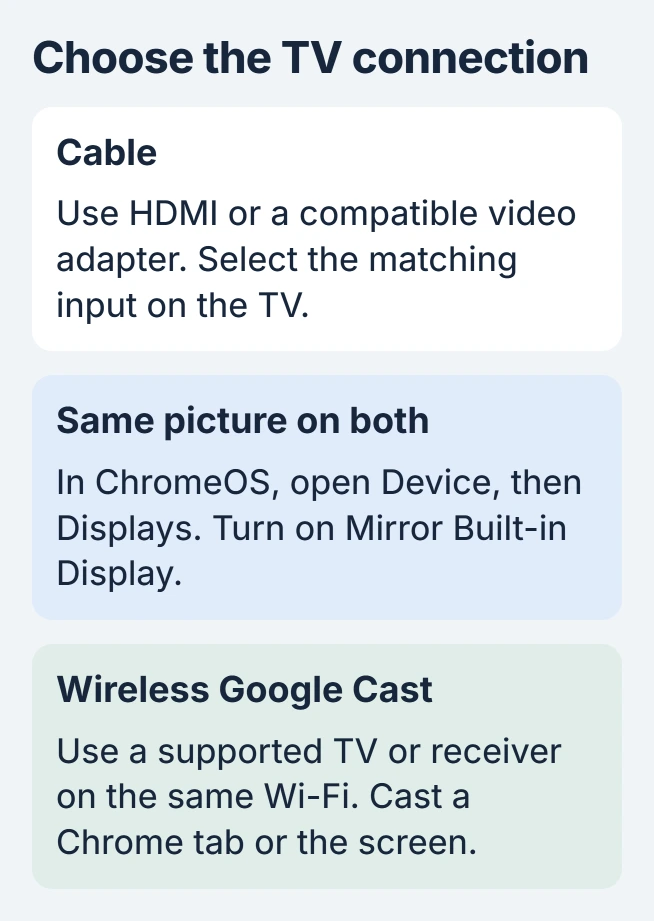
Status: Google's Chromebook display and Chrome casting instructions checked October 31, 2026. Cable output and Google Cast are separate connection methods; no TV was connected for testing.
Connect the cable, then use the TV remote's Input or Source control to select the HDMI socket used. Match its number to the socket's label rather than choosing any HDMI entry.
If the TV shows an empty desktop, the connection may already be working as a second screen. Continue to the display settings to choose whether the screens should match.
Choose mirroring or keep a second desktop
On the Chromebook, select the clock, open Settings, then choose Device > Displays. Turn on Mirror Built-in Display to repeat the laptop's image on the TV.
Google states that the mirroring option appears when the external display is connected. If the TV is absent from that settings page, return to the cable, output compatibility and TV input checks.
Leave mirroring off for a separate desktop. To move the active window to the other screen, use Search + Alt + M, or Launcher + Alt + M on a keyboard with that key.
For a picture facing the wrong direction, use the Chromebook orientation controls. Select the TV's name before adjusting it so the laptop panel keeps its own settings.
Our visual check is to move a harmless window first. That confirms which desktop is on the TV before opening a presentation, private document or video call.
Cast wirelessly from Chrome
Connect the Chromebook and the Google Cast receiver to the same Wi-Fi network. Open Chrome's three-dot menu and choose Cast, save, and share > Cast. Select the TV or streaming device from the receiver list.
That casts the current tab. For the desktop, open Sources > Cast screen before selecting the receiver. These two modes are documented by Google; its casting instructions distinguish them.
Google says screen casting can leave sound playing on the computer. For a video whose sound needs to come from the TV, cast its tab or use the site's own Cast control when provided.
To finish, select the active Cast icon in Chrome and choose Stop casting. A cable connection is ended by disconnecting the display cable instead.
Separate a connection failure from a video-service problem
If a wired TV flickers or repeatedly loses the picture, use the Chromebook external-screen checks. A charging-only USB-C cable cannot establish the required video connection.
If the desktop appears but one streaming service fails, test another ordinary page before buying hardware. A working desktop confirms that the connection can carry a picture.
An owner using an ASUS CX34 reported several working streams, but a new HDMI cable and Chrome Safety Reset did not fix Discovery Plus. Their thread never confirmed a final repair, including the TV replacement they planned.
For no detected display with a supported cable, contact the Chromebook or adapter maker with both model numbers and the connection used. For one failing stream on an otherwise working TV display, contact that service with the exact error.
The Short Version
For a cable, select the matching TV input and choose mirroring in ChromeOS Displays. For wireless use, choose a Google Cast receiver on the same network. Check desktop output separately from a streaming site's playback.

Isaac Smith is the founder and editor of PC Glance, a website that covers computers, laptops, and technology. He is a tech enthusiast and a computer geek who loves to share his insights and help his readers make smart choices when buying tech gadgets or laptops. He is always curious and updated about the latest tech trends.