Wrong letters on a Chromebook usually mean the input layout doesn't match the physical keys. Choose the matching language in Input settings first. For delayed punctuation or unexpected accents, check for an International layout.
Keys that don't respond at all need a different check. Correct the layout before running hardware tests, especially when every key works but some characters appear in the wrong place.
In this guide
1. Match the enabled layout to the printed keys
Select the time, then open Settings > Device > Keyboard and inputs > Input settings. Look under Input methods for the layout marked Enabled. That's the layout your Chromebook is using when you type.
Compare it with the physical keyboard. A US, UK, Swedish, or German keyboard needs the matching input method. Changing the Chromebook's display language alone doesn't tell you which keyboard layout is active.
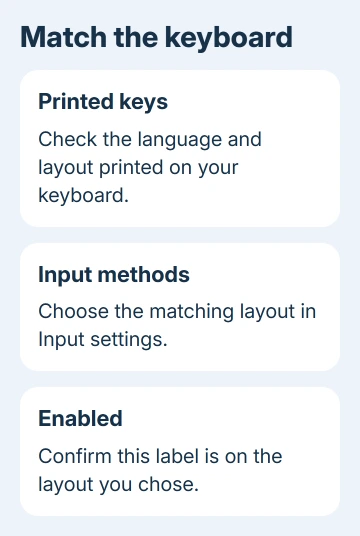
Under Input methods, choose Add input methods if the correct one is missing. Select the keyboard language you need, choose Add, then select that layout from the list. Check that Enabled moves to the layout you chose.
Google's keyboard language instructions describe this selection. Some older ChromeOS screens use Device > Keyboard > Change input settings for the same controls, so use that route when Keyboard and inputs isn't shown.
Open an ordinary text field and type the keys that were wrong. Include a few letters and the troublesome punctuation. If the characters look right, the layout change worked. If they're wrong in just one app, check that app instead.
Don't test with your password. Use harmless sample text where the characters stay visible. That makes differences such as a swapped letter or punctuation mark much easier to spot.
2. Stop International layouts changing punctuation
An International input method lets punctuation combine with another key to make an accented character. An apostrophe that seems to wait, followed by a changed letter, can be normal behavior for that layout rather than a damaged key.
Return to Input settings > Input methods and check the full name of the enabled layout. If you want ordinary US typing without those combinations, add and select the standard US layout instead of its International variant.
Test the apostrophe, quotation mark, and a few letters again. If they now appear as expected, keep that layout selected. If you need accented text, keep an International method available and switch to it when needed.
For characters that aren't printed on the keyboard, the Chromebook emoji and symbol picker provides another entry method. That avoids changing your everyday layout just to insert an occasional symbol.
A UK and US layout can also disagree about punctuation even when most letters look right. Select the layout that matches the actual key labels, rather than choosing a language because it resembles the language you use for menus.
3. Make accidental layout switches visible
In Input settings, turn on Show input options in the shelf. A language code appears near the date. Select it to open Input methods, then choose the layout you want for the next typing session.
The keyboard shortcut Ctrl+Shift+Space cycles through enabled input methods. Ctrl+Space switches back. An accidental shortcut can explain a keyboard that suddenly produces different characters without any hardware change.
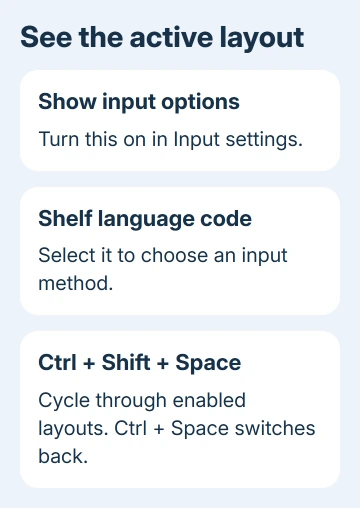
When the problem returns, check the shelf code before changing anything else. If the enabled layout changed too, switch it back and repeat your short typing sample. That explains why the characters changed.
Keep only the input methods you actually use when the settings offer a removal control. If more than one is needed for school or work, leave the shelf indicator visible so you can see the active choice before typing.
I'd make the active layout visible before trying a reset. A reset takes much longer and won't prevent the same input shortcut from being pressed again later.
4. Check capitals and remapped keys separately
If the letters are correct but all of them are capitalized, check Caps Lock. A Chromebook toggles it with Alt+Search or Alt+Launcher. Keyboard labels differ, so use the Chromebook Caps Lock controls for the key on your model.
If Search, Ctrl, or Alt does the wrong thing, check Settings > Device > Keyboard and inputs and the available key assignments. Giving one of these keys a different job can change shortcuts without changing your typing language.
Change only a key assignment you recognize as wrong, then test it. Don't change several modifier keys together while also switching layouts. One change at a time makes it clear which setting corrected the behavior.
When ordinary text is correct everywhere except one website, check that website's own editing controls. A language tool or app-specific shortcut can affect that field even when ChromeOS is using the intended keyboard layout.
5. Test keys that still fail after the layout is correct
Power the Chromebook off, then start it again. If the same keys remain wrong, sign out and choose Browse as Guest when that option is available. Test a harmless text sample with the matching layout there too.
Correct typing in Guest points toward the signed-in profile or its settings. On a managed Chromebook that blocks Guest, ask IT to review your profile's input method and key assignments.
Open Settings > About ChromeOS > Diagnostics and run its keyboard test when offered. Keep that window active while pressing keys. Switching windows pauses testing, so return to Diagnostics before checking a missed response.
If the test doesn't register a keypress, a different language won't repair it. List the failing keys, then connect an external keyboard and compare how it types. The results tell the manufacturer more than a report of wrong typing.
Give the manufacturer your model, ChromeOS version, active layout, and Guest and keyboard-test results. On a managed device, report those details to IT before removing your profile or resetting ChromeOS.
The Short Version
Use the input method matching your keys, check International punctuation, and display the active layout. Review Caps Lock and modifier assignments separately. Compare Guest and Diagnostics if typing stays wrong.
Checked November 16, 2026.
 If you have any business, I can build it online